

Accidentally deleting or losing an Excel file is frustrating, especially when it contains important data. The good news: most Excel documents can still be recovered, even if they seem gone.
This guide walks you through four effective methods to recover deleted, unsaved, or previous versions of Excel files. You don’t have to try them all; simply follow the list until you find the solution that works for you.
Methods to try:
- Check the Recycle Bin
- Recover your Excel document from backup copies
- Recover your Excel document from previous versions
- Perform data recovery
1. Check the Recycle Bin
When you delete a file in Windows, it usually goes to the Recycle Bin first instead of being permanently removed. As long as you haven’t emptied the Recycle Bin, your Excel file is likely still there.
Double-click the Recycle Bin icon on your desktop and look through the list to see if you can locate your deleted Excel file. If yes, right-click the file and select Restore.
If you can’t find the file, move on to the next method.
2. Recover your Excel document from backup copies
Excel automatically creates temporary backup copies at regular intervals. When Excel shuts down unexpectedly, it stores these files so you can reopen them later.
There are two ways to recover your document from a backup copy:
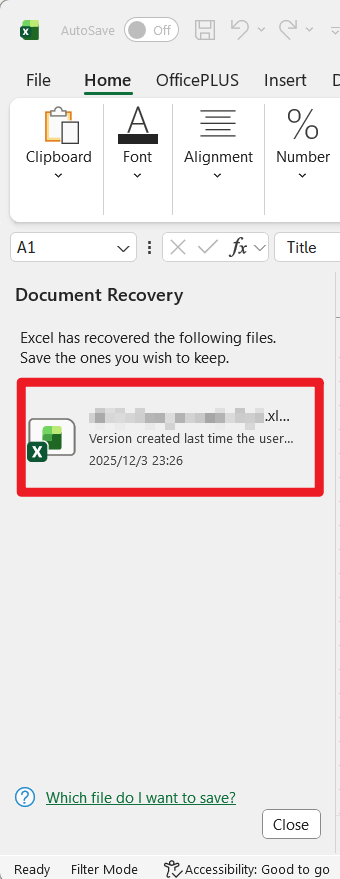
Recover from the Document Recovery Pane
1. Open the Excel document that was just closed.
2. On the left side, you’ll see the Document Recovery pane.
3. Review the list of auto-saved versions with timestamps, click the version you want to restore, and save the file with a new name.
Recover Unsaved Workbooks (Excel 2010 and newer)
If you are using Excel 2010 or above:
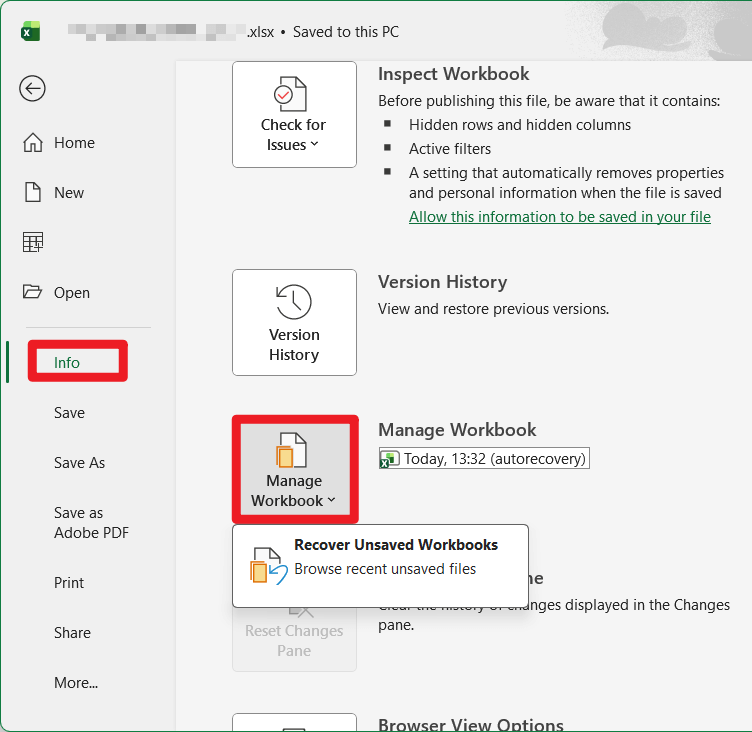
1. On the Excel window, click FILE.

2. Click Manage Versions/Manage Workbook and then Recover Unsaved Workbooks.
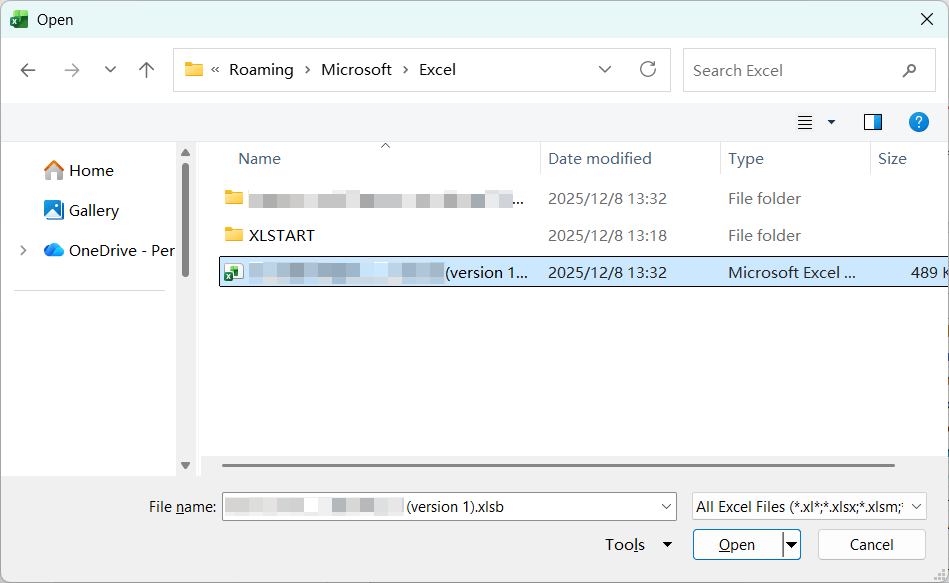
3. In the window popping up, select the unsaved version of your document, then click Open.
If your lost Excel document is recovered – perfect. If not, try the next solution.
3. Recover your Excel file from previous versions
Important: This method only works if Windows Backup, File History, or System Restore was previously turned on.
When these Windows features are activated, your system automatically saves previous versions of files and folders. This allows you to roll back a folder to a point where your Excel file still existed.
1. Navigate to the folder where your Excel file was originally stored.
2. Right-click the folder where your Excel file was stored, then click Restore previous versions.
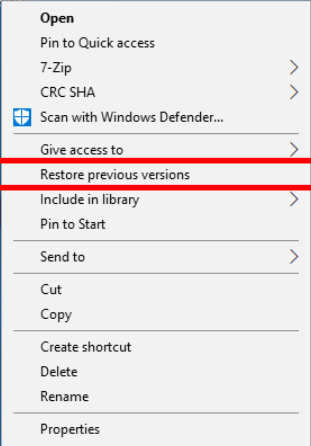
3. A list of available restore points will appear. Select the folder version you want to restore, then click Restore to bring back the entire folder (including the Excel file).
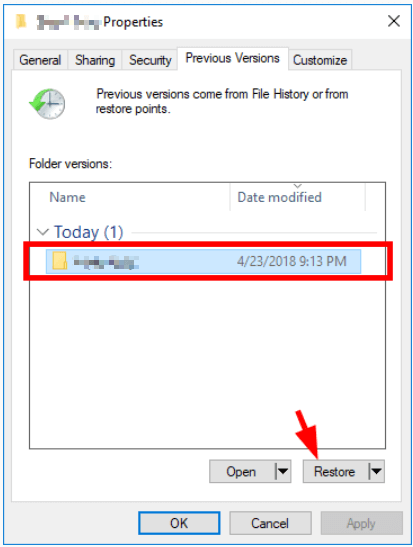
If your file was included in one of these backups, you’ll get it back instantly. If not, there’s still one more reliable method.
4. Perform data recovery
When a file is deleted, Windows does not immediately erase the data. Instead, it marks the space as available. Until new data overwrites it, recovery software can scan your drive and reconstruct the file.
If you haven’t created any backup for your Excel document, or if you can’t restore it from your backups, you should perform data recovery on your computer to get your document back.
You can bring your computer to a recovery service provider or use data recovery software. The first option requires a lot of time and energy, as you’ll have to search for a trustworthy company and then carry your computer to them. The second option, on the other hand, is much easier. Simply install and run EaseUS Data Recovery Wizard, and it will find the deleted files on your hard drive and recover them for you. Here’s how to do it.
1. Download and install EaseUS Data Recovery Wizard.
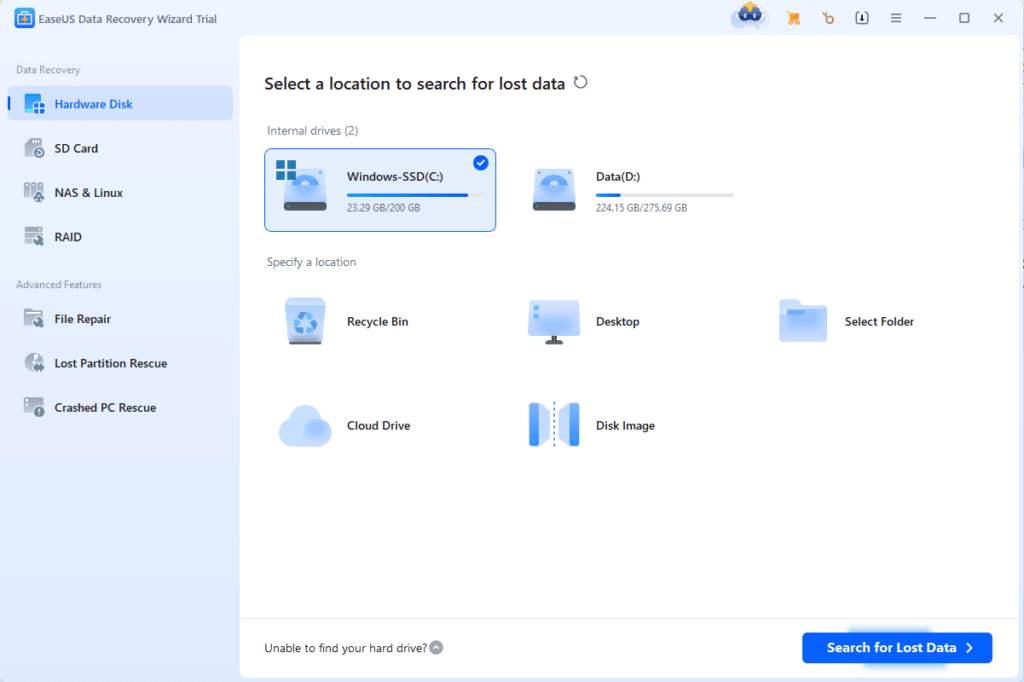
2. Run the program. Then select where your lost Excel file was located and click Search for Lost Data.
3. Wait for the scan to finish. Preview the recovered files, select your Excel document, and click Recover.
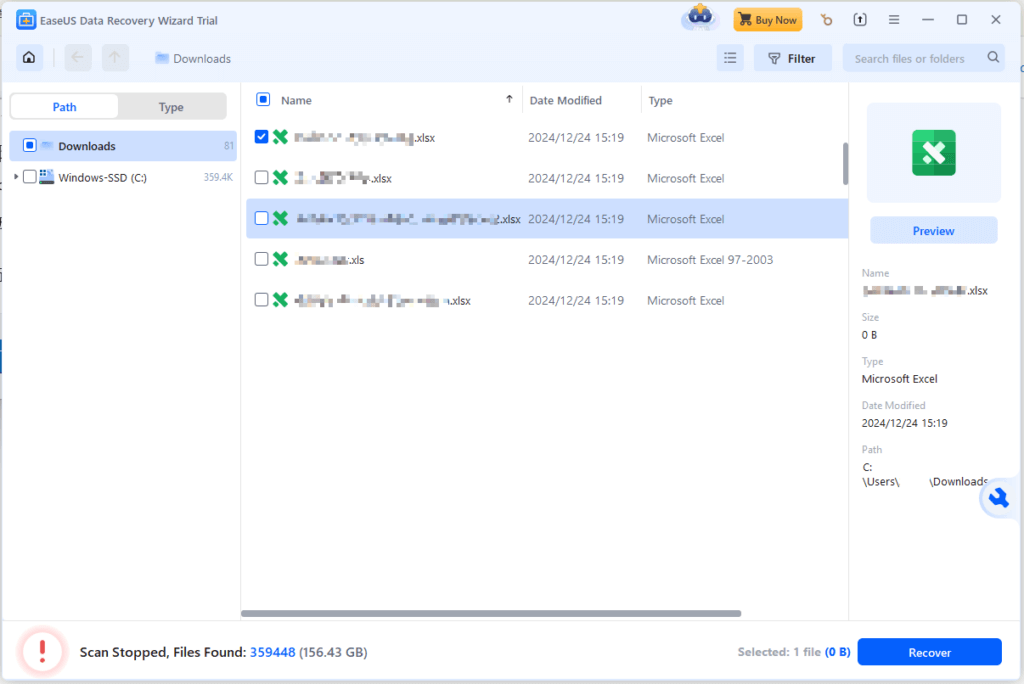
4. Save the file to a different drive to avoid overwriting data.
Losing an Excel file doesn’t mean it’s gone forever. Hopefully, this post helped you successfully retrieve your lost document. Feel free to leave a comment below if you have any questions or suggestions.
Leave a Reply