
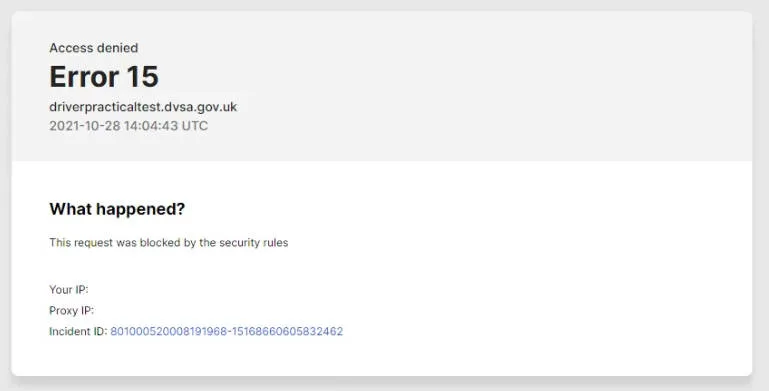
Bumping into “Access Denied” message saying “Error 15/16 This request was blocked by the security rules” when opening a website?
It usually pops up out of nowhere, and it’s annoying as hell, especially when you just want to get to the page and move on.
The good news? This error is pretty common, and in most cases, it’s fixable. Let’s walk through it together and figure out what’s blocking you. You don’t need to try all of them; just go step by step until something works.
- Fix 1 – Sync date & time
- Fix 2 – Reset your web browser
- Fix 3 – Disable your antivirus temporarily
- Fix 4 – Use a VPN
- Fix 5 – Install all available Windows updates
Fix 1: Sync date & time
If your computer’s date or time is even slightly off, some websites will refuse the connection for security reasons. So let’s make sure your system clock is behaving.
Here’s what to do on Windows:
1. On your keyboard, press the Windows logo key and I at the same time to open the Settings window, then select Time & Language.

2. Toggle on Set time zone automatically, then click Sync now so that Date and Time will be synchronized with the Microsoft Servers.
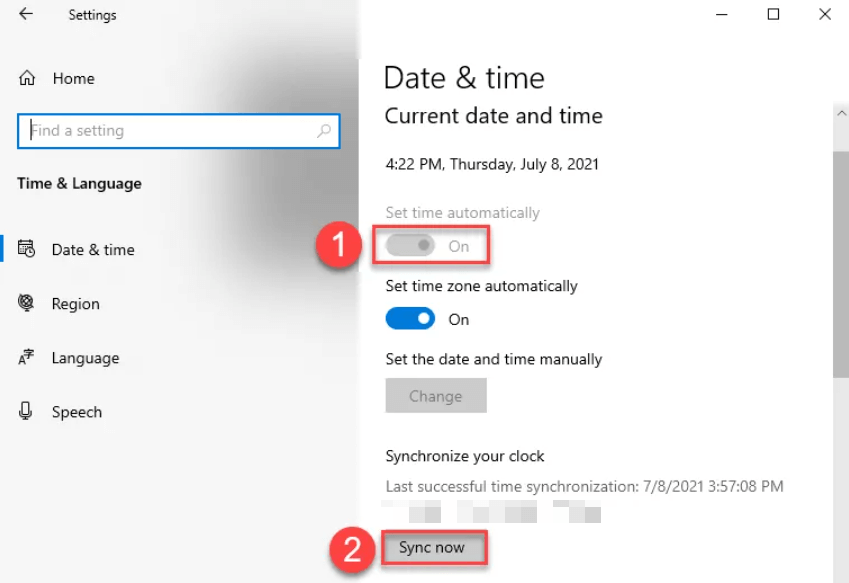
3. Close the Settings window.
Now try opening the website again and see if you can access it. If yes, great! If you’re still prompted with the Access Denied error, let’s move on.
Fix 2: Reset your web browser
Outdated settings, broken extensions, or corrupted browser data can all trigger Error 15 or 16. Let’s reset your browser and give it a clean slate.
If you’re using Google Chrome:
1. Open Google Chrome.
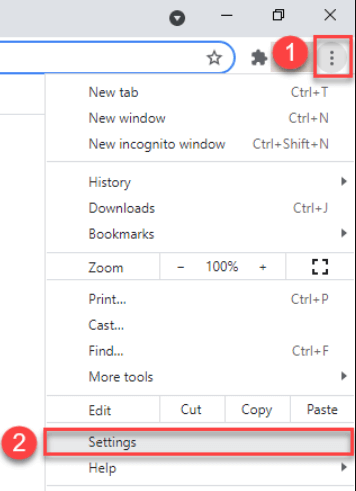
2. In the top-right corner, click the three-vertical-dot icon, then click Settings.
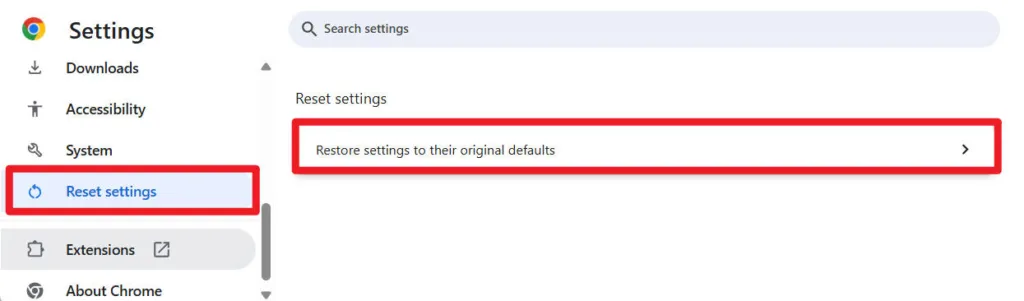
3. On the left panel, click Reset settings, then click Restore settings to their original defaults.
4. Click Reset settings.
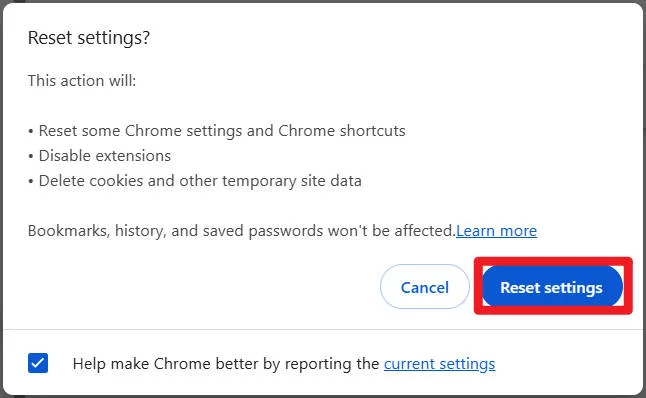
Check to see if the website can be accessed properly. If yes, congrats. If not, please continue with Fix 3.
If you’re using Firefox:
To reset Firefox, follow the instrctions below:
1. Open Firefox.
2. In the top-right corner, click the menu icon, then click Help.
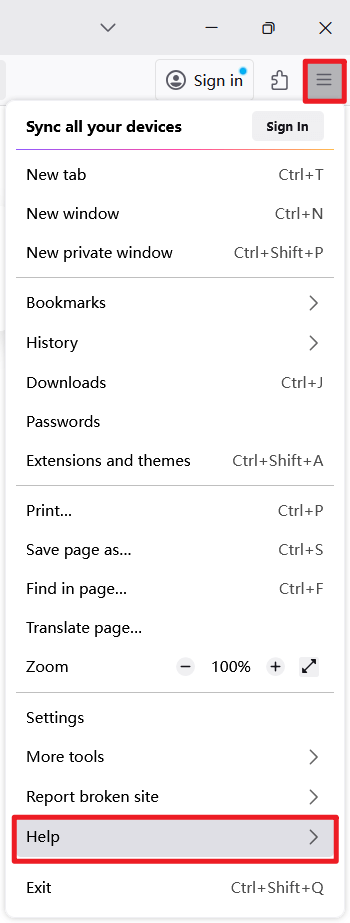
3. Click More troubleshooting information.
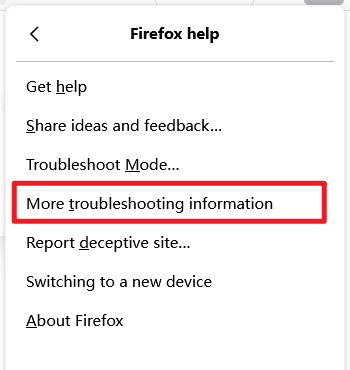
4. Click Refresh Firefox.
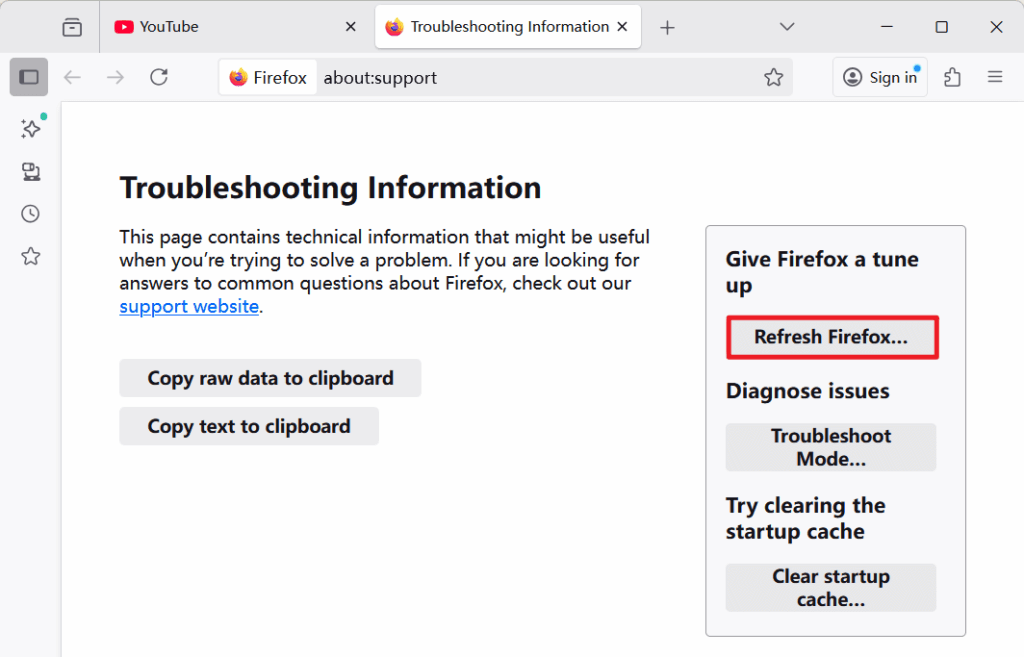
5. Click Refresh Firefox.
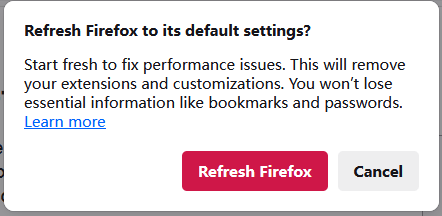
Firefox will restart automatically. Once it’s back up, check the website again.
Still seeing the error? Let’s keep going.
Fix 3: Temporarily disable your antivirus
If you’re running antivirus in your computer, try disabling it temporarily. It is possible that the antivirus software is being overprotective, detecting the website as some sort of threat and thus blocking your access to it.
Doing so will leave your PC susceptible to cyber threats. So be extra careful about what sites you visit, what emails you open, and what files you download when your antivirus is disabled.
If this approach has helped you resolve the access denied problem, then the antivirus program is the culprit. You can contact the distributor of your AV program for further advice.
Still getting This request was blocked by the security rules error. Don’t worry, here are two more fixes for you to try.
Fix 4: Use a VPN
You could bump into this 15 or 16 access denied error if the website you’re trying to visit is blocked by your ISP.
Some websites block traffic based on region or IP address, which can trigger Access Denied errors. That’s where a VPN comes in. A VPN routes your internet traffic through another server, hides your real IP address, and makes it look like you’re browsing from a different location.
You can set one up manually, but honestly, that’s a pain. It’s much easier to use a service like NordVPN.
NordVPN offers fast and stable connections, and a huge nglobal server network. And if you’re not satisfied, it has a 30-day money-back guarantee.
1. Download and install NordVPN.
2. Run NordVPN, then connect to a server in a different location.
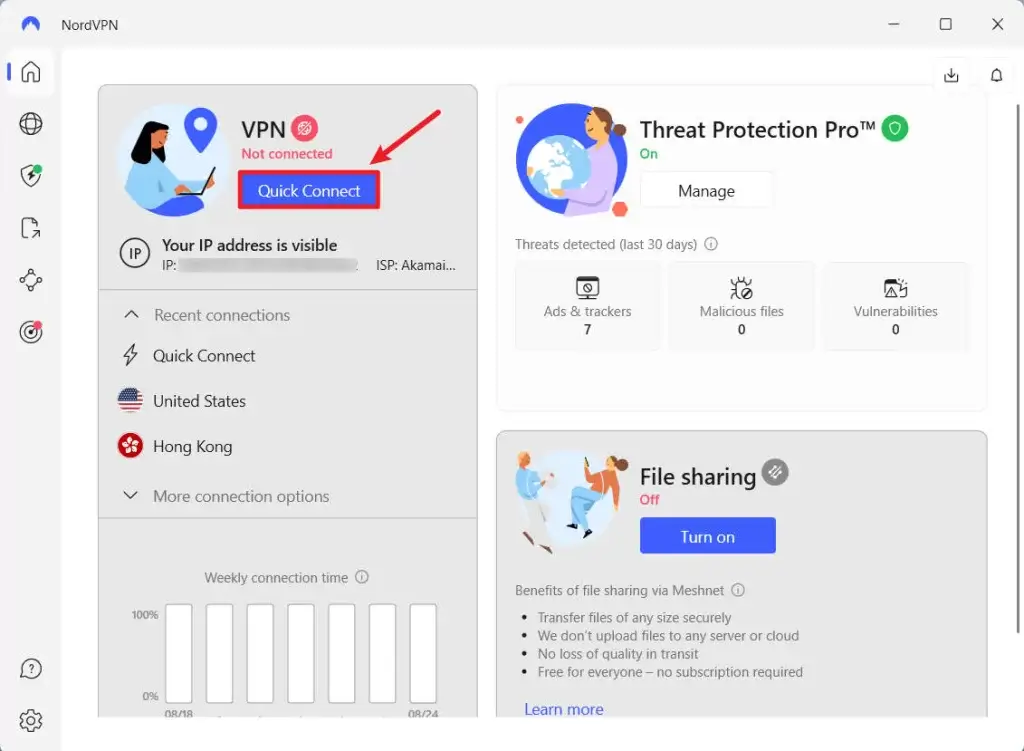
Reload the website. If it works, you’ve officially bypassed the block. If no, there’s one last thing to try.
Fix 5: Install all available Windows updates
Sometimes this error happens because your system is missing critical security updates. Let’s make sure Windows is fully up to date.
1. On your keyboard, press the Windows logo key and type check for updates, then click on Check for updates as it pops up as a matching result.
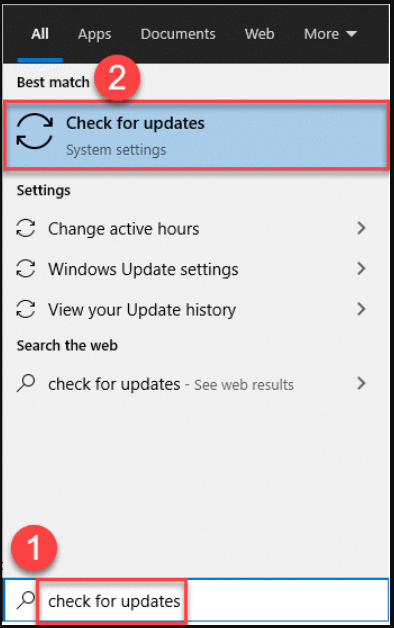
2. Click Check for updates.
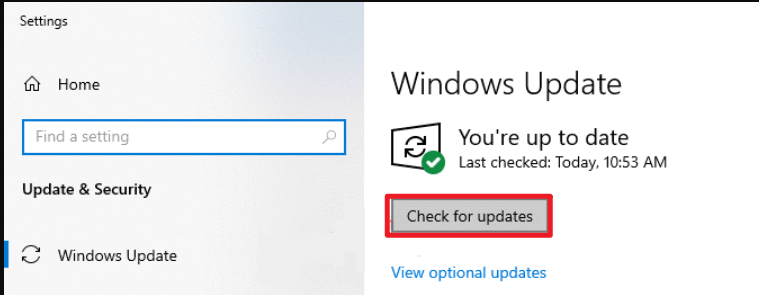
3. Wait a while for Windows to check and automatically install the updates for you.
4. Restart your computer.
5. Open the website once again and see if it loads properly now.
Final thoughts
The “This request was blocked by the security rules” error is frustrating, but it’s rarely permanent.
Hopefully, this post has pointed you in the right direction in fixing the “This request was blocked by the security rules” issue. If you’re still stuck or found a different solution that worked for you, feel free to share it. And if you got questions, drop a comment anytime!
Leave a Reply