
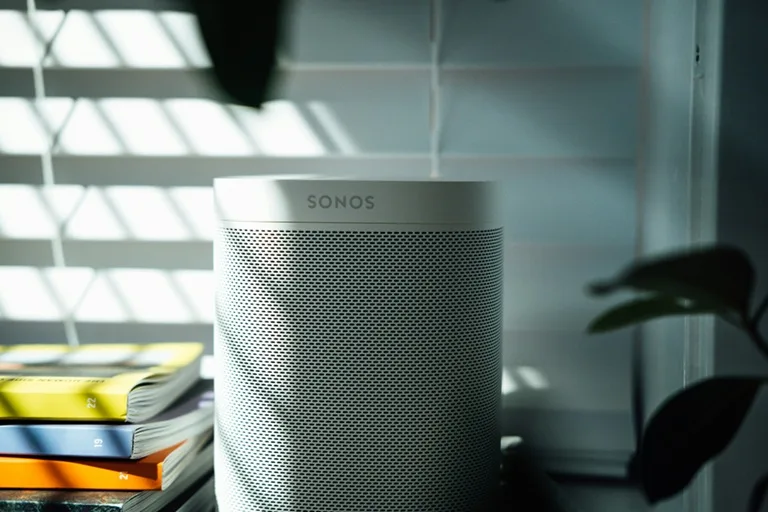
If your Sonos app keeps showing the message “Unable to play XXX. The connection to Spotify was lost.”, you’re not alone. This is one of the most common Sonos issues out there.
There’s no single magic fix for all, but you can try the fixes below to get your music playing again. Let’s walk through it together.
Why You’re Seeing “The Connection to Spotify Was Lost” on Sonos
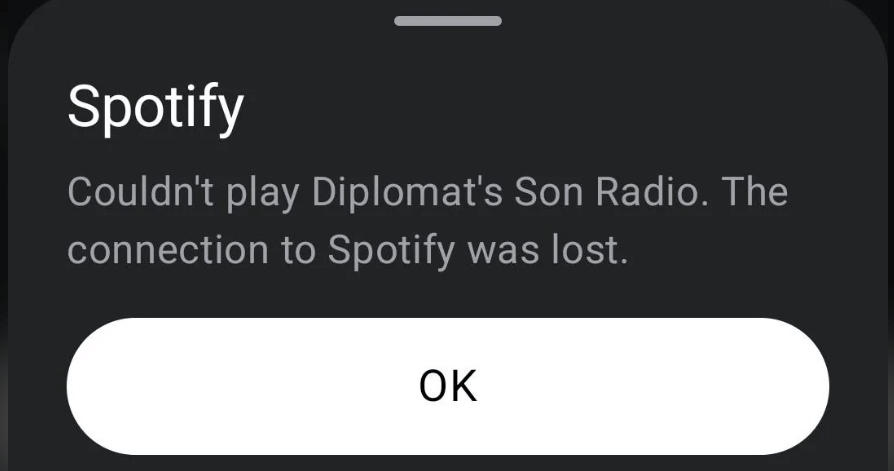
Usually, it’s one of these five things:
- Your Internet connection isn’t stable: First, restart your router. Then, if your Sonos has an Ethernet port, connect it directly to your router in case the WiFi is unreliable.
- A bug in the current Sonos app: you’ll need to install a feature update.
- A bug in the Spotify app (especially when you can play Apple Music, Amazon Music, and Radios): It’s recommended to reinstall the Spotify app, and if that doesn’t do the trick, you’ll need to wait for the next update.
- Spotify servers are having problems: Check the Spotify server status or Sonos Status. If it’s down at the moment, all you can do is wait for a few hours.
How to fix Sonos ‘The connection to Spotify was lost’?
Here are the fixes to the connection error. You don’t need to try them all; just work down the list until you find the one that works for you.
1. Reboot Your Router
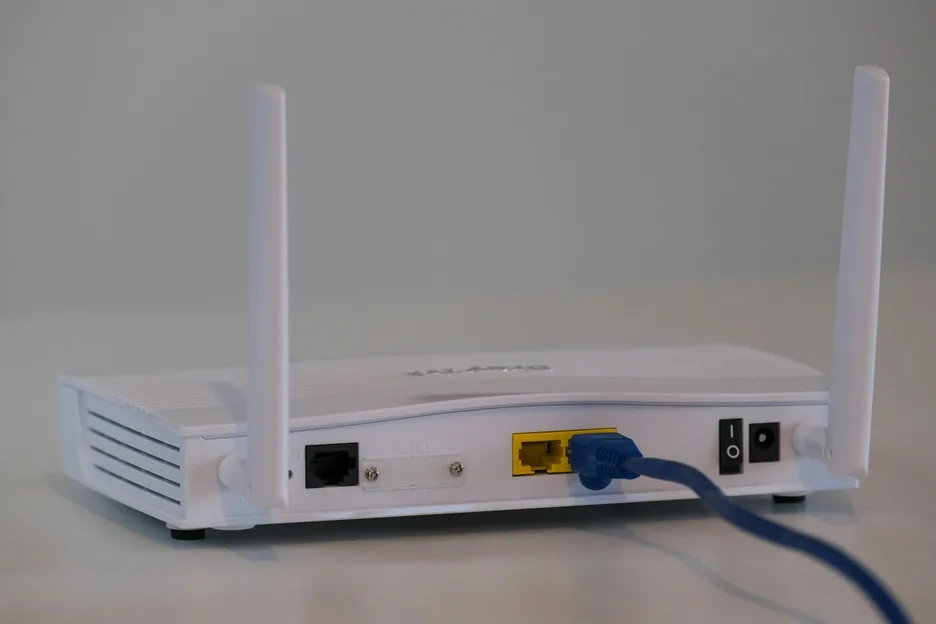
A fresh restart clears temporary network issues and gives your devices a clean connection to work with.
After unplugging the router for 60 seconds, plug it back in and wait for it to fully restart. Make sure your phone or computer reconnects to the correct Wi-Fi before testing Spotify again.
If your Sonos speaker is wired with an Ethernet cable, take a quick look at that cable too. A bad cable can cause random dropouts that look like app problems.
2. Turn Off Your VPN
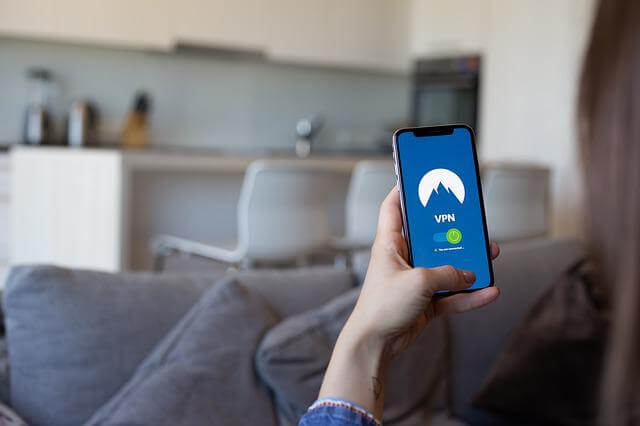
If you have a VPN running on your phone or computer, pause it and see if Spotify reconnects.
VPNs can sometimes confuse Sonos when it tries to talk to Spotify’s servers.
That said… If you need a VPN to use Spotify, or your IP address is causing issues, switching to a more stable one (like NordVPN) can help. Just make sure it’s fast and reliable.
3. Update Your Spotify and Sonos App
Most connection problems happen because of software bugs. Updates often include fixes for exactly these issues.
Open the App Store or Google Play Store and update both apps to the latest version.
4. Clear Your Spotify Queue
A corrupted or overloaded queue can sometimes break playback. Clearing it gives Spotify a clean slate.
1. Click the track you’re currently playing.
2. Tap the Queue button at the bottom right corner.
3. Next to the Next in Queue, click CLEAR ALL.
5. Remove Spotify From Sonos
If you can play music through the Sonos app but not on Spotify, we suggest that you remove Spotify from the Sonos app first and add it again later.
1. Open your Sonos App, and navigate to Services & Voice.
2. Locate Spotify to remove from Sonos and tap Remove Account. If you’ve connected Sonos to Alexa, also disconnect the link to it.
3. Once removed, wait for about 5 minutes.
4. Go back to Services & Voice and add Spotify again to the list of approved services in the Sonos app.
Try playing music on Spotify again and see if the error ‘The connection to Spotify was lost’ persists.
6. Change Your DNS
If nothing else worked, this might be the hidden culprit.
Your internet provider controls your default DNS servers, and sometimes they’re slow or unreliable, especially for streaming.
Switching to Google’s DNS often fixes Spotify streaming issues.
How to change the DNS settings on Android
- Go to Settings > Network & Internet > Advanced > Private DNS.
- Select Private DNS provider hostname.
- Enter
dns.googleas the hostname of the DNS provider. - Click Save.
How to change the DNS settings on iOS
- Go to Settings > Wi-Fi.
- Tap the i icon next to the Wi-Fi network that you want to change DNS servers for. Scroll down to find the DNS section and tap Configure DNS.
- Tap Manual and add Google IP addresses. Optionally, you can also remove all default DNS servers from the list.
- For IPv4: 8.8.8.8 and/or 8.8.4.4
- For IPv6: 2001:4860:4860::8888 and/or 2001:4860:4860::8844
- Click Save.
Switching back to Automatic will restore the DNS server specified by the Wi-Fi network.
7. Contact Sonos Support
If nothing works for you, try submitting a system diagnostic to Sonos, and contact Sonos Support for further help.
The Sonos support team will look into the diagnostic and help you find a solution.
Hopefully, you’ve gotten rid of the connection error by now. Feel free to drop us a line if you have any questions.
Leave a Reply