
You open Discord, and it just sits there: Connecting…
If Discord is stuck on the Connecting screen forever for you, you’re not alone. It’s one of the most common Discord issues out there. Super annoying, but the good news is: it’s usually easy to fix.
In this guide, I’ll walk you through the most common causes and the quickest fixes. Let’s get started!
Why Is Discord Stuck on Connecting?
If everything else on your internet works fine, it’s normal to wonder why Discord can’t connect. Usually, it’s caused by one of these:
- Antivirus Software
Some antivirus programs (McAfee is a common one) block Discord’s connection by mistake. - Proxy Server
Discord doesn’t work well with proxy servers because it uses a protocol called UDP. - VPN
Not all VPNs support UDP, and Discord needs UDP to connect properly. - Conflicting apps
Many applications interfere with Discord, such as Twitch. - Restricted networks (school/work Wi-Fi)
Some networks simply block Discord entirely.
Try these fixes:
If you get stuck on the connecting screen, here are a few fixes you can try:
- Restart everything
- Check Your antivirus & firewall
- Turn off proxy settings
- Check your VPN
- Disconnect from work or school Network
- Add an exception for Discord in Malwarebytes
- Change your server region
- Flush DNS
- Remove conflicting apps
Fix 1: Restart everything
It sounds basic, but this solves more problems than you’d think. Here’s what to do:
- Unplug your modem and router, wait at least 3 minutes, and restart them.
- Restart your computer.
- Open Discord again.
If Discord is still stuck, press Ctrl + R (Windows) or Cmd + R (Mac) to force Discord to refresh.
If that didn’t do it, keep going.
Fix 2: Check your antivirus & firewall
Some antivirus programs think Discord is suspicious when it’s not.
You have two options: You can add Discord as an exception to your Firewall and Antivirus software, or you can temporarily disable your Antivirus application to see if the Discord not connecting issue still persists.
Temporarily disable your antivirus software or just uninstall it completely.
Just turn it off for a moment and see if Discord connects.
If Discord suddenly works, boom. You found the problem.
Add Discord to your antivirus exclusions
This is the better long-term solution. You can whitelist the Discord app or the entire Discord installation folder.
Most antivirus brands have guides for this. Click the links below to check how to do it:
Then run Discord again to check if the infinite connecting screen is gone.
Note: If you’re using F-Secure, you need to turn off its Browsing Protection, as this feature can cause the Discord not connecting issue. You need to toggle off Browsing Protection in F-Secure.
Allow Discord to run through the Firewall
1. Press the Windows logo key and type firewall in the search box and click Firewall & network protection.
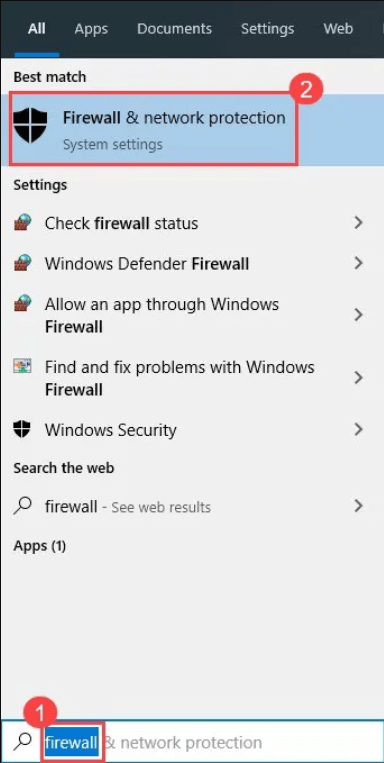
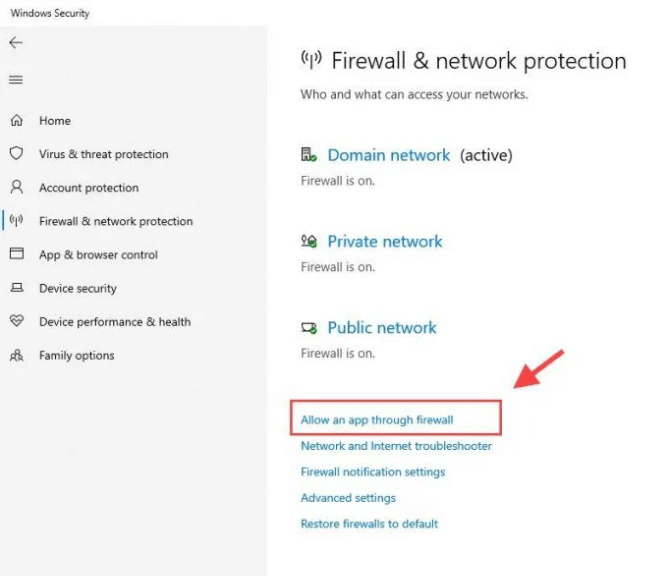
2. Select Allow an app through the firewall.
3. Click Change settings. Then scroll down the list and tick Discord and select OK.
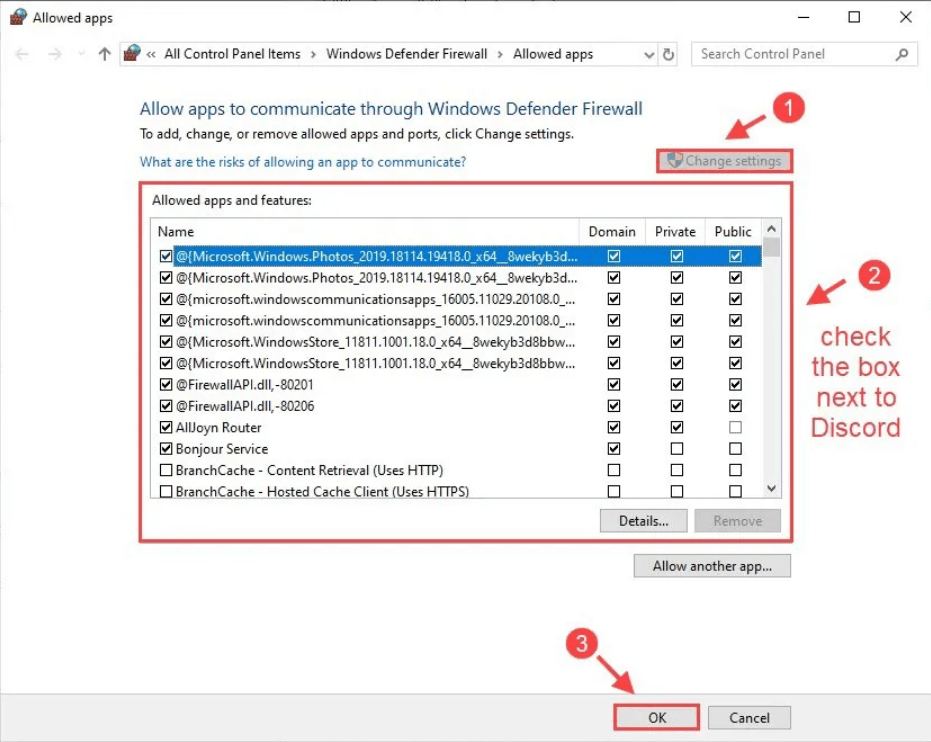
Note: If Discord is not in the list, you can click Allow another app and select Discord, and click Add.
Fix 3: Turn off proxy settings
Go to your proxy settings, and ensure that no proxies are enabled. Proxies can block Discord, thus causing Discord not connecting.
Windows
1. On your keyboard, press Win + R to open the Run box.
2. Type inetcpl.cpl and hit Enter.
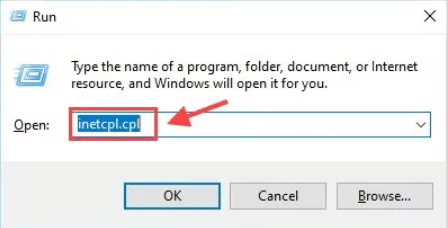
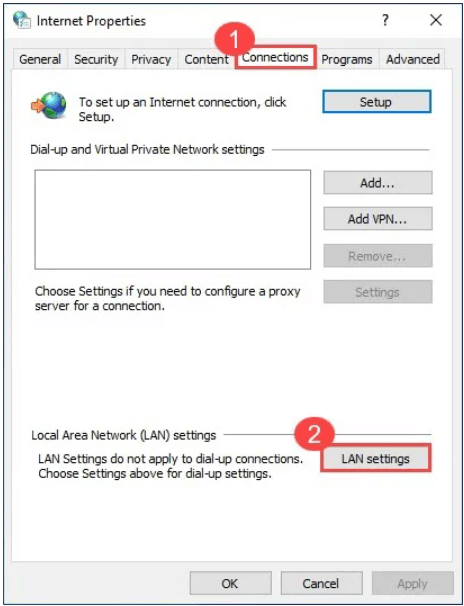
3. Click the Connections tab, then click LAN settings.
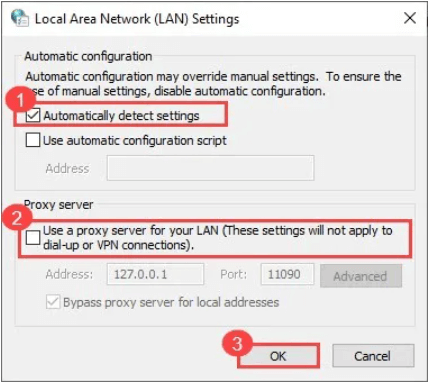
4. Select Automatically detect settings, and uncheck Use a proxy server for your LAN. Then click OK to apply.
5. Relaunch your Discord to see if the issue still persists.
Mac
1. Click the Apple logo and select System Preferences, then select Network.
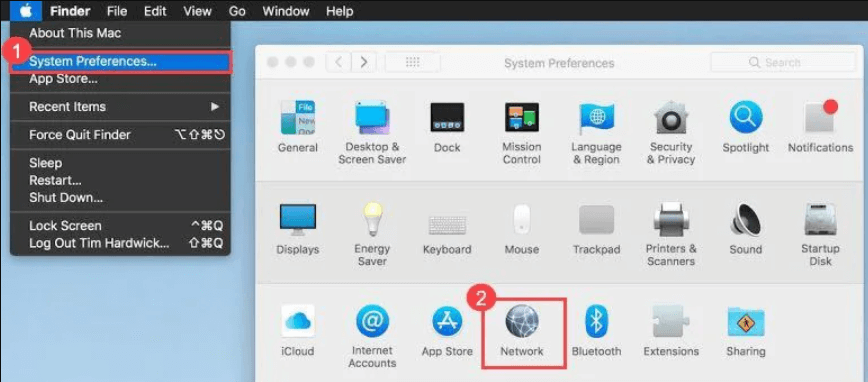
2. From the left pane, select the network service you’re using, then click the Advanced button.
3. Select the Proxies tab, then uncheck all protocols under Select a protocol to configure, then click OK, once done. Make sure you have no Proxies enabled.
5. Launch your Discord to test the issue.
Fix 4: Check your VPN
Discord only works on VPNs that have UDP. Some VPNs have the UDP function, such as Nord VPN, you can enable UDP to make your VPN work with Discord.
Windows
- Express VPN
- Open your Express VPN app > Click the hamburger menu button > Options > Protocol > Choose UDP.
- Nord VPN
- Open your Nord VPN, then go to Settings > Advanced > Protocol > Choose UDP
Mac
For Mac users, Prefer UDP over TCP will be on by default. You can check if this option is turned on: go to Preferences > make sure Connection: Prefer UDP over TCP is on.
What’s the difference between UDP and TCP?
UDP – User Datagram Protocol – FAST
UDP is concerned with speed. There’s no error correction, simply receiving packets with no retries. If you’re streaming a video or playing a video game online, it’s recommended to use UDP.
TCP – Transmission Control Protocol – RELIABLE
TCP is more concerned about accuracy. It allows devices to send and receive an ordered and error-checked stream of packets. This results in increased reliability at the expense of latency.
Fix 5: Disconnect from the Work or School network
Discord could be blocked if you’re on a work or a school network. The network administrator is implementing the blocking to prevent you from accessing Discord while on their network.
So it’s better for you to disconnect from those networks and use your mobile data until you can access a public or home network.
Alternatively, to get past the blocking, whether it’s connection blocking or content blocking, you can use a VPN with a UDP option like Express VPN or Nord VPN.
Fix 6: Add an exception for Discord in Malwarebytes
Malwarebytes is a known cause to screw over your Discord. If you’re using Malwarebytes, you can make an exception for Discord.
1. Open your Malwarebytes application.
2. Go to Settings and click the Exclusions tab.
3. Click Add an exclusion and select Exclude a website. Then click Next.
4. Click Exclude a domain and enter the URL: http://cdn.discordapp.com.
5. Click OK to confirm your changes.
Fix 7: Change your server region
If you can get past the connecting screen but Discord is stuck on connecting to the voice channel, you can try changing the region of your server. To change the server region, you’ll need to be an admin of the server.
1. Click the down arrow next to your server’s name to open its drop-down menu.
2. In the drop-down menu, select Server Settings.
3. Select the Server Region option on the right side.
4. Choose another server region and click Save Changes.
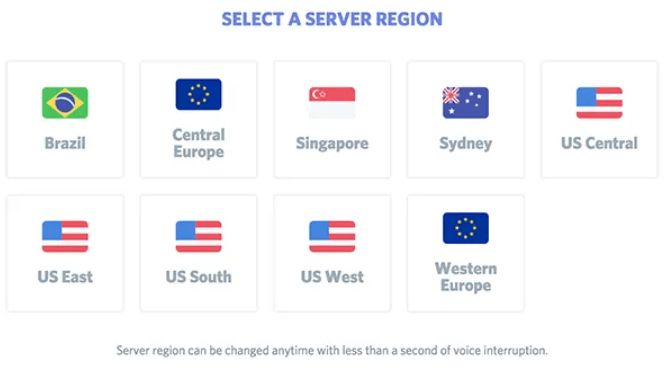
5. Try reconnecting your server again.
Fix 8: Flush DNS
Releasing and Renewing IP and Flushing DNS (Domain Name System) can update your network information and is beneficial for fixing game server connection issues.
1. Type cmd in the Search box, then right-click Command Prompt and select Run as administrator.
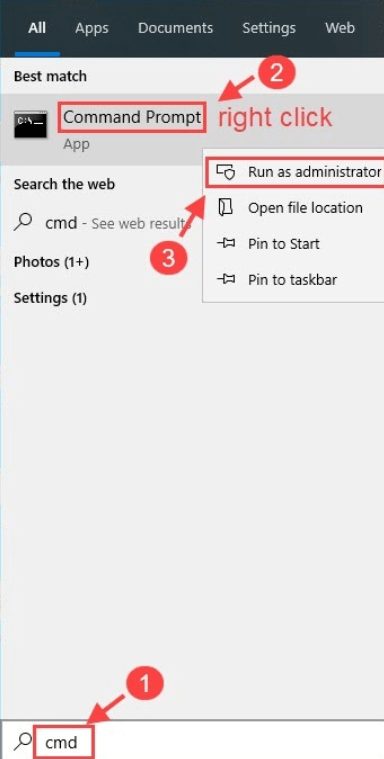
2. In the Command Prompt window, type each of the following three commands and hit Enter.
After running a command, please wait for 5 seconds for the system to respond then run the next one.
- ipconfig/release
- ipconfig/renew
- ipconfig/flushdns
3. Close Command Prompt and try connecting your Discord again.
Fix 9: Conflicting apps
Your Discord not connecting can be caused by other conflicting software. For example, Twitch is a known application that interferes with Discord.
To check if you’re having an offending app with Discord, you can Press Ctrl + Shift + Esc (Windows) or Command + Option + Escape (Mac) to end all the background applications.
If your Discord is still stuck on connecting, you need to perform a clean boot to further solve the problem (For Windows):
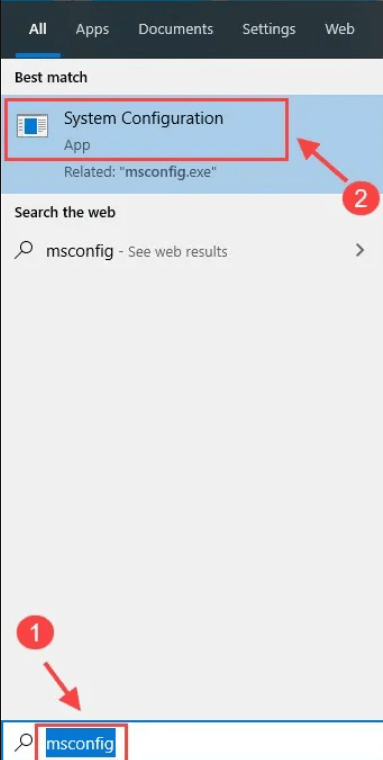
1. Type msconfig in the Search box and select System Configuration.
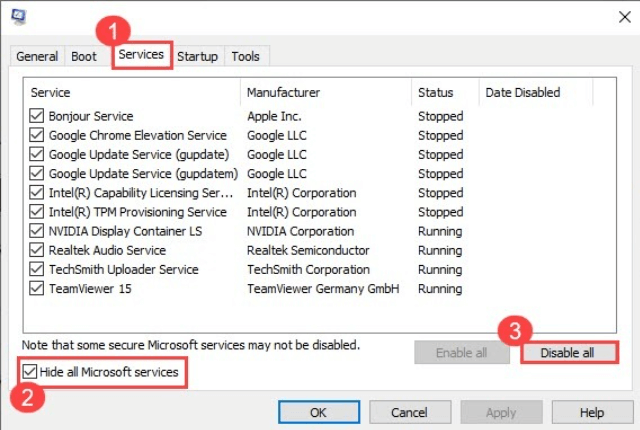
2. Click the Services tab and check the Hide all Microsoft services box, then click Disable all.
3. Select the Startup tab and click Open Task Manager.
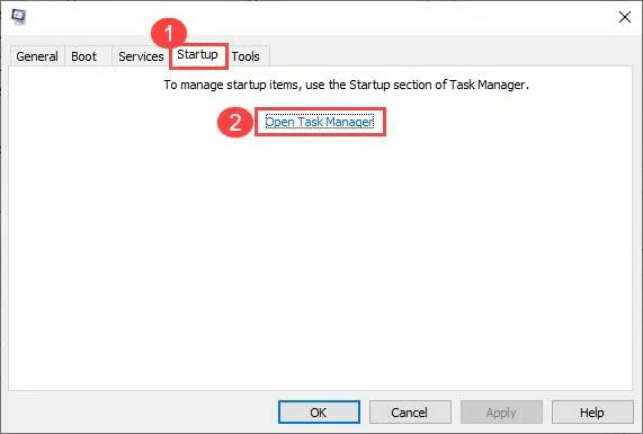
4. Under the Startup tab, select each startup item and then click Disable.
5. Go back to System Configuration, click OK.
Finally, restart your computer to see if the Discord not connecting issue still persists. If everything works out just fine, the great! But you will need to open System Configuration again to enable the services and applications one by one to find out the problematic one.
If none of these fixes work, a clean reinstall of Discord is your last resort, and it often works.
Hopefully, one of these fixes helped you get past Discord’s endless Connecting screen. If you have questions, want to share a new fix, or just found a solution that worked for you, feel free to leave a comment below. I’d love to hear about it!
Leave a Reply