
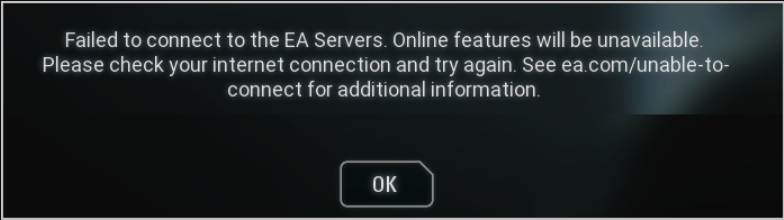
You boot up your game. Everything looks fine. Then it keeps displaying messages like:
- Failed to connect to EA Online
- You have lost your connection to the EA servers
- Failed to connect to the EA servers
…you’re definitely not alone. Many players on PC, PlayStation, and Xbox have reported the same issue recently. The good news is that this problem is usually easy to fix.
Below are the most common and most effective solutions to try. Each method is simple, beginner-friendly, and helps address the network issues that typically trigger the EA connection error. Try these fixes:
- Check the EA server status
- Reset your network
- Try the wired connection
- Set the correct date and time
1. Check the EA server status
Before touching your settings or unplugging anything, pause for a second. Sometimes the issue isn’t you at all.
EA servers go down. Maintenance happens. Outages happen.
If you fail to connect to EA servers, the first step is to check the EA servers’ status. You can visit EA’s official server-status page and look for alerts about server downtime or maintenance
If you see alerts about downtime or maintenance, that’s your answer.
There’s nothing to fix on your end; you just have to wait it out and try again later.
If the servers look fine and you still can’t connect, continue with the next fix.
2. Reset your network
Network glitches build up over time. A quick reset can clear them out.
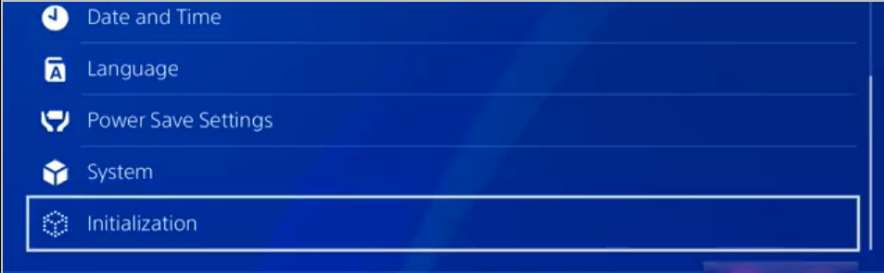
Since this error shows up on different platforms, the exact steps vary. Let’s use PS4 as an example. Here’s what you do if you’re on PS4:
1. Go to Settings.

2. Select Initialization.
3. Choose Restore Default Settings.
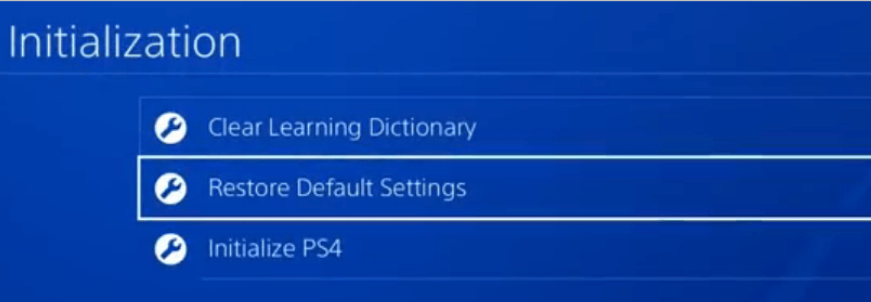
4. Follow the on-screen instructions to finish.
Note: do NOT turn off your PS4 system during the reset.
Once it’s done, restart your console and try connecting to EA again.
If you’re on PC or Xbox, just restart your router and your device. That simple reset fixes more issues than you’d expect.
3. Try the wired connection
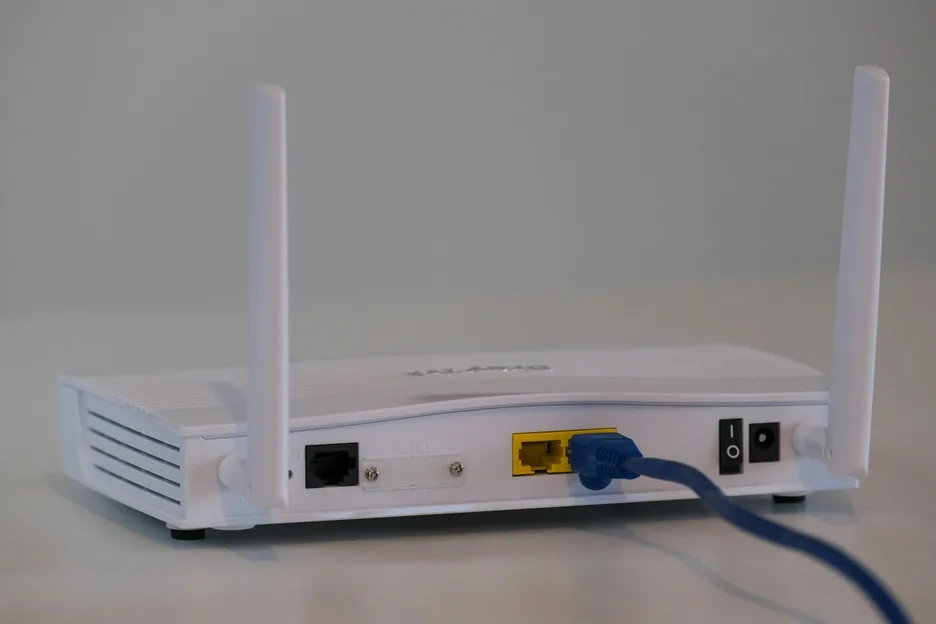
Wi-Fi is convenient, but it’s not always reliable, especially for online gaming.
If you’re using WiFi in your device, try disconnecting from Wi-Fi and plugging an Ethernet cable directly into your router.
A wired connection is more stable, faster, and less likely to drop packets or randomly disconnect. For a lot of players, this alone solves the EA connection error.
4. Set the correct date and time
This one sounds weird, but it matters. If your system’s date or time is off, your device can fail security checks when trying to connect to EA’s servers.
Still, we take PS4 as an example:
1. Click Settings in your PS4.
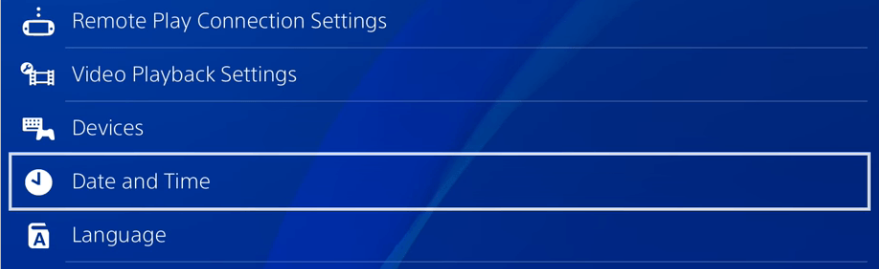
2. Select Date and Time.
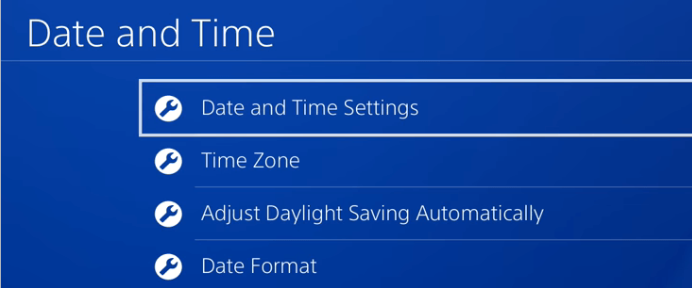
3. Select Date and Time Settings.
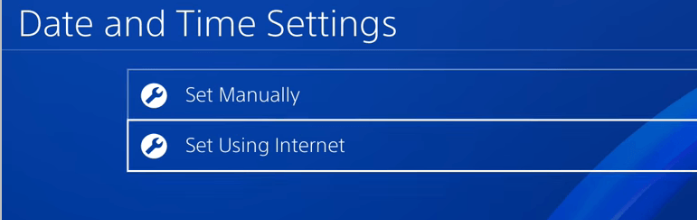
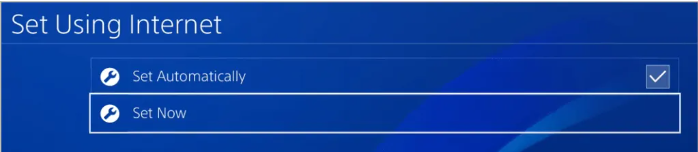
4. Choose Set Using Internet.
5. Check the box next to Set Automatically.
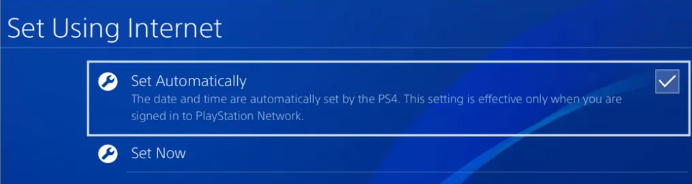
6. Select Set Now.
7. Restart your game and try connecting again.
Final thoughts
The “EA.com Unable to Connect” error is frustrating, but in most cases, it’s fixable.
Hopefully, one of these fixes gets you back online and back to playing. If the issue continues, your next move is to contact EA Support and let them take a look on their end.
Leave a Reply