

So you’re playing Modern Warfare 3, everything’s going fine and then suddenly the game starts lagging, stuttering, or freezing for a split second. You look up and see it: packet burst.
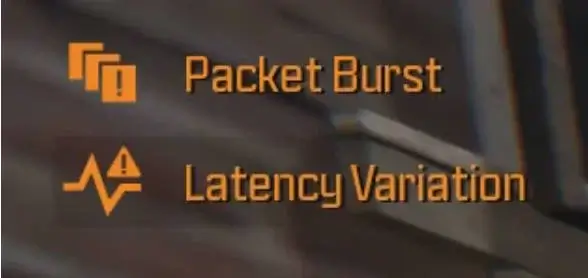
That’s enough to ruin any clutch moment. If this keeps happening to you, don’t worry. You’re definitely not alone. Packet bursts are a pretty common issue in MW3, and the good news is that there are a few fixes you can try to smooth things out. You don’t need to try them all; just work through the list until something works.
1. Check your network
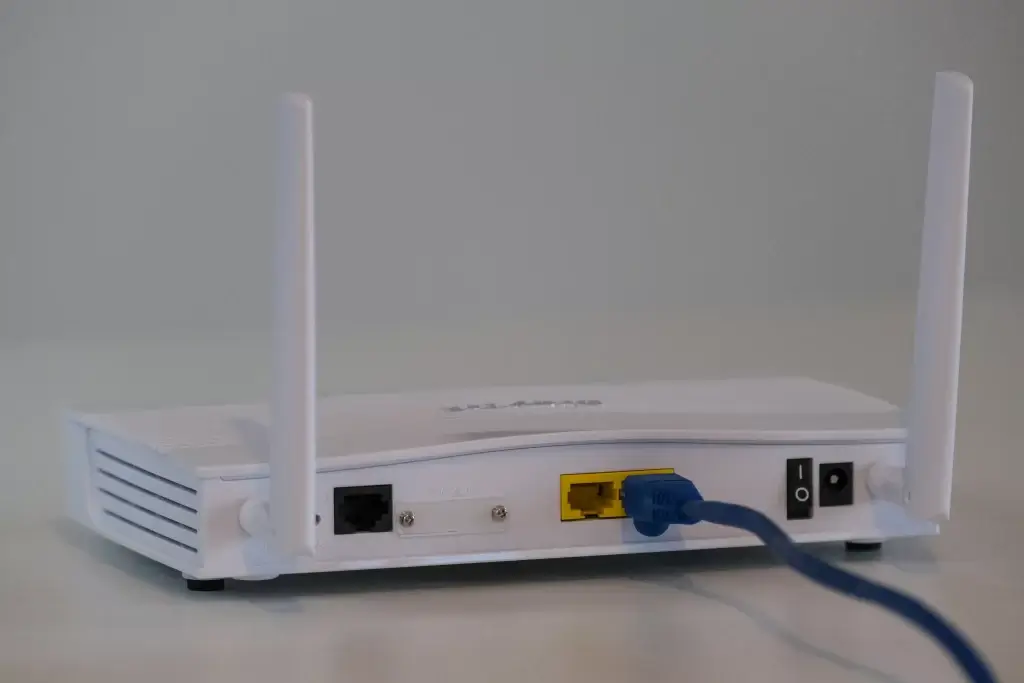
If you’re playing on Wi-Fi, this might be your biggest problem. Wi-Fi can be unstable, especially if multiple devices are using the same network or if your router is far away.
If you can, switch to a wired Ethernet connection. It’s faster, more stable, and way less likely to cause packet bursts during matches.
Can’t run a cable right now? No problem. Try restarting your router. This simple step clears temporary network hiccups and often helps more than you expected.
Once your connection is refreshed, hop back into the game and see if things feel smoother.
2. Check for server issues
Sometimes the issue isn’t on your end.
If a lot of players are suddenly complaining about packet bursts, it could be a problem with the MW3 servers.
You can check online forums, Call of Duty’s X page, or the Modern Warfare 3 Server Status page to see if others are reporting similar issues.
If servers are the problem, unfortunately, all you can do is wait until the developers fix it. Not ideal, but at least you’ll know it’s not your setup.
3. Tweak your in-game graphic settings
Another workaround that works for many players is adjusting your graphics settings. Try this:
1. Go to Graphic Settings, then choose Quality.
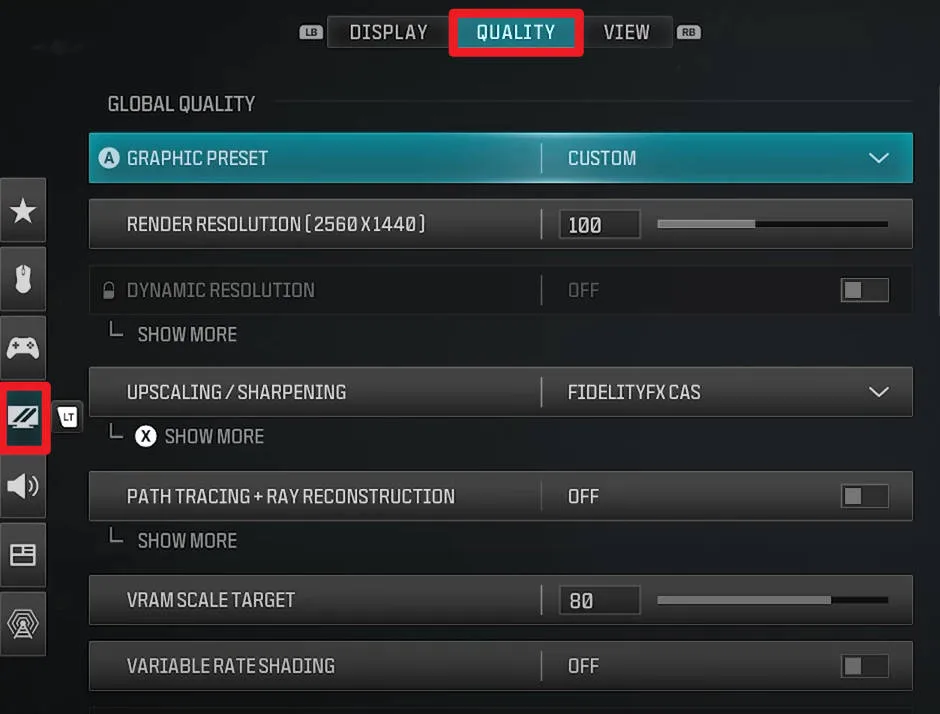
2. Set VRAM Scale Usage to 70 instead of 90.
3. Find the Weather Grid Volume setting at the bottom, and turn that to Normal or Low.
These changes reduce system load and can help your game process data more smoothly, which may cut down on packet bursts.
4. Use a VPN
In some cases, packet bursts happen because your internet traffic is being routed through congested or inefficient paths.
A VPN can reroute your connection through a cleaner route, which may reduce packet loss and stabilize your gameplay.
There’re many reliable VPNs you can choose from, such as NordVPN, ExpressVPN, Surfshark, and Unlocator VPN. If you want a fast service, we recommend NordVPN, but if you’re looking to save money, Surfshark is a great option, costing only less than $2.5 a month.
If you want to try NordVPN, here’s a quick way to get started:
- Go to NordVPN’s official website and set up your account.
- Download NordVPN and install it.
- Log into your account.
- Click the Quick Connect button at the bottom of the map. The app will automatically choose a server that suits you best.
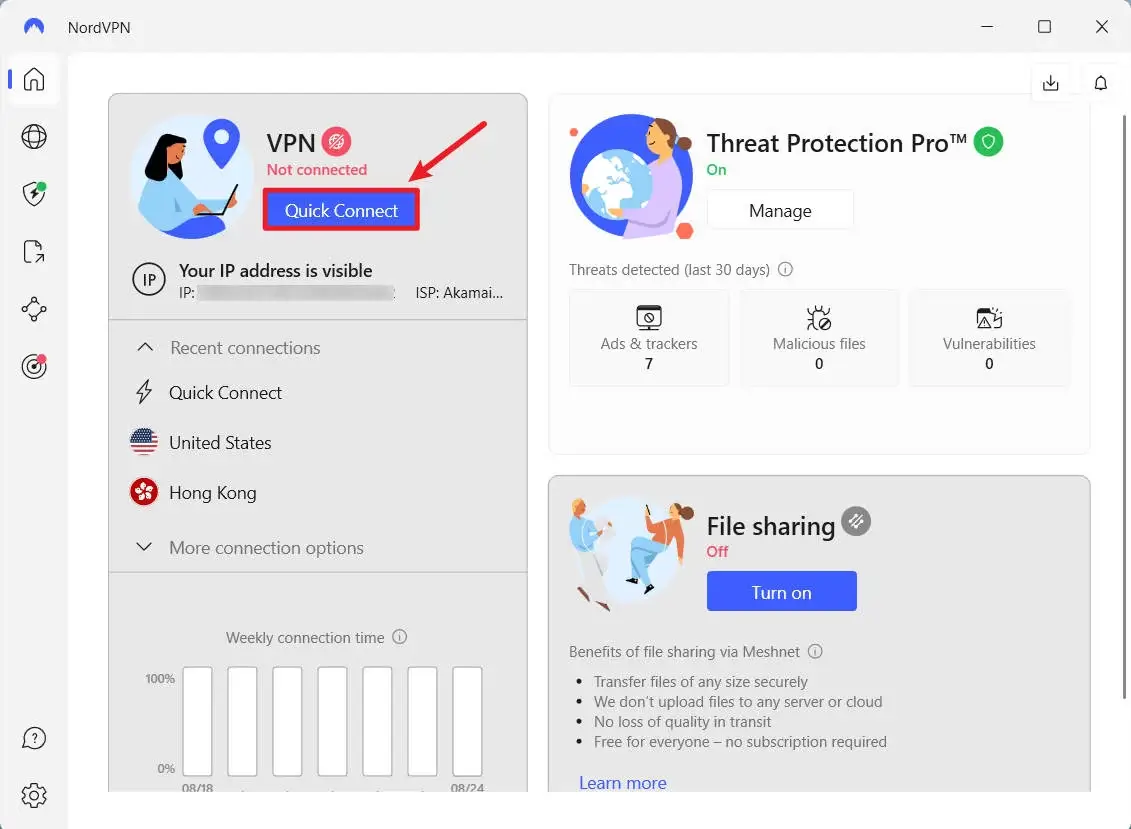
Once connected, launch MW3 and see if packet bursts improve.
5. Update your system
Make sure your game, console, PC (especially your graphics driver), and even your router firmware, are all up to date.
Updates often include fixes for known issues, including network-related problems. Keeping everything updated ensures you’re not missing out on important improvements that could reduce packet bursts.
Final thoughts
Packet bursts in Modern Warfare 3 are annoying, especially when you’re trying to win gunfights, not fight your connection.
Hopefully, this post helped. If you’ve found another fix that worked for you, or you’re still stuck, feel free to leave a comment below!
Leave a Reply