

Nothing’s more annoying than sitting down to watch your favorite BBC drama or exclusive show, only to see iPlayer crash, buffer endlessly, or simply refuse to start. If that’s happening to you right now, don’t panic. You’re not alone, and the good news is that there are quick fixes that can get you back to streaming in minutes.
Why is my BBC iPlayer not working?
BBC iPlayer remains one of the UK’s biggest streaming platforms, offering live channels and binge-worthy box sets. But there’s a catch: it’s officially restricted to viewers inside the UK. If you’re abroad, or if the service mistakenly flags you as overseas, iPlayer simply won’t play. The solution here is simple: use a reliable VPN such as NordVPN or Surfshark to unlock access. Both providers work seamlessly with BBC iPlayer, and right now, you can grab a subscription with discounts of up to 80%. That’s a small price to pay for uninterrupted access to world-class content.
But what if you’re in the UK and iPlayer still doesn’t work? That’s where a few tried-and-true troubleshooting tricks come in.
1. Restart your device
Start with the basics: restart your device, whether it’s your phone, tablet, smart TV, or Amazon Fire Stick. A quick reboot often clears temporary glitches and gets the app running again.
2. Update your operating system and app
If the restart doesn’t work, make sure both your operating system and the iPlayer app are up to date. Outdated software is one of the most common reasons apps crash.
On Amazon Fire TV
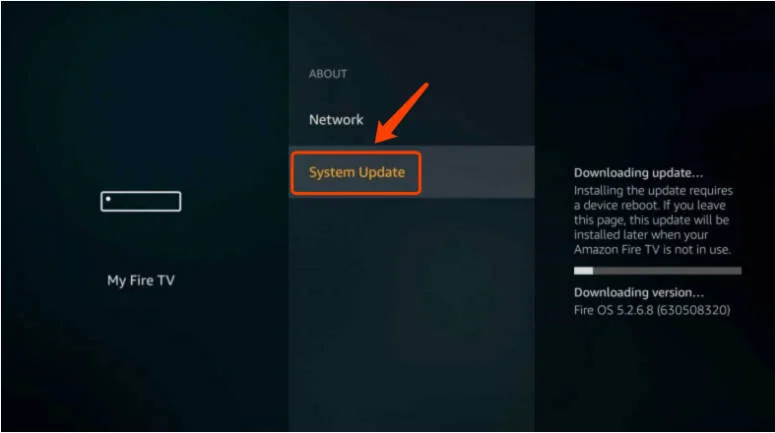
From the Fire TV menu, select Settings > Device > About. If you don’t see the Device tab, select System instead. Then, choose Check for System Update. To update your BBC iPlayer, simply open it on Fire TV. When it needs to be updated, an Update button will be displayed and you can click it to initiate the process.
On iOS
Go to Settings > General > Software Update, and check for the latest version of iOS. Then, launch the App Store and navigate to the Update section, where you just need to tap the Update button next to the BBC iPlayer app.
On Android
Open Settings > About Phone > Check for Updates, and wait for the available updates to install. To update your BBC iPlayer app, you can take advantage of Google Play Store, going to Menu > My apps & games to update the app.
3. Check your system clock time
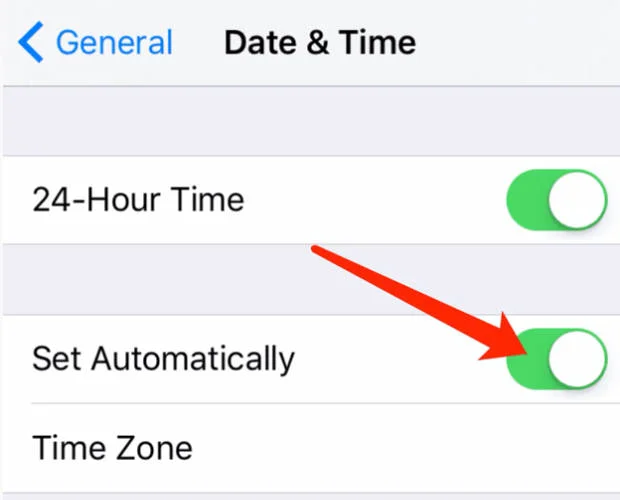
Another overlooked culprit is your system clock. If your device time doesn’t match your actual region, BBC iPlayer can throw errors. Double-check your Date & Time settings, and set them to automatic. It’s a tiny detail, but it often makes a big difference.
If you’re onAmazon Fire TV, simply go to Settings > Device Options > Date & Time and make sure Automatic Time Zone is switched on.
The iOS users need to enable Set Automatically for Date and Time under Settings > General section.
And for Android devices, you can navigate to Settings > Date & Time and set up Automatic Date & Time and Automatic Time Zone.
Restart your app to see if it works. If not, try the next solution.
4. Clear the cache
When you’re using applications, numerous caches and data are produced and stored. They can clog up your storage space and cause your BBC iPlayer not to work. Clearing these cache files may fix your issue.
On Fire TV
- Go to Settings on your Fire TV.
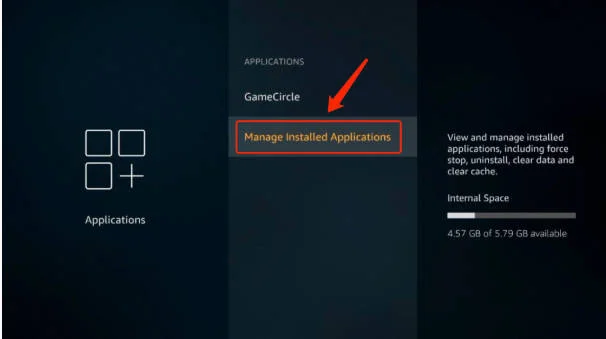
- Select the Applications tab.
- Navigate to Manage Installed Applications and choose BBC iPlayer.
- Click Clear Cache.
On Android
- Go to Settings > Apps > Manage apps.
- Scroll down and locate BBC iPlayer.
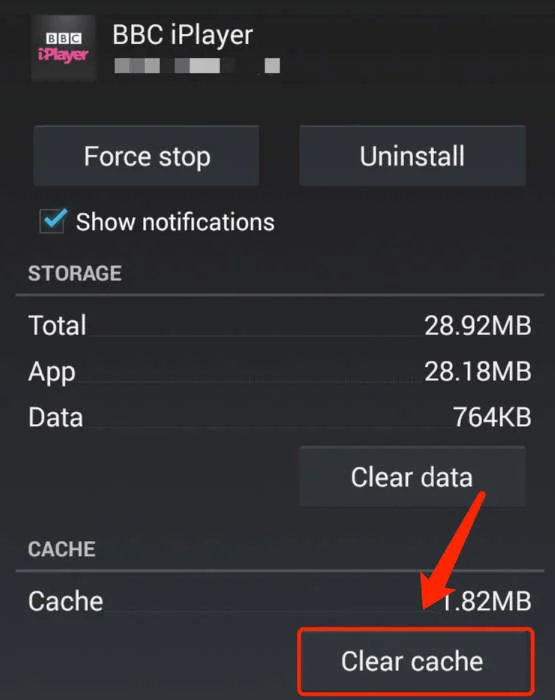
- Select Storage > Clear cache.
If you’re on iOS, the whole BBC iPlayer app should be uninstalled to remove the cache.
With these fixes, you should be able to get iPlayer up and running smoothly again. Feel free to leave a comment below if you have any questions or suggestions.
Leave a Reply