

iPhones are powerful, but some of their best features, like full-page screenshots, aren’t immediately obvious. If you’ve ever tried to capture an entire webpage, only to end up with multiple screenshots, you’re not alone. The good news is: your iPhone can take long, scrolling screenshots, and you even have a few different methods depending on what you need.
In this guide, I’ll show you three easy ways to capture a whole page on your iPhone. Let’s dive in.
In this article:
- 1. Use the Built-in Full-Page Screenshot
- 2. Create a Shortcut to Stitch Screenshots Automatically
- 3. Use a Third-Party App
- Bonus: Screenshot a Full Webpage and Save as PDF
1. Use the Built-in Full-Page Screenshot
Your iPhone actually has a full-page screenshot feature, but it only works in Safari and a handful of Apple apps (Notes, Mail, etc.). If you’re browsing in Chrome or using apps like Instagram or Facebook, you won’t see this option.
Here’s how to use the built-in full-page screenshot:
Step 1. If you’re using a Face ID iPhone, simply press the Side button + Volume Up. (On Home button iPhones, press Home + Power button instead.)
Step 2. Tap the preview thumbnail.
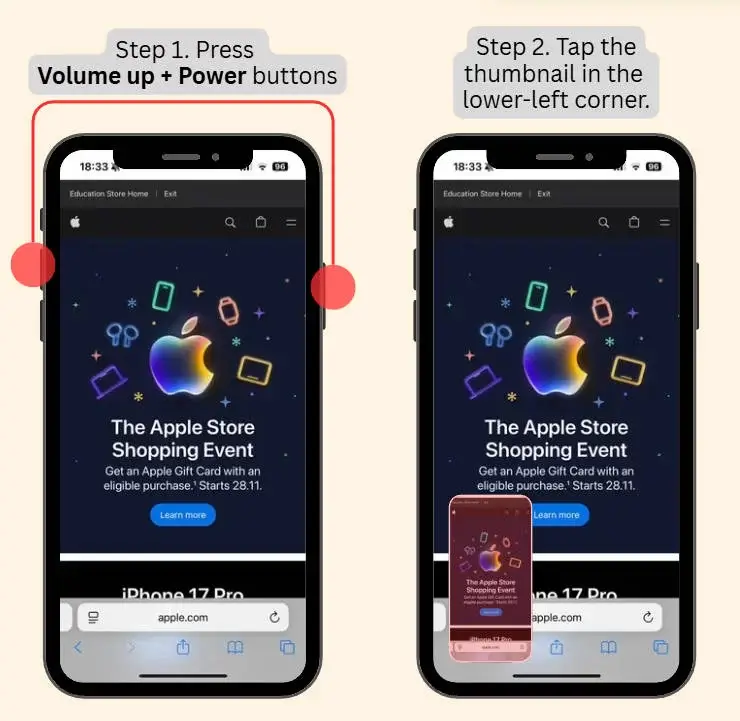
Step 3. Select Full Page at the top. You’ll see a scrollable preview on the right side showing the entire webpage.
Tip: Some users reported that the Full Page screenshot option disappeared when Safari was restricted. If this happened to you, open Safari, go to Settings > Safari > Privacy & Security, and disable Require Face ID to Unlock Private Browsing, and you should be able to fix this.
Step 4. Tap Done at the top left corner.
Step 5. Choose Save All to Photos and Files. This saves the screenshot in your photo album.
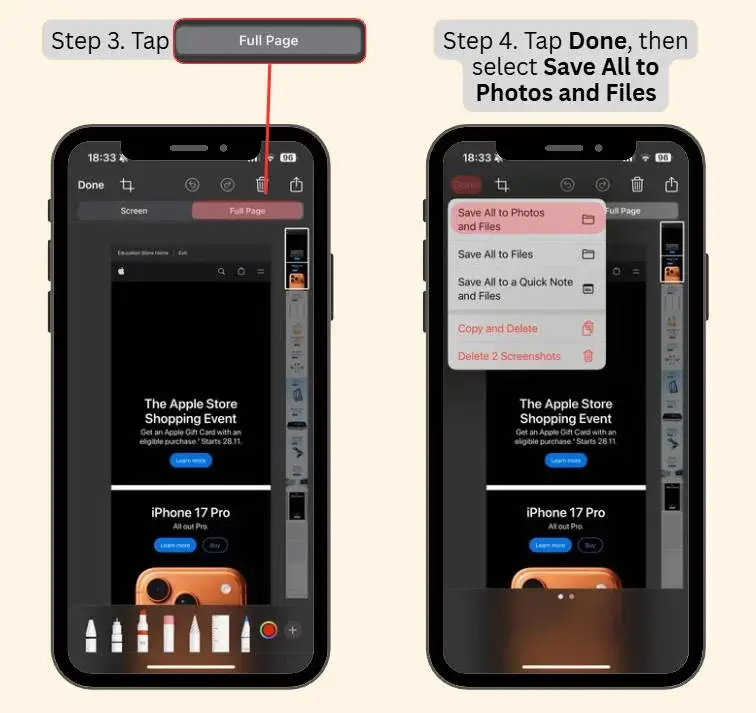
If you’re taking a screenshot of an extra-long webpage, the screenshot will automatically be converted to PDF. This means you’ll need to open the Files app to find the screenshot.
2. Create a Shortcut to Stitch Screenshots Automatically
If you need long screenshots outside Safari, the built-in tool probably won’t help. A great alternative is to build your own Shortcut that stitches screenshots together automatically. This saves a ton of time, especially if you screenshot frequently.
Here’s how to create your own screenshot-stitching Shortcut in just a few taps:
Step 1. Open the Shortcuts app.
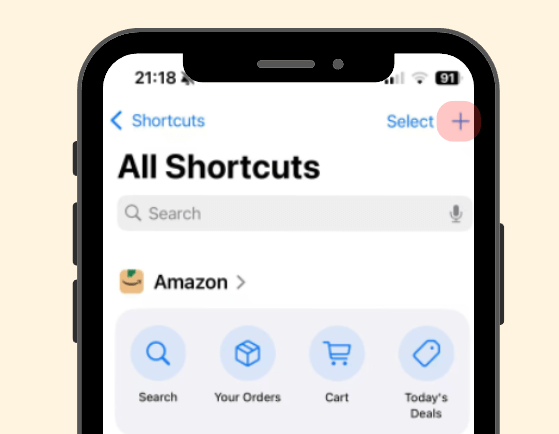
Step 2. Tap the + button at the top-right corner to create a new shortcut.
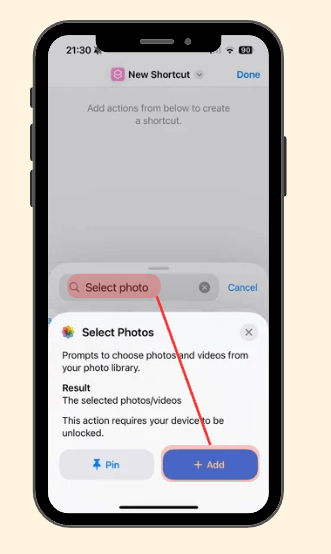
Step 3. Type Select Photos into the search bar, tap the action Select Photos, and tap + Add.
Step 4. Tap the > arrow and then turn on Select Multiple.
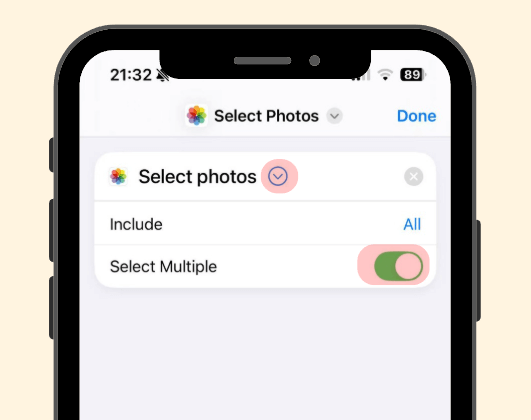
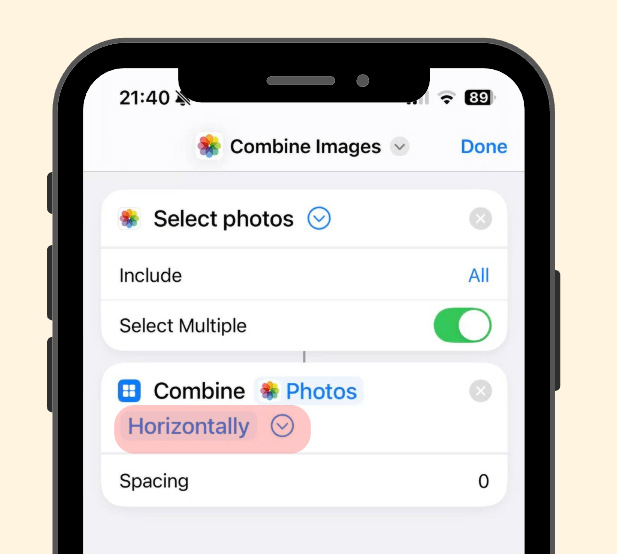
Step 5. Search and add the Combine Images action, and choose your desired layout: Horizontally or Vertically.
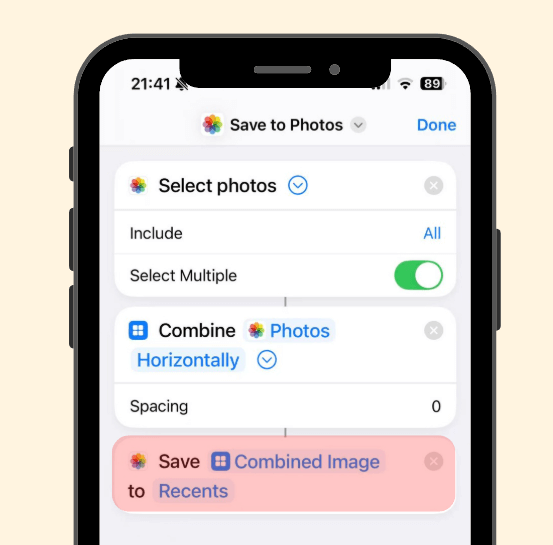
Step 6. Search and add the Save to Photos action.
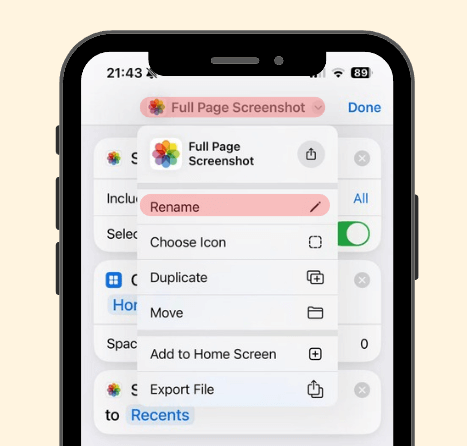
Step 7. Tap the name of the shortcut (which appears as Save to Photos by default) and rename it to Stitch, Long Screenshot, or anything you like. I’ll just name it as Full Page Screenshot here. Finally, tap Done at the top right corner to save the shortcut.
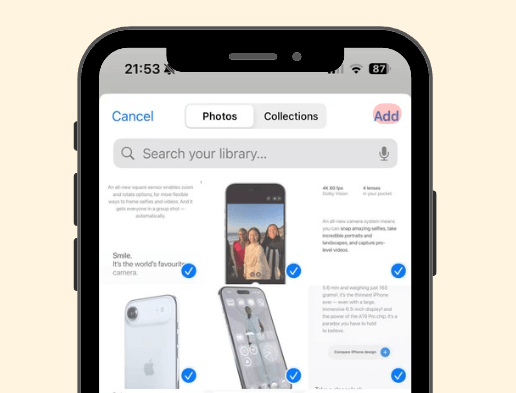
Step 8. To use the shortcut, you can open the Shortcuts app, add it to your home screen, or use Spotlight search. This allows you to pick multiple screenshots at once and instantly combine them into one long image with no manual editing.
3. Use a Third-Party App
If you find yourself taking long screenshots all the time, then honestly, third-party apps are the way to go. The built-in tools and Shortcut method are great for quick, occasional use, but if you want your long screenshots to look clean, seamless, and professional, these apps will save you a lot of time.
After trying several tools myself, Picsew stood out as the one that consistently saved me the most time. What I liked from my own experience:
- Manual adjustments (when needed) were quick and intuitive
- It automatically aligns screenshots with surprising accuracy
- Almost every stitch came out clean on the first try
- It handled chat logs, shopping pages, email threads, and app screens extremely well
You can use Picsew for free with basic stitching features. The full version costs a one-time fee of $1.99, and in my opinion, it’s absolutely worth it if you stitch images regularly.
Bonus: How to Save a Full Web Page as a PDF on iPhone (No Apps Needed)
Sometimes you don’t just want a long screenshot, you want the entire article saved as a clean, readable PDF. This way, you can read it offline, highlight it later, or share it with your friends who prefer PDF format.
The good news is your iPhone can do this natively, and it’s much easier than you think. Follow the instructions below:
Step 1. Open the webpage in Safari. You might want to scroll down to the bottom of the page to make sure it’s fully loaded.
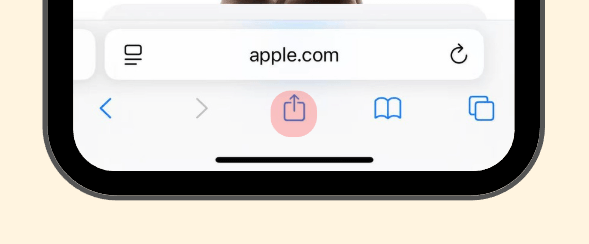
Step 2. Tap the upward arrow Share button at the bottom of the screen.
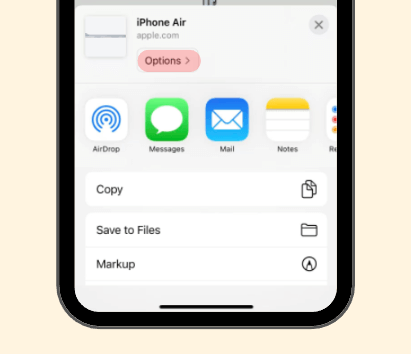
Step 3. Tap Options.
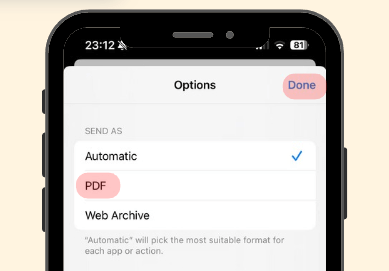
Step 4. Choose PDF, then tap Done.
Step 5. Select Save to Files, choose the folder you’d like to save the file and tap Save.
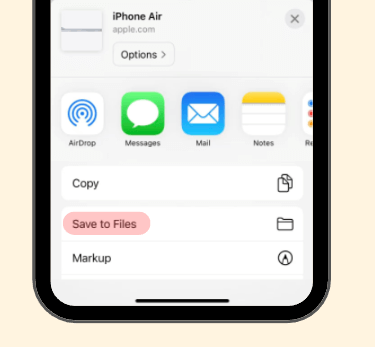
Simply go to the folder where you saved it, and you’ll see a perfectly formatted PDF version of the entire webpage.
Final Thoughts
Whether you’re capturing a full webpage or stitching several app screens, your iPhone gives you plenty of quick and easy ways to get it done. Try the built-in tools first, and if you prefer something more automated, third-party apps like Picsew can make the whole process almost effortless.
I hope this guide helped you take better full-page screenshots on your iPhone. If you have questions, suggestions, or want to share your favorite screenshot tools, feel free to leave a comment below!
Leave a Reply