
So… you open Twitch, ready to watch a stream, and instead of your favorite creator, you get blocked. That’s a mood killer.
Whether you’re on a school network, at work, or traveling somewhere unexpected, Twitch getting blocked is way more common than you’d think. The good news? In most cases, it’s not permanent, and there are ways around it.
Let’s talk about why Twitch gets blocked, and then I’ll walk you through four practical ways people use to access it again.
In this article:
1. Use the Twitch IP Address
This only works in very specific cases, usually when the block is keyword-based. Here’s how to test it:
- On your keyboard, press the Windows logo key and R at the same time to open the Run dialog.
- Type cmd, and press Enter to open the Command Prompt.
- Type ping twitch.com and press Enter.
- Copy the IP and paste it in your browser address Bar and hit Enter.
If it loads, great. If not, no worries; this method doesn’t work everywhere.
2. Try the Twitch web version
Sometimes, the network isn’t blocking Twitch itself; it’s blocking app installations.
If the Twitch desktop app won’t open or install, try opening Twitch directly in your browser (Chrome, Edge, Firefox)
If the web version loads, you’re good to go. If not, keep reading.
3. Use a VPN
This is the most reliable option for geo-blocking and strict filters.
A VPN (Virtual Private Network) hides your real IP address and routes your traffic through a different server. To the network, it looks like you’re browsing from somewhere else, so Twitch isn’t blocked anymore.
Popular VPNs that work well with Twitch:
The steps below apply to NordVPN (because it’s our favorite VPN), but other VPNs work in much the same way.
Use a VPN App
- Download and install NordVPN.
- Choose your plan and log in to your account.
- Click the Quick Connect button at the bottom of the map, then the app will automatically choose a server that suits you best. Or you can manually select a server to evade the block.
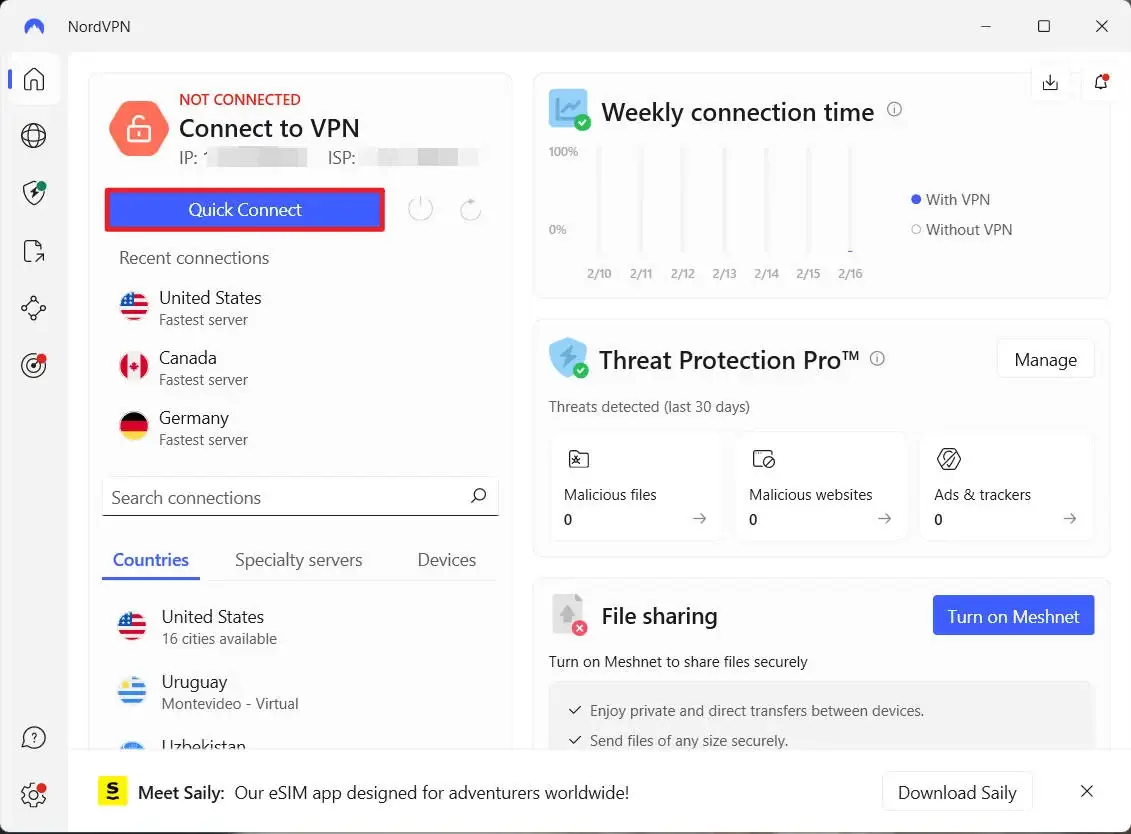
Once connected, open Twitch again.
Use a VPN Extension
If your school or work computer won’t let you install software, browser extensions are a lifesaver. We’ll use NordVPN Chrome extension for this tutorial, but you can also use NordVPN with Firefox or Opera.
- Go to NordVPN and set up your account.
- Download NordVPN extension.
- Log in to your account.
- Click the Connect button to connect to a server.
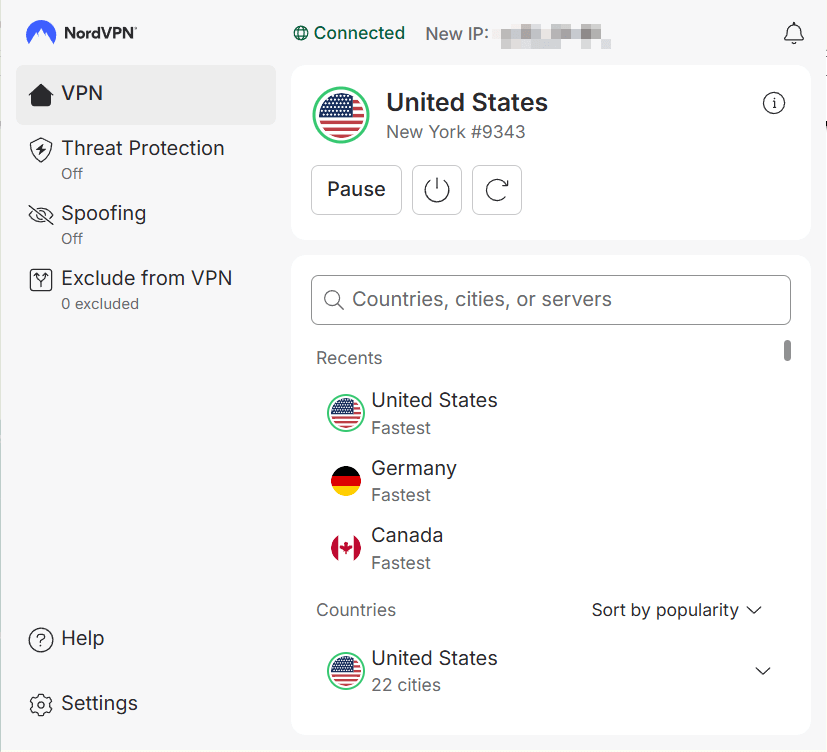
Now Twitch should load. No app required.
Is it illegal to unblock Twitch with a VPN?
Short answer: No. Using a VPN is completely legal in the U.S. and most countries.
However, and this is important, it does go against Twitch’s Terms of Service:
… attempt to circumvent any content filtering techniques we employ, or attempt to access any service or area of the Twitch Services that you are not authorized to access;…
Twitch doesn’t mention VPNs by name, but it does prohibit bypassing access restrictions.
So, can you get banned from using a VPN? Well, according to some reports, using a VPN may get you shadow-banned from Twitch’s chat feature. You can still leave messages in the chat section, but people won’t see your messages when you’re under a ban. But it’s not as bad as it sounds; shadow-banning VPN users can actually prevent those who cyberbully others behind a VPN. Your account will be back to normal once you disconnect from the VPN server.
4. Use a Proxy service
If a VPN feels like overkill, or nothing can be installed on your device, a proxy is another option.
Proxies work like VPNs by giving you a different IP address, but they don’t encrypt your traffic, which makes them less private.
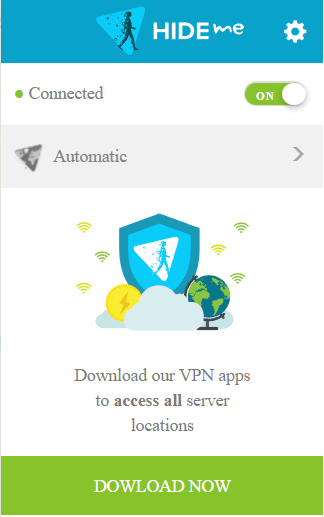
You can install a proxy from the browser extension store for your Chrome, Edge, or Firefox. If you don’t know which proxy to use, you can try Hide.Me.
Hide.Me is a decent free proxy you can find, and one of the fastest free proxy servers. You can use it directly through the website, or alternatively, use the Firefox or Chrome browser extensions to use the service. The service only has proxies in Europe, specifically in the Netherlands, Germany, and Finland.
We’ll use Hide.Me for this tutorial, but you can use another proxy as well. Follow the steps below to see how to unblock Twitch on your Windows device with this tool:
- Go to the Chrome Web Store.
- Download and install Hide.Me in your browser.
- Click Automatic and select a server you want.
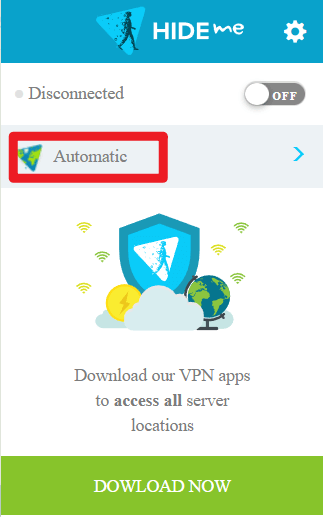
- Click the toggle button to connect to the server.
Why Is Twitch Blocked?
Good question. Twitch doesn’t usually disappear for no reason. Here are the most common explanations.
1. Geo-Restrictions
If you’re outside your home country, Twitch might suddenly stop working. That’s usually because of government regulations or licensing rules in certain regions.
Nothing’s wrong with your account; you’re just in the wrong place, digitally speaking.
2. Bandwidth Limitations
Streaming platforms like Twitch use a significant amount of bandwidth. In environments where many people share the same internet connection, such as workplaces, schools, and public networks, heavy streaming can slow down the entire network.
To prevent congestion and maintain stable internet performance for everyone, administrators often set bandwidth caps or block high-bandwidth sites like Twitch entirely.
3. Productivity and Distraction Concerns
Twitch is engaging (maybe too engaging), so many schools and workplaces block it to keep people focused.
If that’s your situation, it’s usually best to respect the rules and save Twitch for breaks or your personal network. Trying to bypass workplace restrictions can land you in hot water.
Final thoughts
Getting blocked from Twitch is annoying, but in most cases, it’s not the end of the road.
Depending on your situation, you can try the method that works for you. Just remember to use these tools responsibly, especially on school or work networks.
If you’ve found a method that worked for you (or didn’t), feel free to drop a comment.
Leave a Reply