
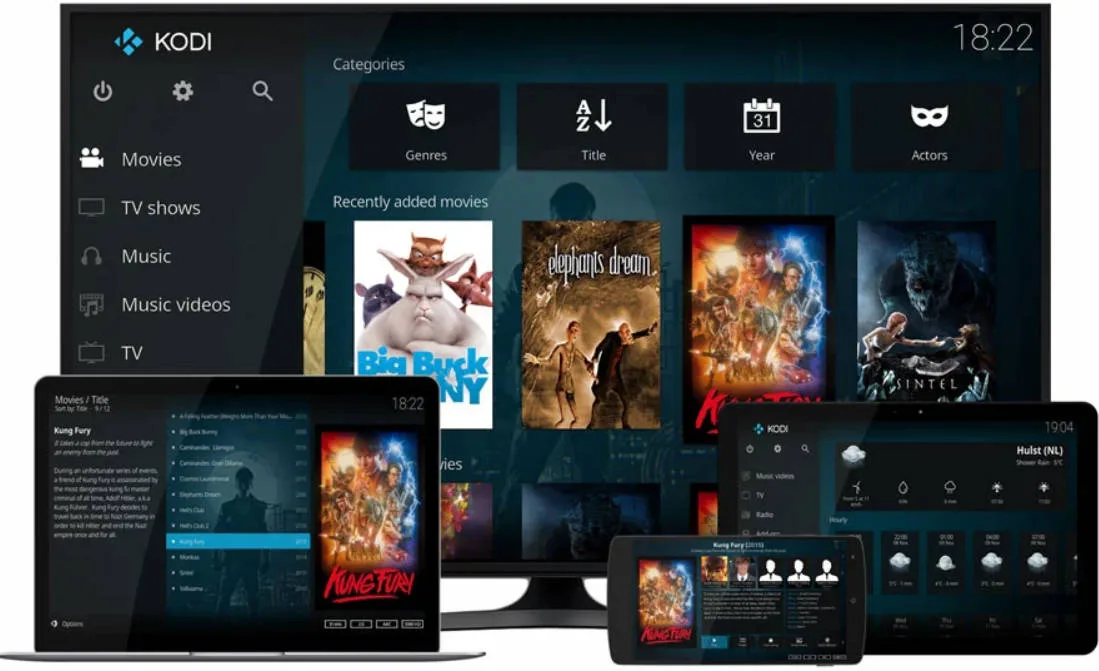
Kodi buffering can be incredibly frustrating, especially when your stream keeps stopping or takes forever to load. You’re not alone. This is a common problem for Kodi users across different devices and platforms.
The good news? In most cases, Kodi buffering is easy to fix. Below, we’ll walk you through the most effective solutions step by step so you can get back to smooth, uninterrupted streaming.
Why does Kodi keep buffering
Kodi is a popular open-source media player available on multiple operating systems. With such a large user base, issues like buffering are bound to happen.
Many reasons can cause your Kodi buffering issue, so it can be hard to identify where your problem lies. Here we list some common causes:
- The outdated Kodi version can cause buggy issues, including Kodi buffering.
- Your slow or unstable Internet connection is one of the possible reasons.
- Your network from the ISP can cause geo-restrictions, and so your Kodi buffers.
- Your Kodi cache is larger than your available cache size, and that will definitely lead to buffering.
- …
While it may be hard to pinpoint the exact cause at first, the solutions below address all the most common reasons.
How to stop Kodi buffering
Try the following fixes in order. You don’t need to do them all; just move on to the next one if the issue persists.
- Update your Kodi
- Check your network connectivity
- Enable Unknown sources
- Adjust cache settings in Kodi
- Use a VPN
Fix 1: Update your Kodi
Running an outdated version of Kodi can lead to bugs, performance issues, and buffering problems. Always make sure you’re using the latest version.
There are various ways to update your Kodi version, so we introduce one of the general ways:
1. Go to Koditv, and click Download.
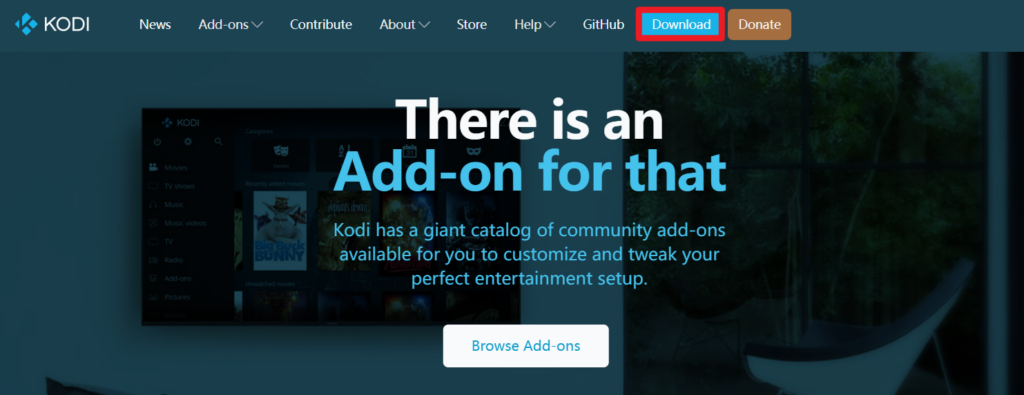
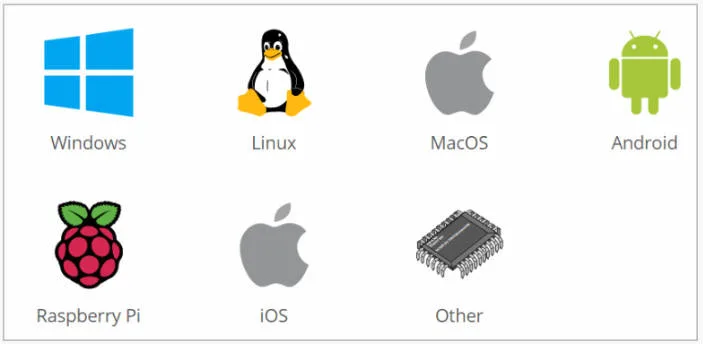
2. Scroll down and choose the operating system running on your device. In my case, I chose Windows.
3. For most users, choose the Installer (64BIT); Only choose Installer (32BIT) if you have very old hardware.
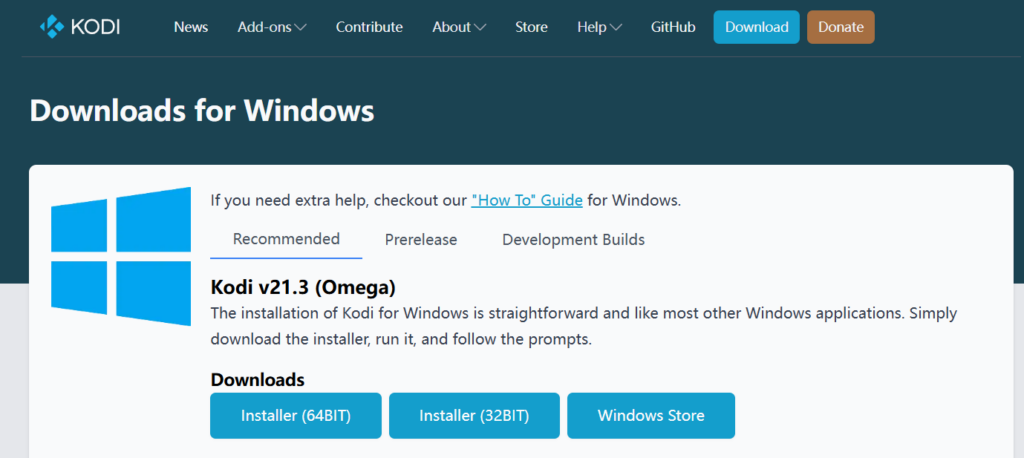
Then run the downloaded file to install Kodi on your device.
Fix 2: Check your network connectivity
A slow or unstable internet connection is one of the most common causes of buffering.
You can first check your Internet speed. Simply Google Internet speed test and you’ll be able to find the Internet speed test tool. If the speed is low and you’re no doubt having this problem. Contact your ISP and get a better network speed.
In addition, when streaming Kodi videos or TV shows, you should close any other programs that may eat up your Internet. Also, stop uploading or downloading anything on your device, which can improve the streaming and hopefully fix your Kodi buffering issue.
Fix 3: Enable Unknown sources
You need to configure settings in Kodi, which should allow you to download videos or install add-ons.
Here’s how to do it:
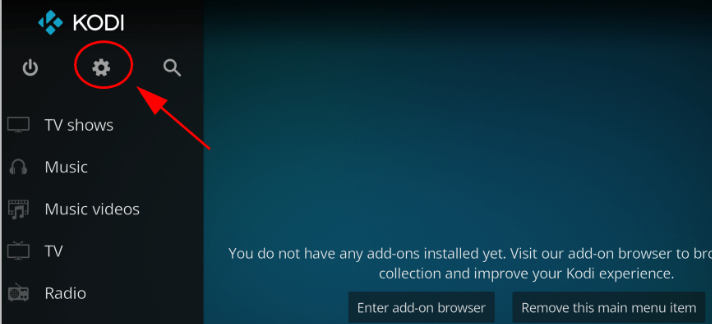
1. Open Kodi on your device, and click Settings.
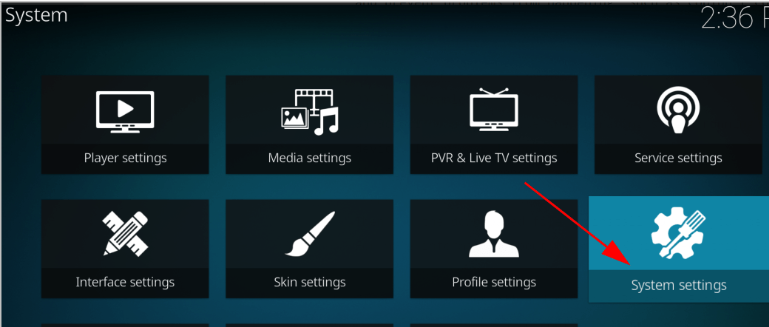
2. Click System settings.
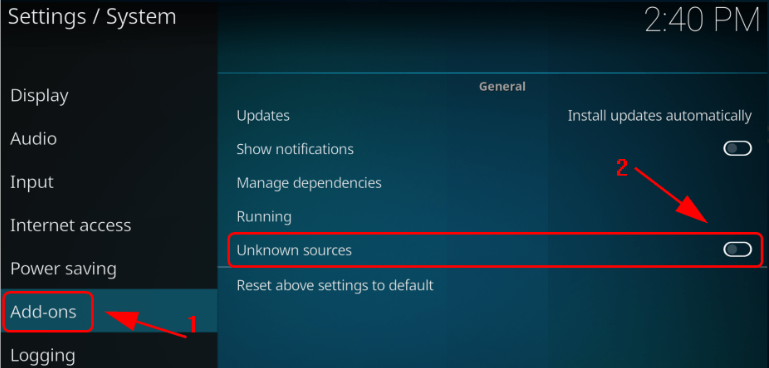
3. Click Add-ons on the left, and toggle to turn on Unknown sources.
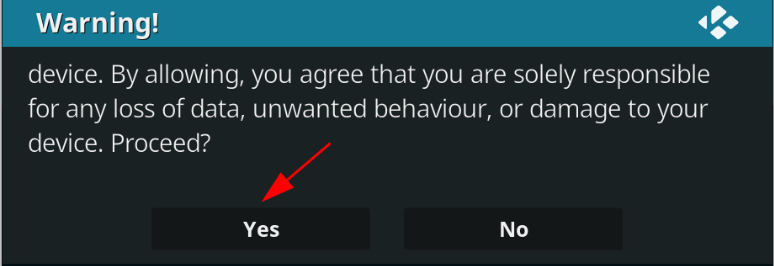
4. Confirm your change.
Fix 4: Adjust cache settings in Kodi
When you stream a TV show or video in Kodi, it saves a file in your device. If the file is too large, you’re no doubt having a buffering issue and having difficulty watching the video.
Your cache settings in Kodi decide how you can deal with Kodi buffering, so adjusting your cache settings, especially the video cache settings, will be able to fix your Kodi buffering issue.
If you’ve installed add-ons that are used to tweak your Kodi settings automatically, apply those settings.
Or you can use Ares Wizard to adjust your Kodi settings. Here’s how to do it:
Step 1: Install Ares Wizard in Kodi
1. In your Kodi home page, click Settings.
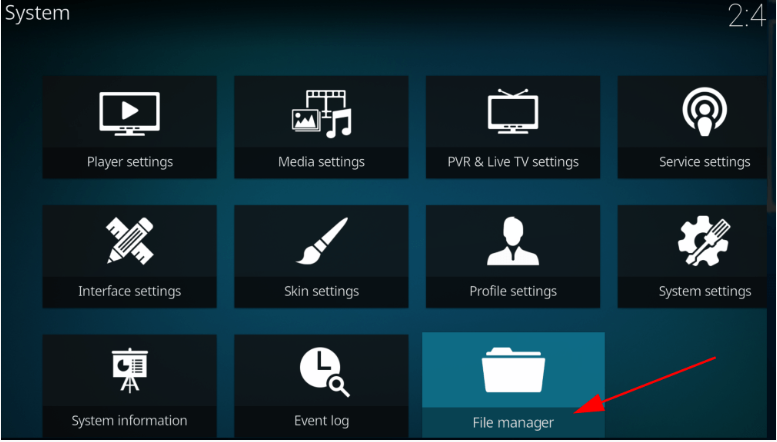
2. Click File manager.
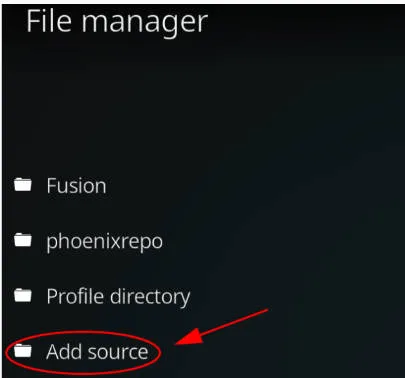
3. Double-click Add source.
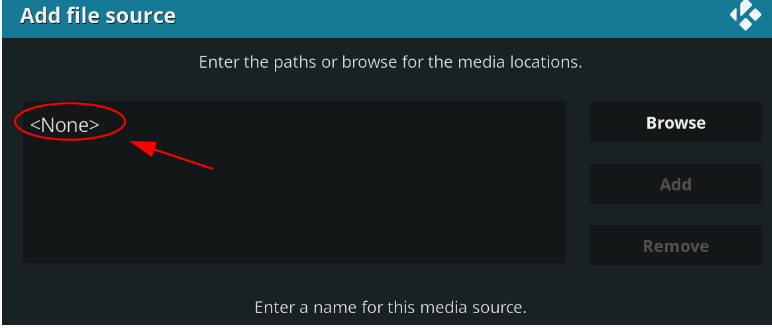
4. Click None.
5. Enter this source URL and click OK.
http://ares-repo.eu/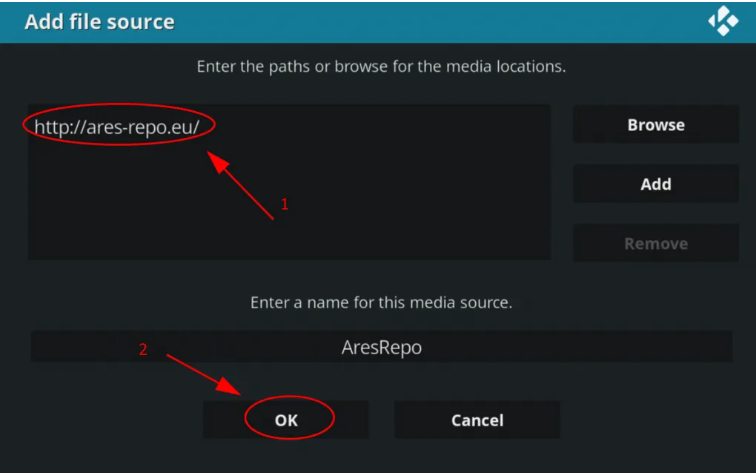
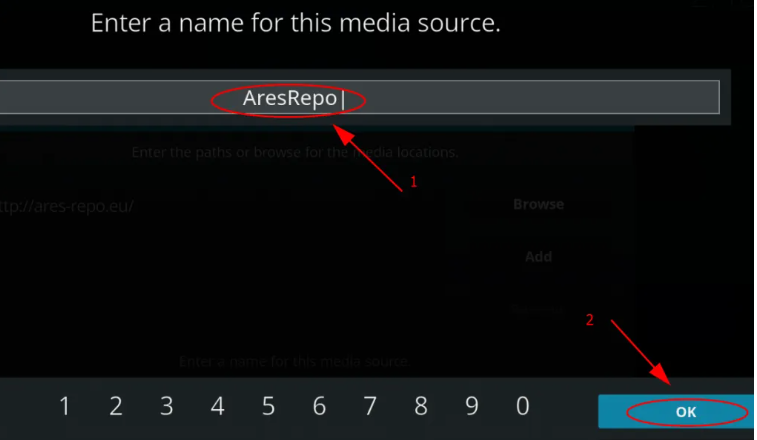
6. Enter a name for this repository. In my case, I enter AresRepo. Then click OK twice to save.
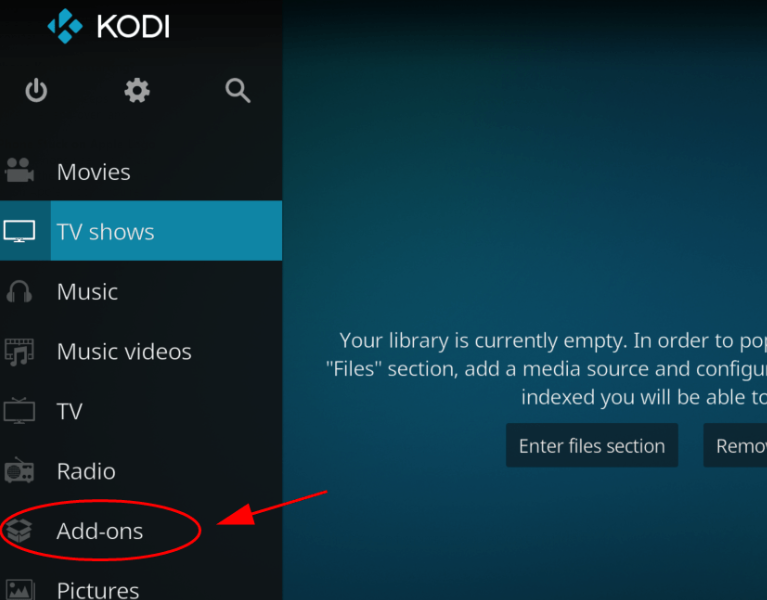
7. Back to the Kodi home page, and click Add-ons in the menu on the left.
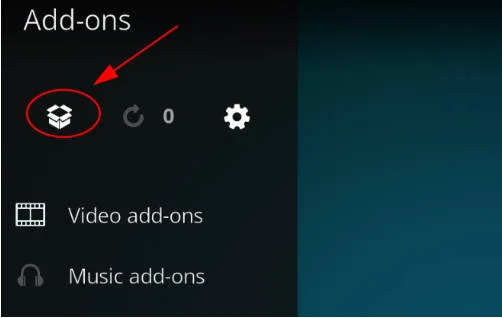
8. Click the Package Icon at the upper left corner.
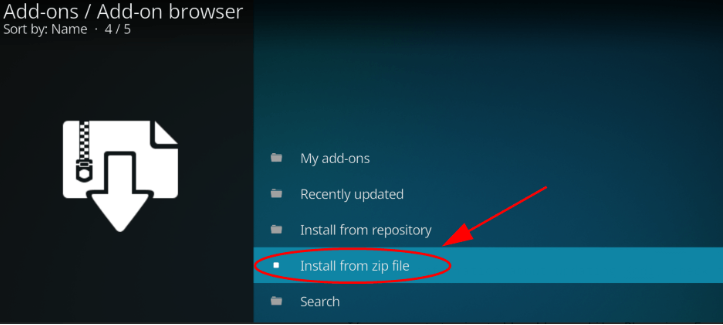
9. Click Install from zip file.
10. Find the folder that you just saved (in my case, it’s AresRepo).
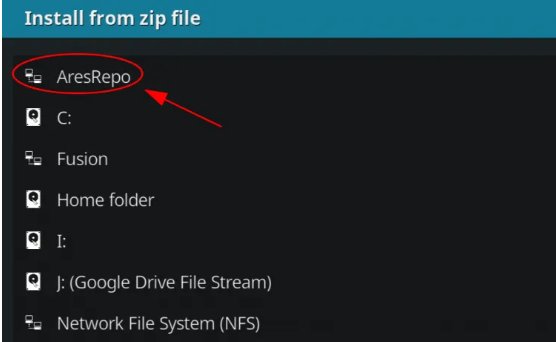
11. Click the zip file in this folder. Usually it’s script.areswizard-0.0.69.zip.
12. Wait for a while for the Ares Wizard to install. This can take several minutes. So be patient.
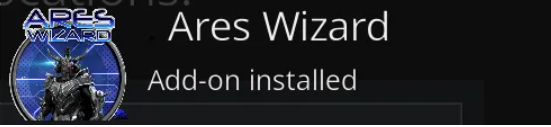
13. When you see the Add-on installed notification, you’ve installed Ares Wizard successfully.
Step 2: Configure settings in Ares Wizard
Once installed Ares Wizard in your Kodi, you can now configure the settings for Kodi and fix the Kodi buffering issue.
Adjust Kodi video cache settings
1. On the Kodi home page, click Add-ons.
2. Click Program add-ons.
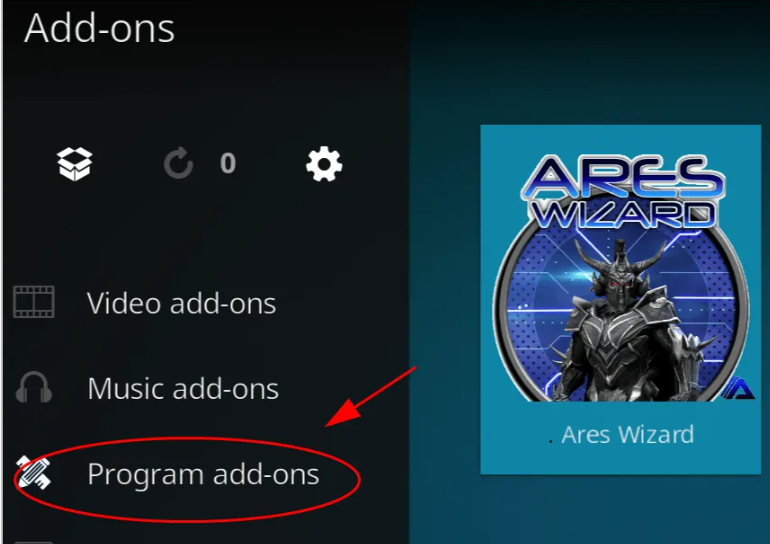
3. Select Ares Wizard. And wait for a while for the add-on to be loaded.
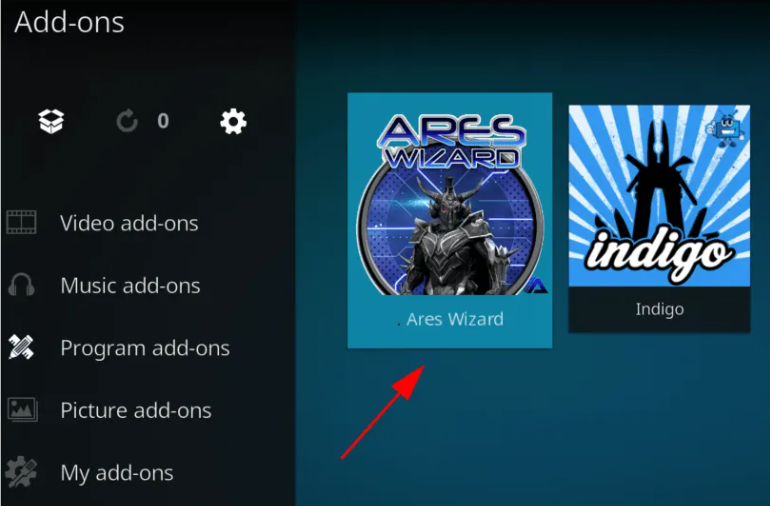
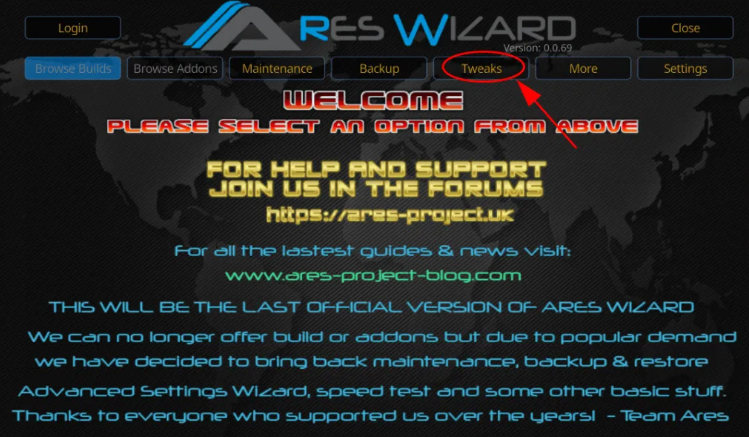
4. Click Tweaks from the menu at the top.
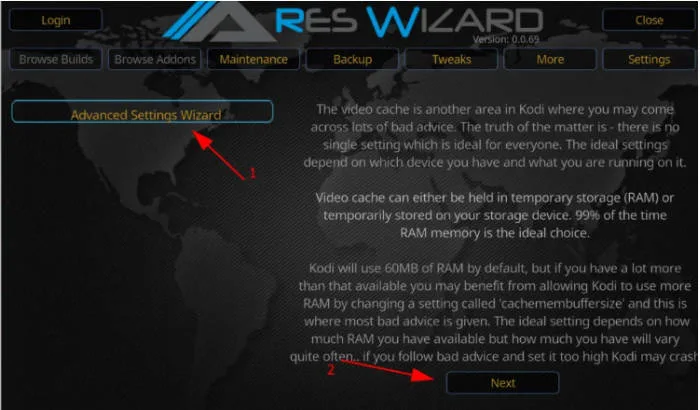
5. Click Advanced Settings Wizard, then click Next.
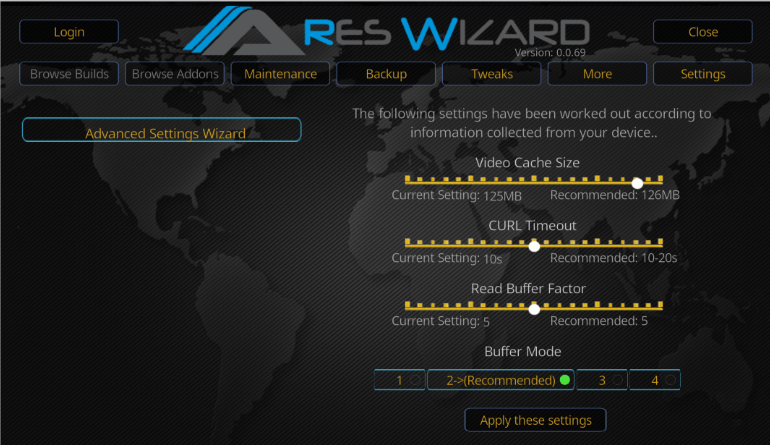
6. Adjust the Buffer Mode to whichever you like:
Mode 1: Kodi buffers all Internet streams, including FTP streams.
Mode 2 (recommended): Kodi buffers everything, including the local files.
Mode 3: Kodi buffers only the stream from the web.
Mode 4: disable buffering.
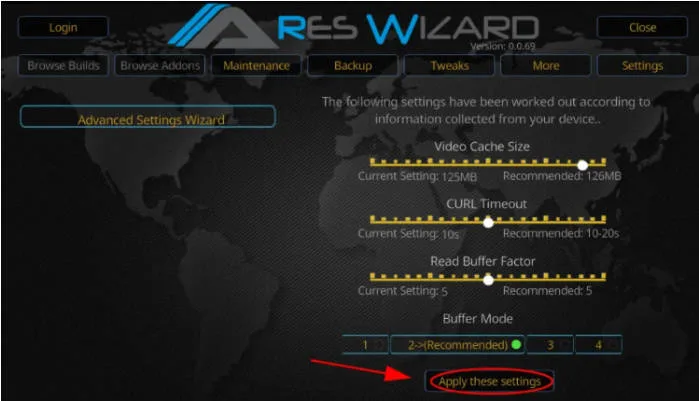
7. Click Apply these settings to save your changes.
8. Restart your Kodi for the changes to apply.
Delete Kodi temp files
Too many temp files in your Kodi can slow down the speed and cause your Kodi to buffer. So you can delete temp files using Ares Wizard.
1. On the Kodi home page, click Add-ons.
2) Click Program add-ons.
3. Select Ares Wizard. And wait for a while for the add-on to be loaded.
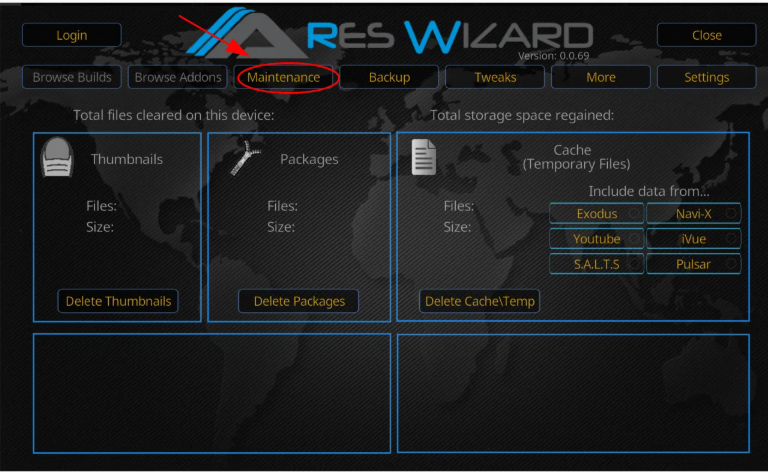
4. Click Maintenance.
5. Click DeleteThumbnails, Delete Packages, and Delete CacheTemp.
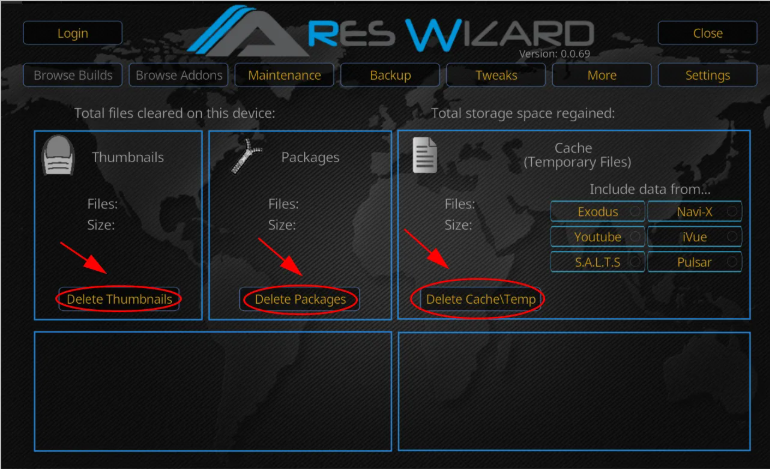
6. Once deleted, restart your device and launch Kodi again.
Now check if your Kodi is still buffering.
Still no luck? Okay, there’s one more thing to try…
Fix 5: Use a VPN
Your network problem can also cause buffering on Kodi, especially if your network doesn’t support the videos you’re streaming, as there are geo-restrictions. So it’s recommended to use a VPN when you’re with Kodi.
You can search on the Internet and find a VPN with a good reputation and a reasonable price.
If you don’t have the time or patience to pick up a VPN for yourself, you can use NordVPN.
NordVPN helps you bypass geo-restrictions to get all the add-ons you desire, keeps you protected from snooping eyes, and secures your data to keep your online activity private. It’s safe and easy to use!
Follow the steps below to download and install NordVPN on your device.
1. Download NordVPN on your device.
2. Run NordVPN and open it.
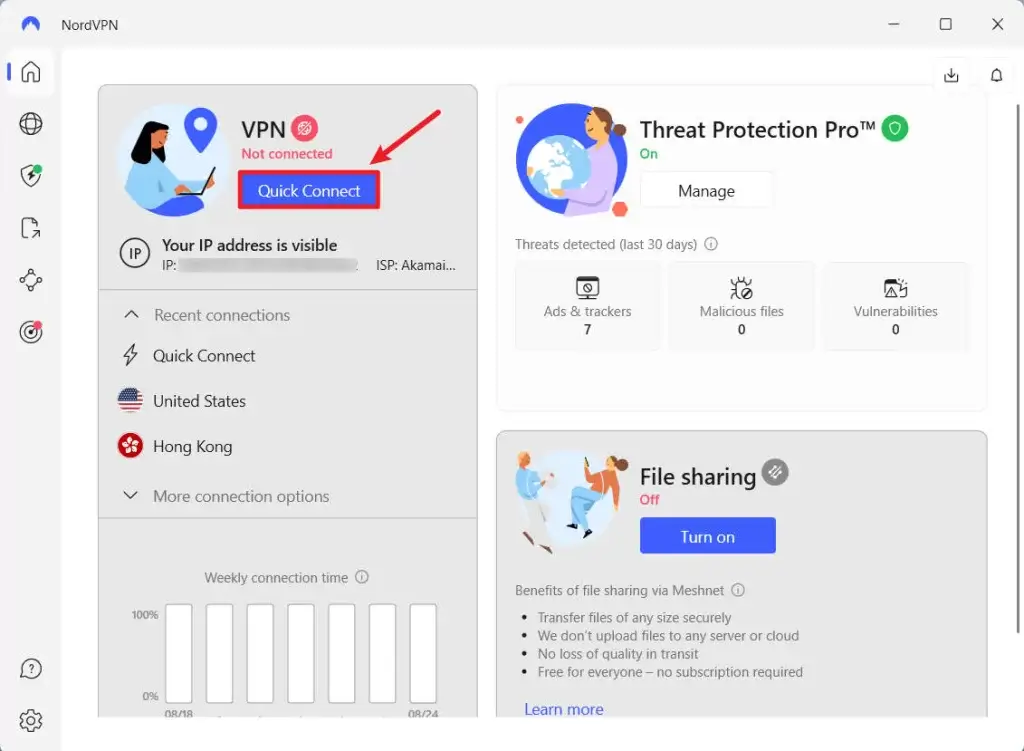
3. Connect to a server in a chosen location.
All set! Re-open Kodi on your device and try streaming videos to see if the buffering issue has been fixed.
So there you have it – five easy methods to fix buffering on Kodi. If you have questions or additional tips that worked for you, feel free to leave a comment below. Happy streaming!
Leave a Reply