
Are images not loading in Google Chrome? Do you only see broken image icons or blank spaces where images should be?
You’re not alone. Many Windows users have recently reported this issue. The good news is that, in most cases, you can fix it yourself quickly and easily by following the steps below.
Why Images Aren’t Loading in Chrome
There are many factors that can cause the images not to load or show on Chrome, such as incorrect Chrome settings, corrupted cache or cookies, network configuration on your PC, conflicting browser extensions, website image server issues, etc. Once you understand the possible causes, troubleshooting becomes much easier.
Try these fixes:
Below is a list of proven fixes that have helped many Chrome users resolve this issue. You don’t need to try all of them; just work your way down the list until the problem is fixed.
- Make sure images are enabled in Chrome
- Clear Chrome cache & cookies
- Try private browsing mode
- Turn off your extensions
- Turn on JavaScript
- Turn off hardware acceleration
- Change the DNS server
- Update Google Chrome
Fix 1: Make sure images are enabled in Chrome
Before trying anything else, check whether Chrome is set to display images. Here is how to do it:
- Open Chrome.
- Copy the path chrome://settings/content/images and paste it into the URL bar. Then press Enter to go to the Chrome image settings.

- Make sure you toggle on Sites can show images.
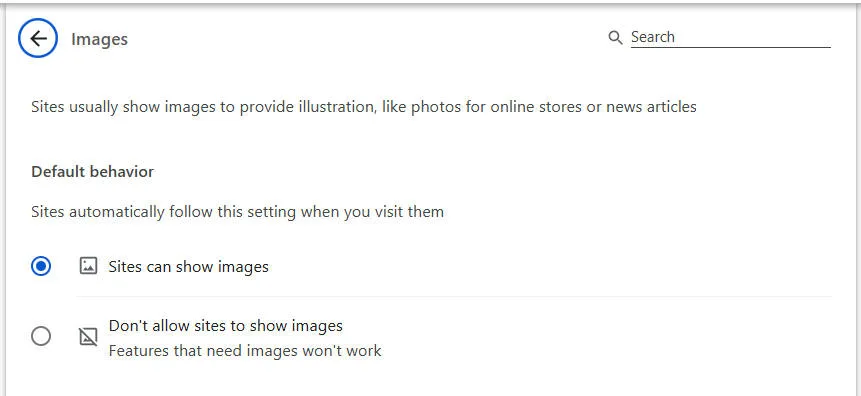
If the image loading issue persists after you enable the Show all toggle, you can try another browser, like Edge, Firefox, to see if the images can be loaded normally.
If this problem reappears in other browsers, it may suggest that the issue is on the website image servers. If you’re not sure, you can follow the steps below to check if the image issue is caused by the website servers:
- Visit the webpage where the image issue occurs.
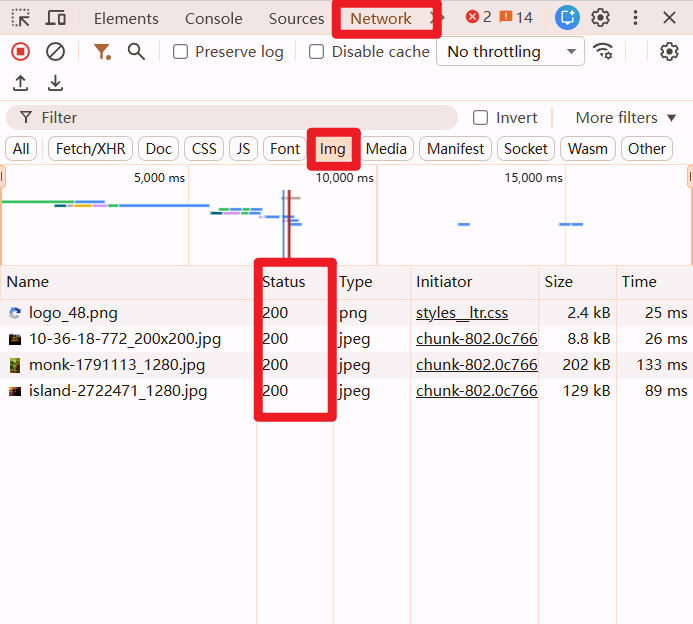
- Press F12 on your keyboard.
- Go to Network > Img and check the Status column. If you see error codes like 404, 403, or 5xx, the website’s image server is likely at fault.
Tips: You can also try using a VPN (e.g NordVPN) to access the site. If images still don’t load, continue with the fixes below.
Fix 2: Clear Chrome cache & cookies
Cache and cookies in your Chrome may also trigger the image not loading or showing issues. You can try clearing Chrome cache & cookies:
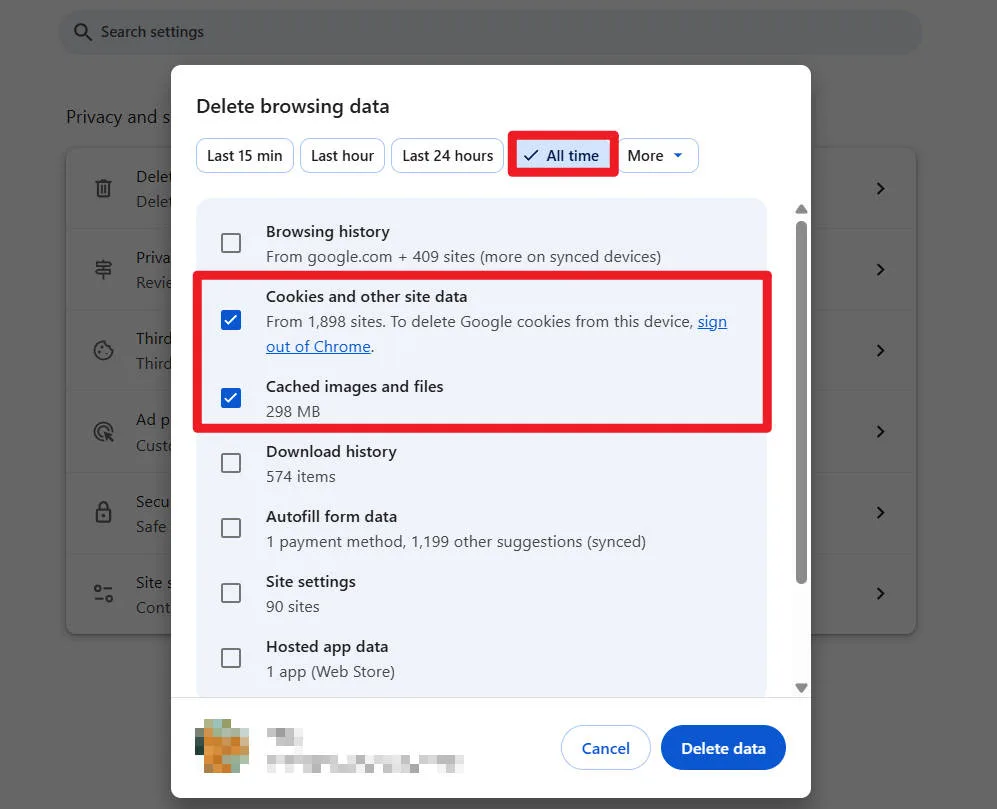
- Open Chrome and go to to chrome://settings/clearBrowserData.

- Select All time. Check the boxes next to Cookies and other site data and Cached images and files, then click Delete data.
Restart Chrome and revisit the website.
Fix 3: Try private browsing mode
Incognito mode disables extensions and uses fresh data, which helps identify conflicts.
- Open Chrome and click the menu button on the upper-right corner, then select New incognito window.
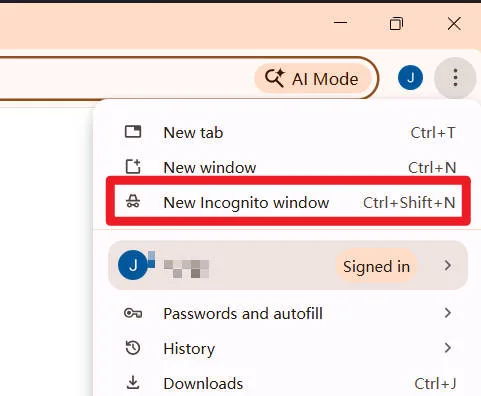
- Visit the website in the Incognito window to see if this issue persists.
If images load correctly, the issue is likely caused by extensions or cached data.
Fix 4: Turn off your extensions
The extensions you added to Chrome may also block or interfere with image loading. To see if this is the problem for you, try disabling your extensions temporarily to see if the browser works correctly:
- Open Chrome and go to chrome://extensions/.
- Toggle off all the extensions you’ve enabled.
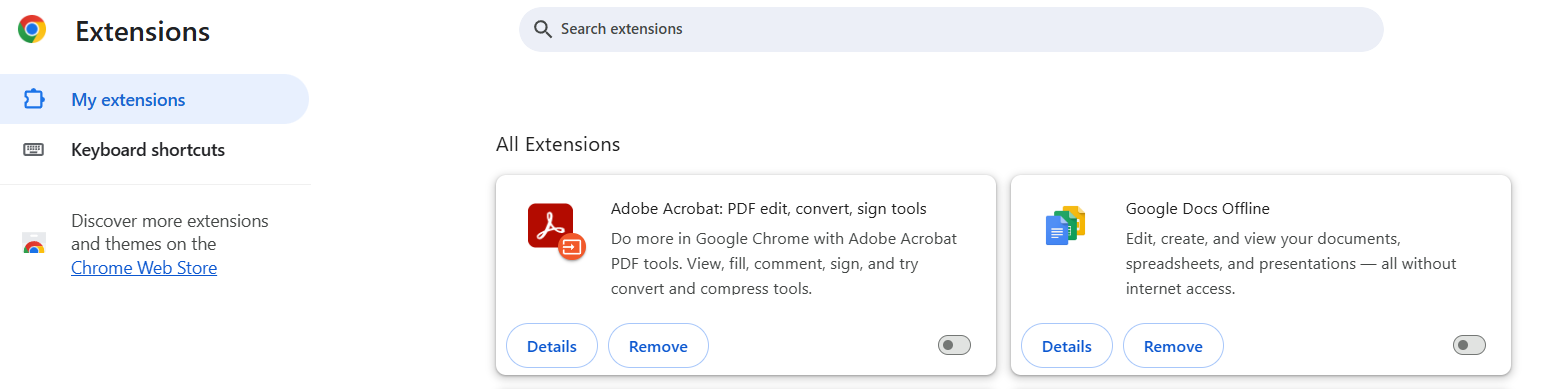
- Visit the website again to see if the images can be loaded.
If the images can be loaded, then go to chrome://extensions/, turn on the extensions one by one until you find the problematic extension.
Once you find out the problematic extension that triggers the images not loading issue, you need to remove it to avoid the image loading issues in the future.
If the images not loading issue persists after you disabled all the extensions, move on to the next fix below.
Fix 5: Turn on JavaScript
If you didn’t turn on JavaScript, the images not loading issues may occur. You can turn on JavaScript in Chrome to see if you can fix this issue. Here is how to do it:
- Open Chrome and go to chrome://settings/content/javascript.
- Make sure the toggle next to Allowed (recommended) is turned on.
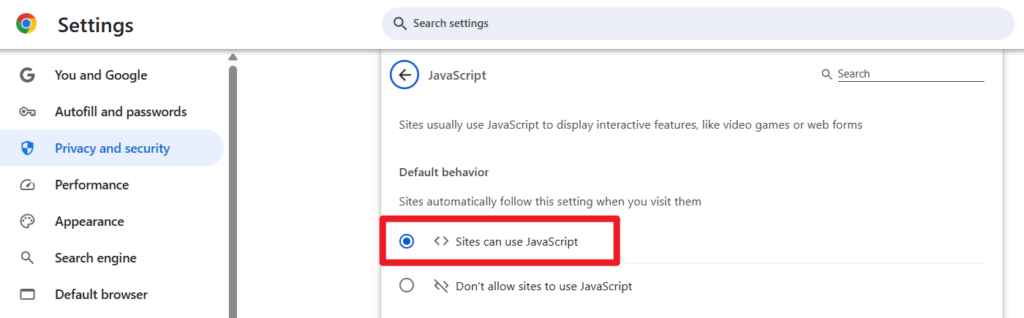
Visit the website again to see if the images can be loaded normally. If not, try the next fix to turn off hardware acceleration.
Fix 6: Turn off hardware acceleration
If you’ve turned on the hardware acceleration feature in Chrome, try turning it off, because this feature may interfere with certain websites and may cause the images not loading issue. Here is how to do it:
- Open Chrome and go to chrome://settings/system.
- Scroll down to the bottom to locate Use graphic acceleration when available and toggle it off.
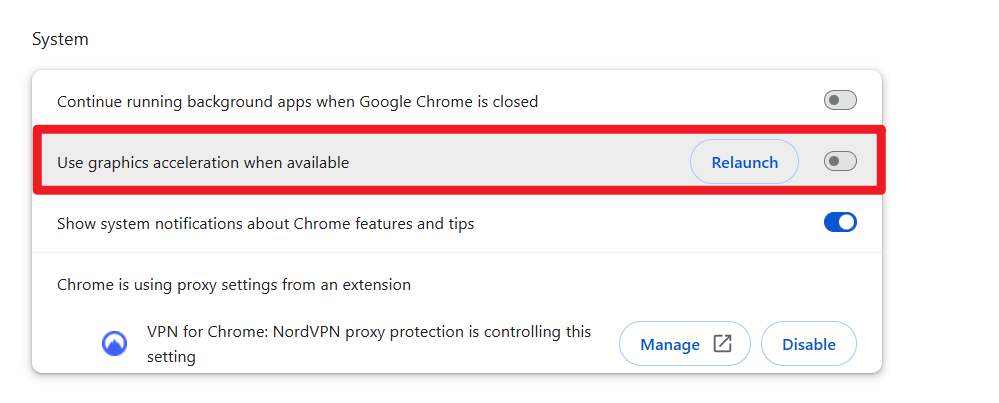
- Click Relaunch to relaunch Chrome.
- Visit the website again to see if the images not loading issue persists.
After Chrome restarts, check if images load correctly.
Fix 7: Change the DNS server
The images not loading issue may also be caused by the DNS server on your PC. Google Public DNS provides you with a speed boost and an increased security. Try changing the DNS server on your PC to the Google Public DNS addresses to see if this issue can be resolved. Here is how to do it:
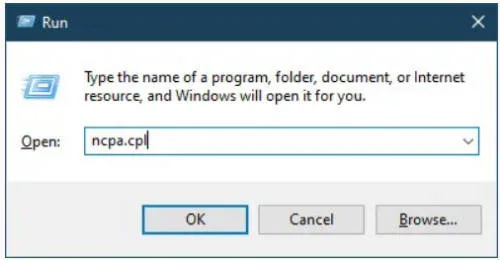
- On your keyboard, press the Windows logo key and R at the same time to open the Run dialog. Then type ncpa.cpl and press Enter to open Network Connections window.
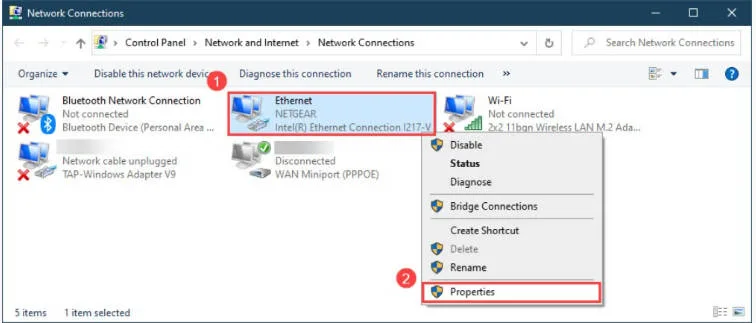
- Right-click your current network and then select Properties.
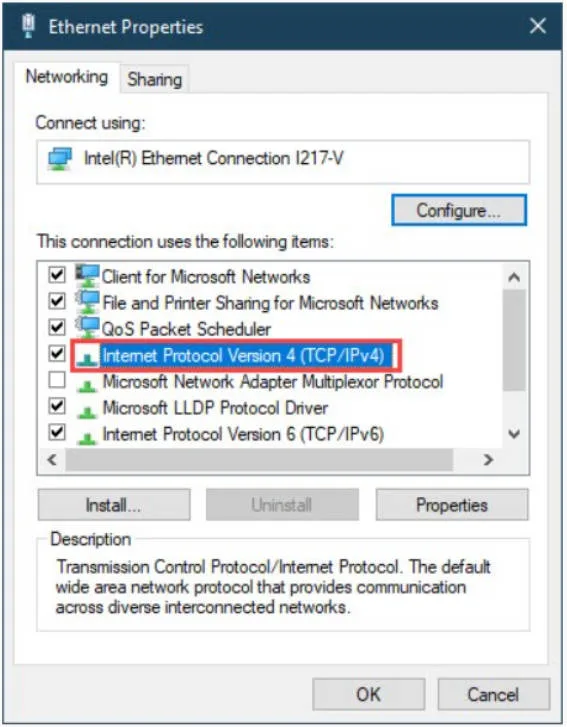
- Double-click Internet Protocol Version 4 (TCP/IPv4) to view its properties.
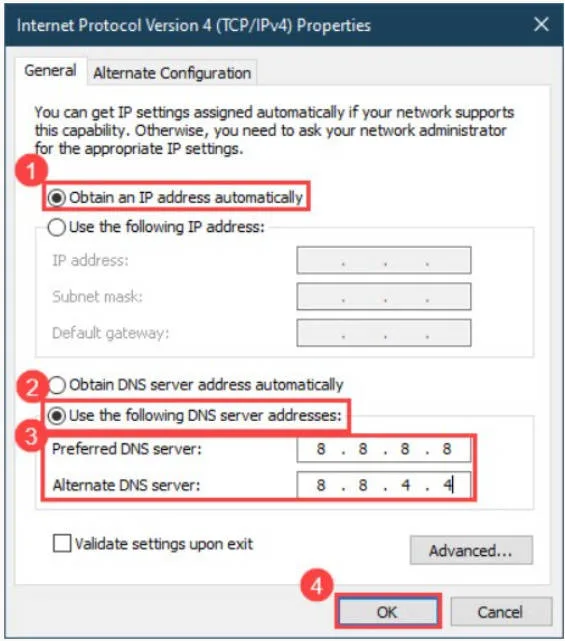
- Select Obtain an IP address automatically and Use the following DNS server addresses. For the Preferred DNS server, enter the Google Public DNS address: 8.8.8.8; for the Alternative DNS server, enter the Google Public DNS address: 8.8.4.4. Then click OK to save the changes.
- Restart your PC.
- Launch Chrome and visit the website to see if the images not loading issue persists.
If this issue persists, try the next fix, below.
Fix 8: Update Google Chrome
If none of he fixes above works for you, try updating Google Chrome to the latest version to see if you can resolve this issue. Here is how to do it:
Open Open and go to chrome://settings/help.
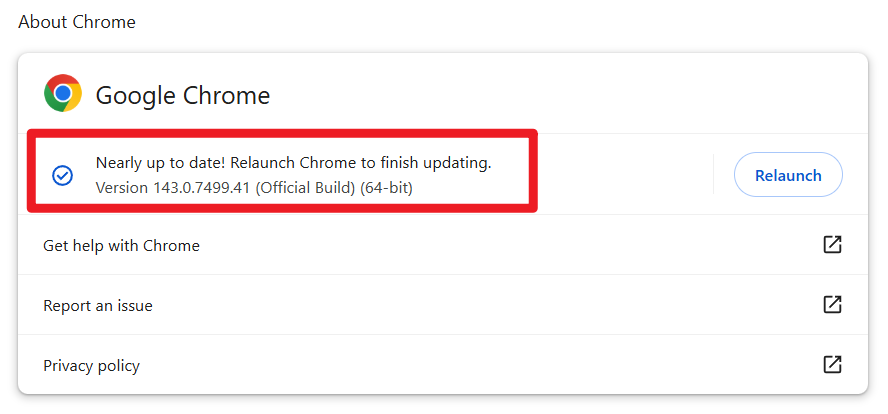
If there is a new version available, download and install the update. Then revisit the website to see if this issue persists.
In most cases, one of these fixes will resolve the images not loading issue in Google Chrome. If you’re still experiencing problems after trying everything above, the issue may be related to the website itself or your network provider.
If you have questions, suggestions, or additional fixes that worked for you, feel free to leave a comment below. Thanks for reading!
Leave a Reply