
The “Share My Location Unavailable” error is a common issue reported by many iPhone users, especially when trying to share your location through Find My app.
You may see the following message when the issue occurs:
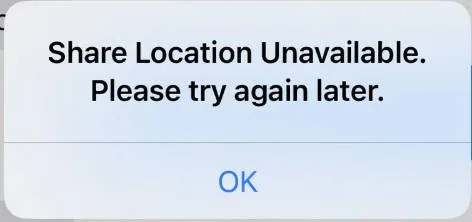
If you are unable to share your location due to this error, don’t worry. You’re not alone, and this is usually easy to fix.
This typically happens when your iPhone can’t access the required location services or server connection. Here is a list of fixes to resolve this issue. You don’t need to try all of them; simply work down the list until it starts working again.
- Resume iCloud Syncing
- Turn On Find My Network
- Enable Location Services and Share My Location
- Share your location using Messages
- Enable Find My under Cellular Data
- Reset your iPhone
Fix 1. Resume iCloud Syncing
Several users report that the error disappears after resuming iCloud syncing. If iCloud has paused syncing due to low storage or network issues, it can interfere with Find My and prevent your location from syncing or updating correctly.
Resuming it restores your iCloud connection, and often fixes the location error instantly.
1. Open Settings.
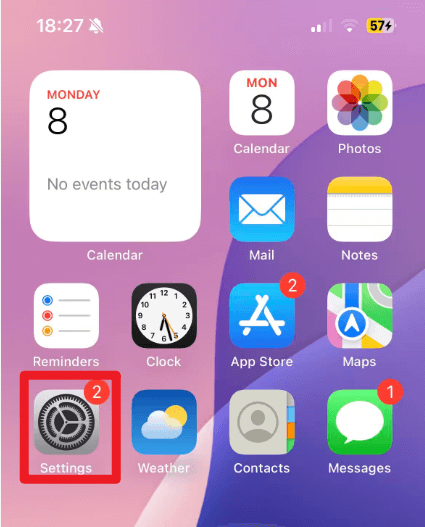
2. At the very top, under your Apple ID name, look for a notification that says something like:
- Resume Syncing
- Resume iCloud Transfer
- Some iCloud Data isn’t Syncing
3. Tap the banner.
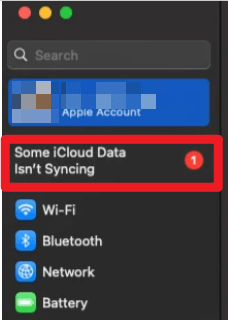
4. Follow the on-screen instructions to resume syncing.
After syncing resumes, go back to Find My and check if location sharing works again.
If it works, great. If not, keep going.
Fix 2. Turn On Find My Network
Find My Network helps your iPhone stay connected to Apple’s location services even when the device is offline or experiencing network issues. If this feature is turned off, your device may fail to authenticate the location-sharing request, which triggers the error message.
In many cases, enabling this setting forces the iPhone to update its security configuration, which can instantly fix location-sharing problems. Here is how to do it:
1. Open the Settings app.
2. Tap your Apple ID name at the top of the screen.
3. Select Find My.
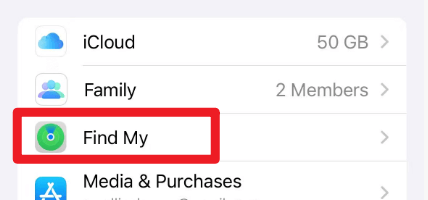
4. Tap Find My iPhone.
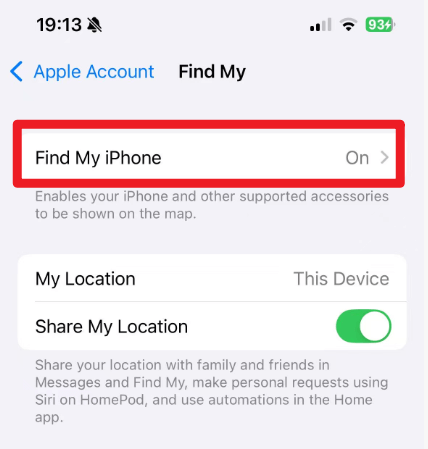
5. Make sure both of these are turned ON:
- Find My iPhone
- Find My Network
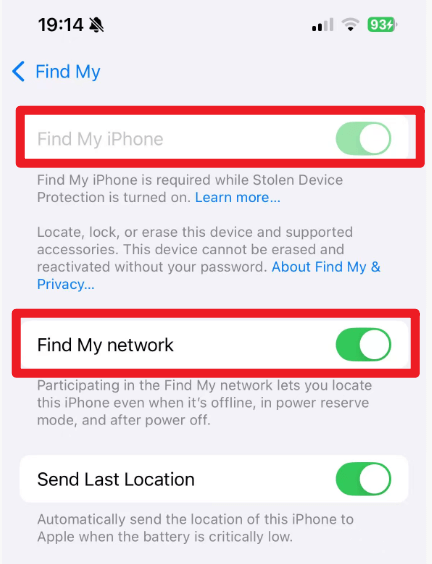
If Find My Network is OFF, toggle it ON. Your iPhone may automatically redirect you to a screen asking you to enter your device passcode to update security settings. Complete the prompt.
6. After the update completes, try sharing your location again. For a lot of people, this fixes it instantly.
If you still cannot share your location after enabling Find My Network, continue with the other methods.
Fix 3. Enable Location Services and Share My Location
Location sharing requires two main features:
- Location Services (controls GPS access)
- Share My Location (allows your iPhone to broadcast your location to others)
If either feature is disabled, your device won’t be able to send your location, resulting in the “Share My Location Unavailable” error.
Here is how to enable Location Services and Share My Location on your iPhone:
1. Open the Settings app.
2. Scroll down and Tap Privacy & Security.
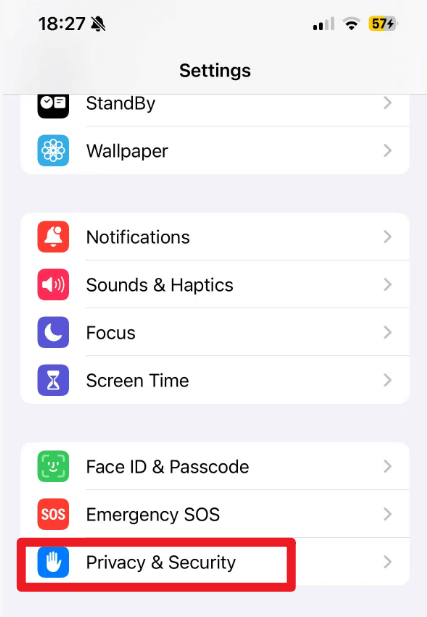
3. Tap Location Services.
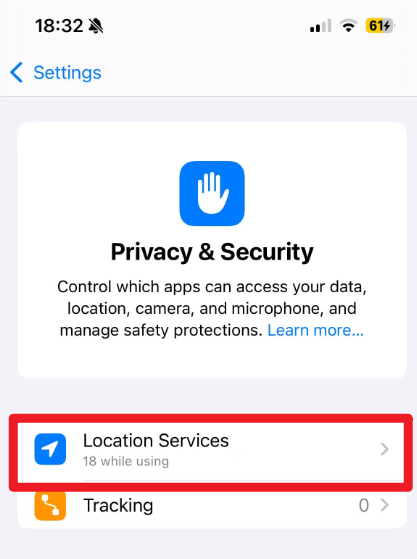
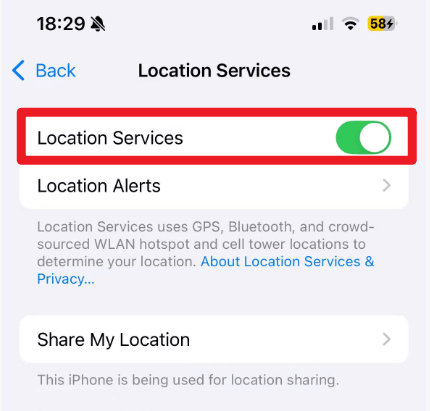
4. Toggle Location Services to ON.
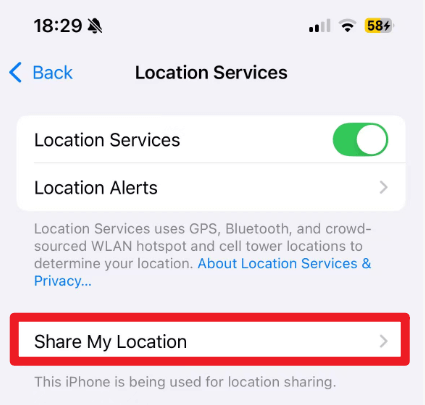
5. In the same screen, select Share My Location.
6. Toggle Share My Location to ON.
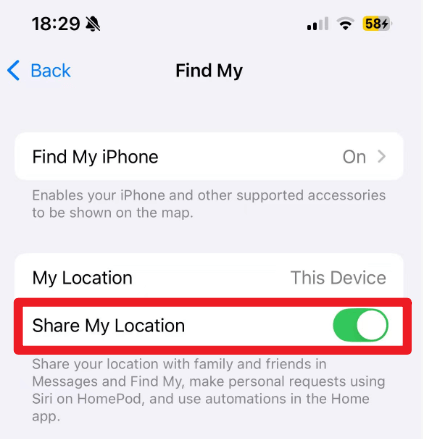
7. Go back to Find My and check whether the problem is resolved.
If the error message still appears, proceed to the next method.
Fix 4. Share Your Location Through Messages
If Find My is temporarily having server issues, you can still share your location using the Messages app. This method works especially well if you only need to share your location temporarily (for an hour or for the rest of the day).
To share the location through Messages:
1. Open Messages
2. Select the conversation with the person you want to share your location with.
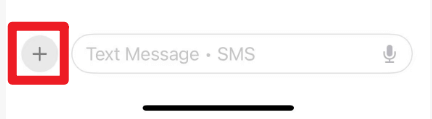
3. Tap the “+” icon in the lower-left corner.
3. Tap Location.
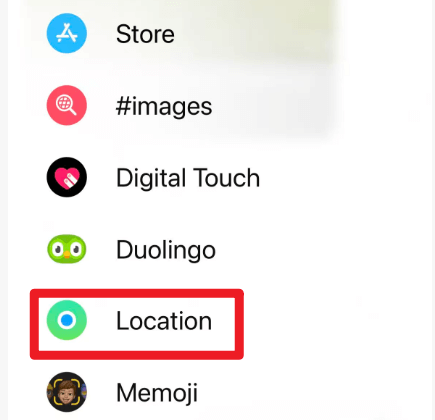
4. Tap Send Pin, then tap the Send button.
5. Go back to Find My and check whether the problem is resolved.
If the error message still appears, proceed to the next method.
Fix 5. Enable Find My under Cellular Data
Even if your Find My app is enabled, it won’t function if it doesn’t have permission to use Cellular Data. When this setting is disabled, your iPhone cannot communicate with Apple’s servers, causing the “Share My Location Unavailable” error.
Here’s how to enable Find My under Cellular Data:
1. Open Settings.
2. Tap Cellular.
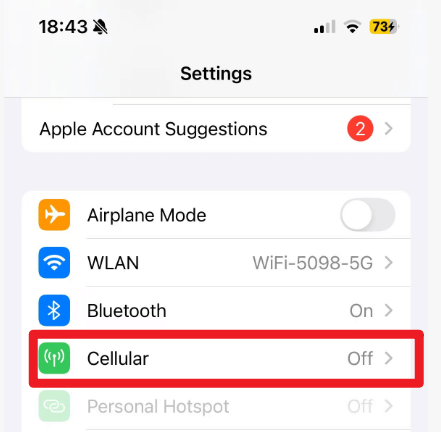
3. Make sure Cellular Data is turned ON.
4. Scroll down to the list of apps. Toggle Find My (or Find Friends on older iOS versions) to ON.
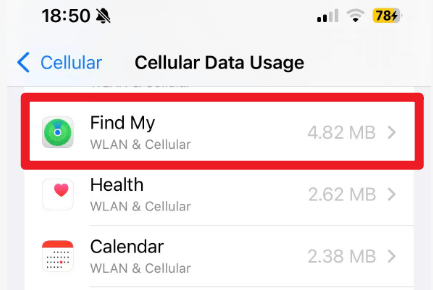
Once enabled, try sharing your location again.
Fix 6. Reset your iPhone
A factory reset clears corrupted settings, network issues, and system errors that may prevent proper location sharing. Although it’s very effective, it should only be used when all other solutions have failed.
WARNING: Resetting your iPhone erases all data and settings. Before you reset, back up your data through iCloud Backup or iTunes/Finder backup.
To avoid mistakes, follow Apple’s official guide for restoring your iPhone to factory settings. Once the reset is complete, set up your device again and test location sharing.
Final Thoughts
The “Share My Location Unavailable” error can be annoying, but most of the time it’s easy to fix by adjusting a few settings.
Hopefully, this post helped. If you have additional questions or want help troubleshooting other iPhone issues, feel free to leave a comment anytime!
Leave a Reply