

If your Windows 10 computer keeps crashing, freezing, or showing the Blue Screen of Death (BSOD), don’t panic. Windows automatically creates crash logs that can help you understand what went wrong. By reviewing these crash reports, you can quickly track down errors and fix system problems.
In this guide, you’ll learn 2 simple methods to check crash logs in Windows 10.
Method 1: View crash logs with Event Viewer
Event Viewer is a built-in Windows tool that stores system messages, warnings, errors, and critical events. It’s one of the most reliable ways to diagnose system crashes.
Follow these steps:
Just follow the steps below, and you should be able to view all the crash logs easily in Windows 10!
- Configure the advanced system settings of your Windows 10 operating system
- Open Event Viewer
- Create a custom view
- Export the crash logs
Step 1: Configure the advanced system settings of your Windows 10 operating system
Before using Event Viewer, you should make sure your advanced system settings are configured correctly.
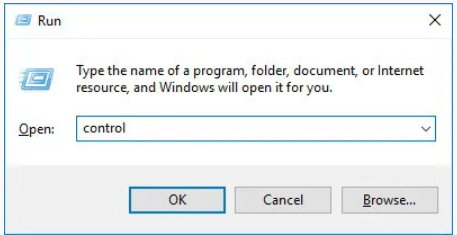
1. On your keyboard, press the Windows logo key and R at the same time to open the Run dialog. Type control and then press Enter to open the Control Panel.
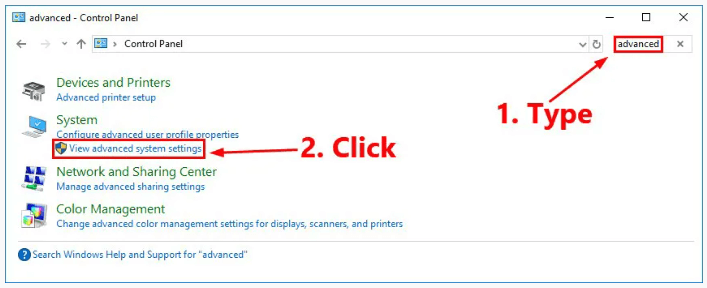
2. Type advanced in the search box in the upper-right corner and then click View advanced system settings.
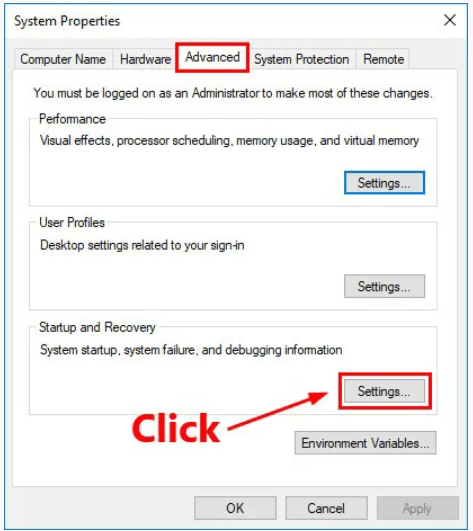
3. Navigate to the Advanced tab and then click Settings… in the Startup and Recovery section.
3. Configure the settings in the System failure section the same way you see on the screenshot below. Then click OK to save the changes.
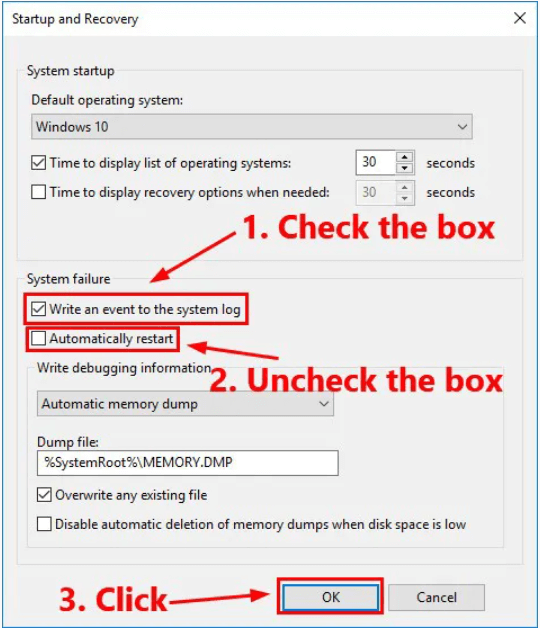
Note: The option Automatically restart has little to do with Event Viewer. By unchecking the box next to Automatically restart, you tell Windows 10 not to reboot and to save the crash dump file when there is a system failure. So you can see the BSOD (Blue Screen of Death) error message if your PC is running into a BSOD. If you check this box, you may not see the BSOD error message.
Now you’ve correctly configured the advanced system settings of your system.
Step 2: Open Event Viewer
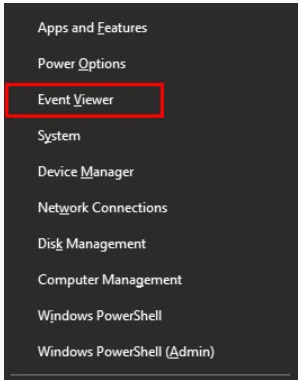
1. On your keyboard, press the Windows logo key and X at the same time. Then select Event Viewer to open it.
2. There are 2 methods to view the information about a certain event:
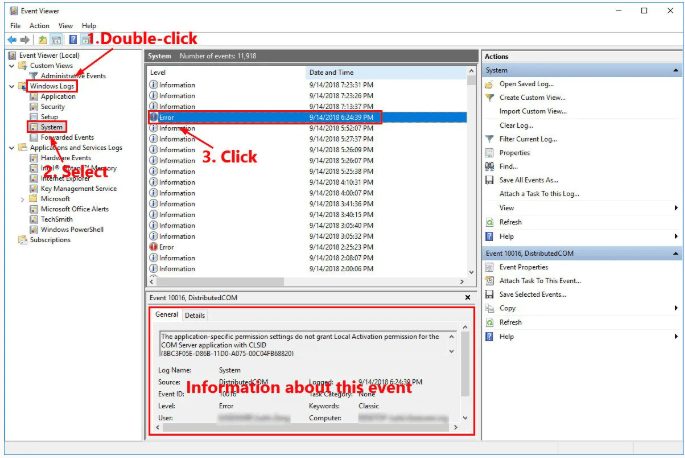
Option A: Browse through the left panel categories
- In the left panel, double-click a category to expand it.
- Select the category you’re interested in, and the related information will show up in the middle part of the window.
- Click one event in the list and the detailed information will show up in the bottom of the window.
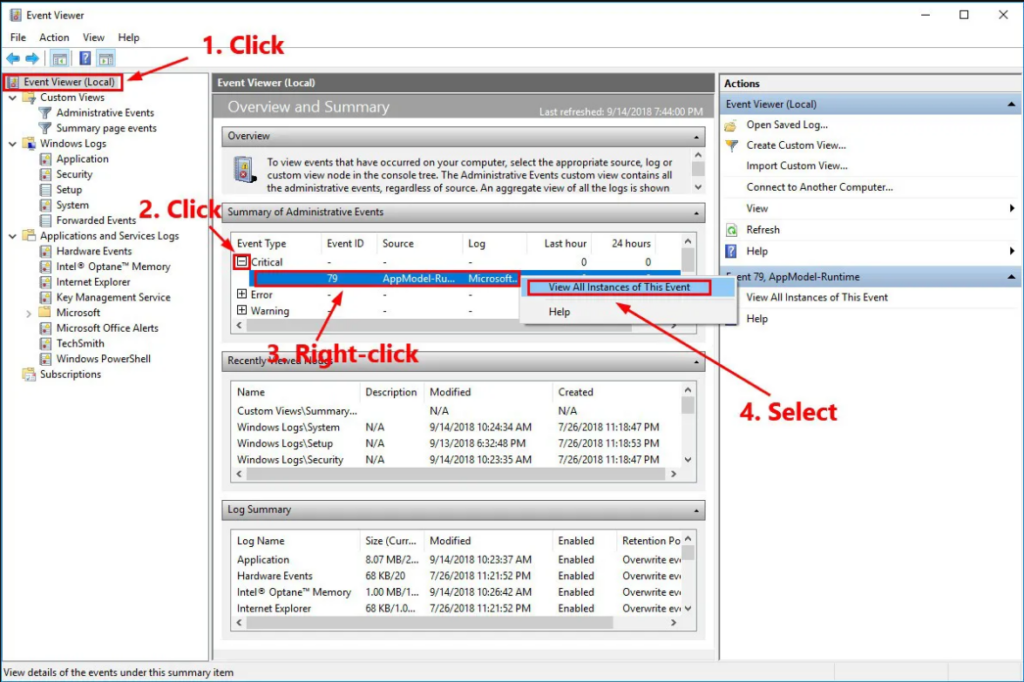
Option B: Use Summary of Administrative Events
1. In the left panel, Click Event Viewer (Local), then in the section of Summary of Administrative Events, click the plus button (+) in front of the Critical event type to expand it.
2. Right-click the record of the critical event and select View All Instances of This Event.
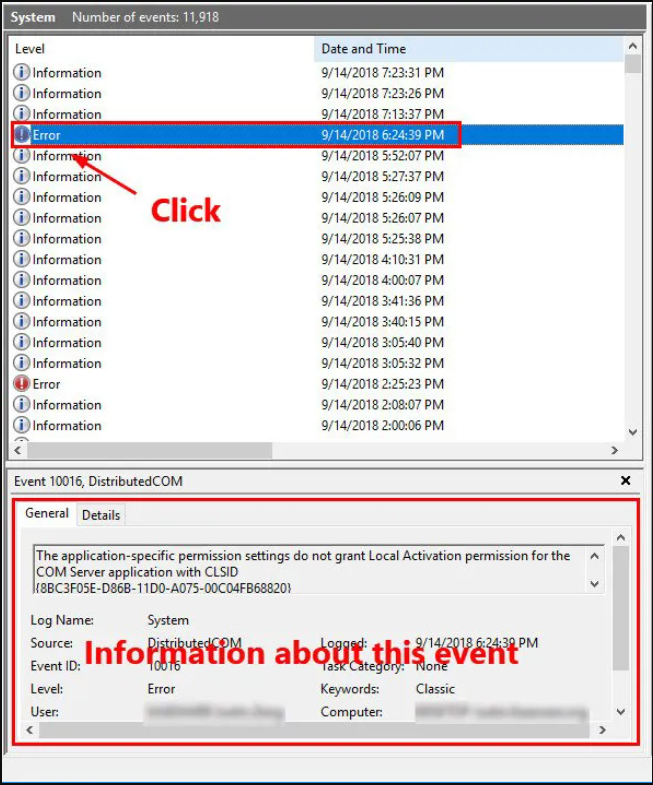
3. Click one event in the list, and the detailed information will show up in the bottom of the window.
Step 3: Create a Custom View for Crash Logs
A custom view lets you filter only the important crash events, saving you time.
Here is how to do it:
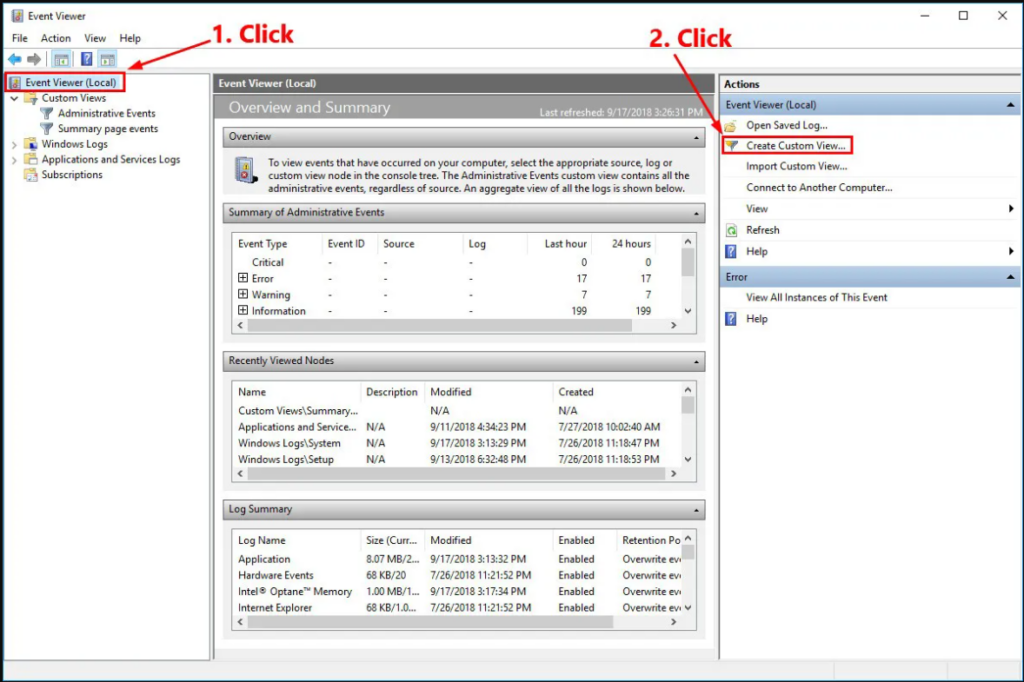
1. In the left panel, click Event Viewer (Local) in the left panel. In the Actions section, click Create Custom View…
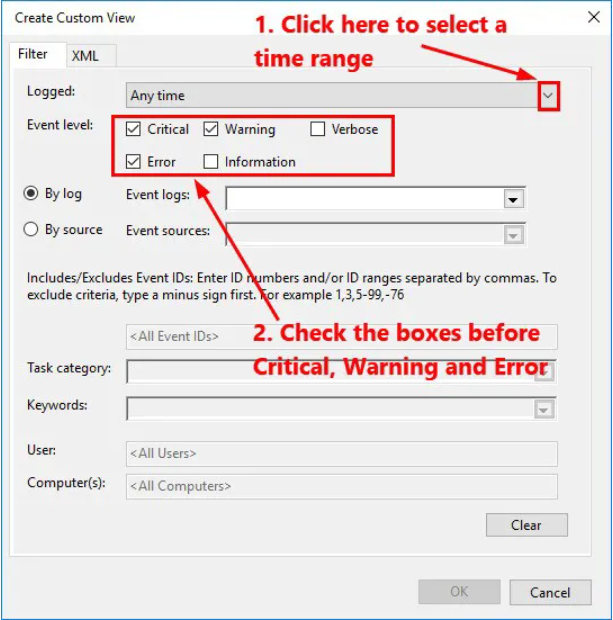
2. In the pop-up window, under the Filter tab, click the downward arrow next to Logged to select a time range. Then check the boxes before Critical, Warning and Error to select the Event levels.
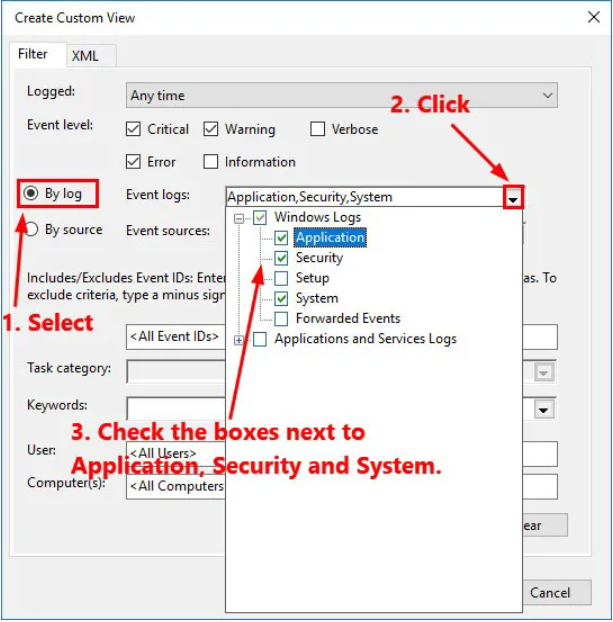
3. Click the By log option button to create the custom view by log. Click the downward arrow next to Event logs to open the drop-down list, then select Application, Security and System.
4. Click OK to save the settings.
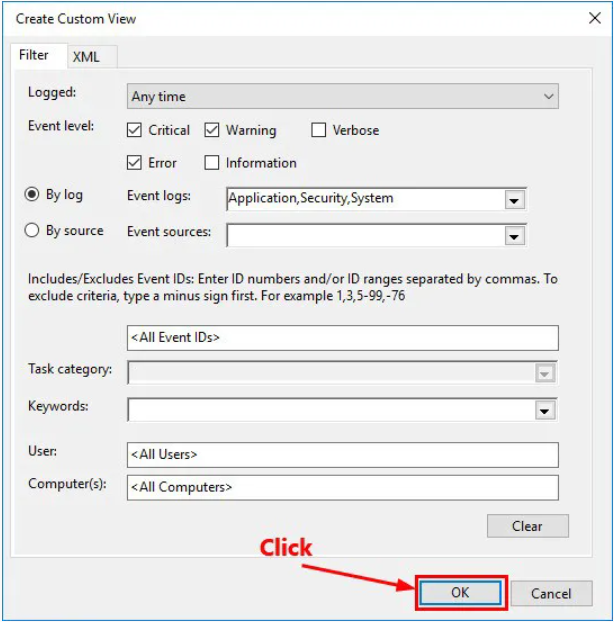
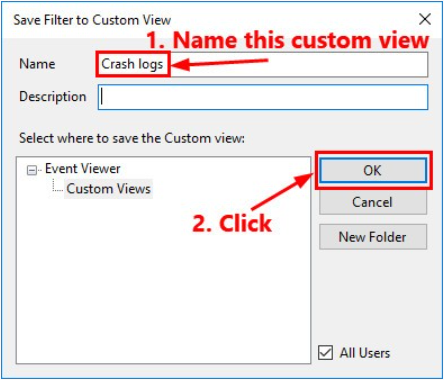
5. In the pop-up window, name this custom view and then click OK to start to view the crash logs.
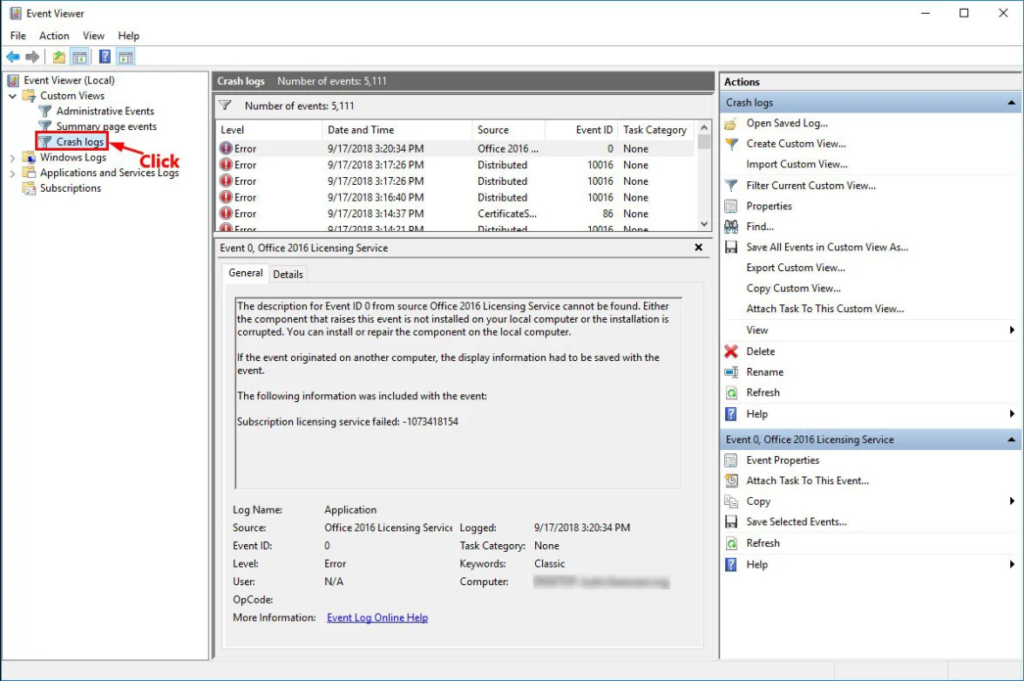
6. Next time if you want to view this custom view, just double-click Custom Views in the left panel and then select Crash logs.
Step 4: Export Crash Logs (Optional)
You can also export the crash logs for diagnostics.
If you want to export certain events, here is how to do it:
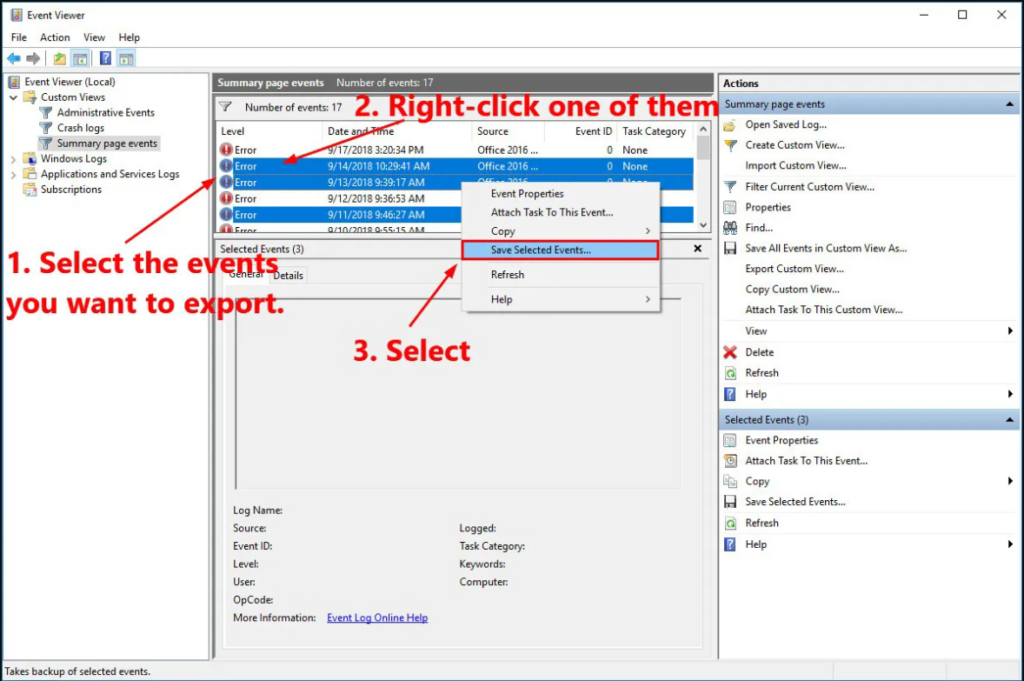
1. Select the events you want to export. Right-click one of them and then select Save Selected Events….
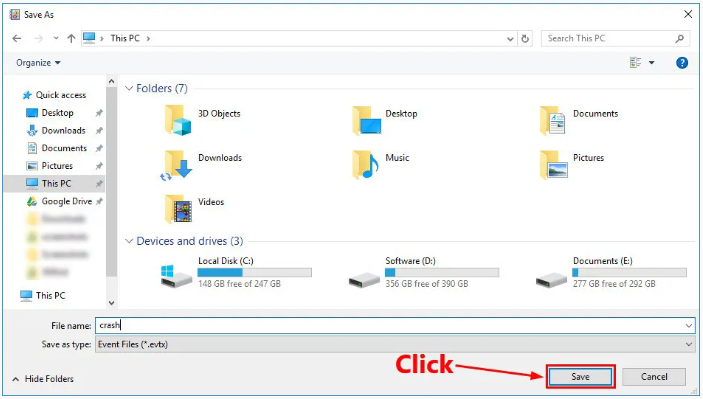
2. Find a location to save this file. Name this file and then click Save.
If you want to export a custom view, here is how to do it:
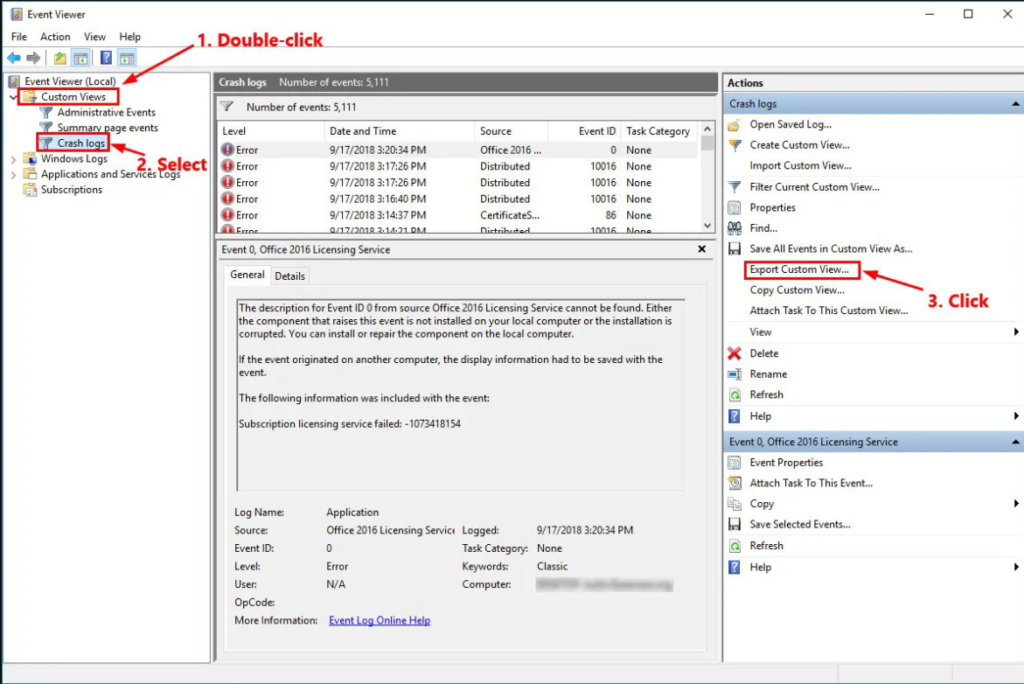
1. In the left panel, double-click Custom Views and then select the custom view you want to export.
2. In the Actions section, click Export Custom View….
3. Find a location to save this file. Name this file and then click Save.
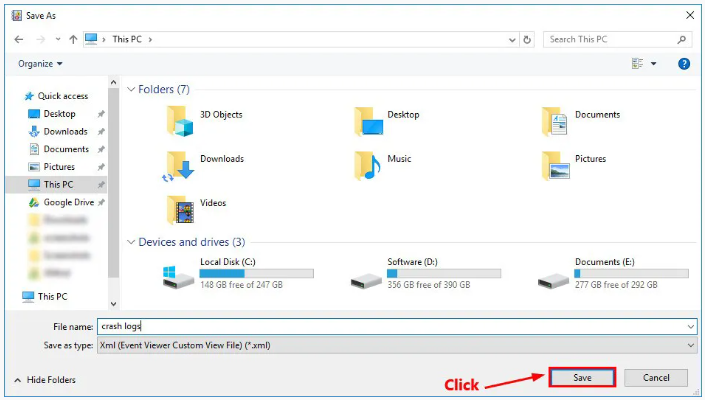
That’s it! Now you’ve exported the crash log.
Method 2: View crash logs with Reliability Monitor
Windows 10 also includes Reliability Monitor, a visual tool that shows your PC’s stability history. It tracks important events like crashes, warnings, app failures, and updates.
Follow the steps below to view crash logs with Reliability Monitor:
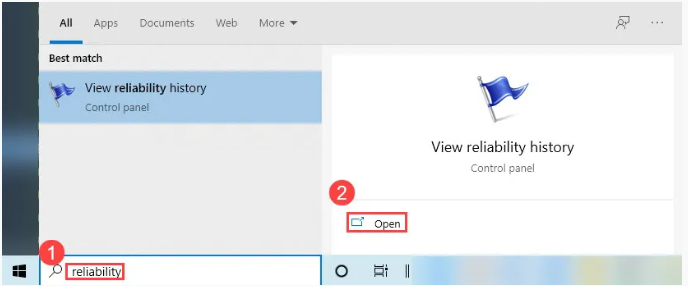
1. On your keyboard, press the Windows logo key and type reliability. Then click Open under View reliability history. The Reliability Monitor window will pop up.
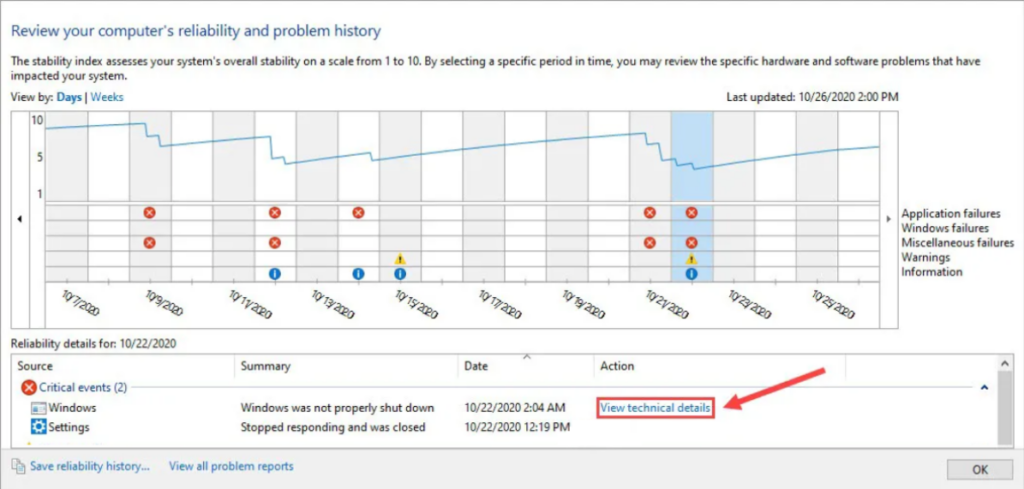
2. In Reliability Monitor, you can review your computer’s reliability and problem history in days or weeks. The default reliability report is viewed by days.
As you can see, the report records application failures, Windows failures, miscellaneous failures, warnings and informational events. The view marks failures with a red cross icon, warnings with a yellow exclamation icon, and informational events with blue info icon. Select a day marked with icons to view the reliability details.
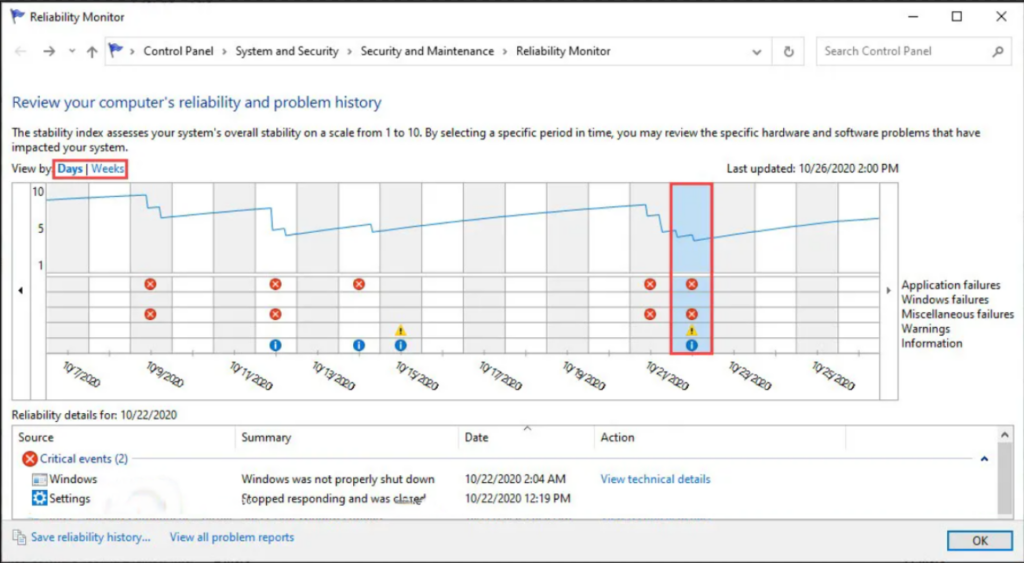
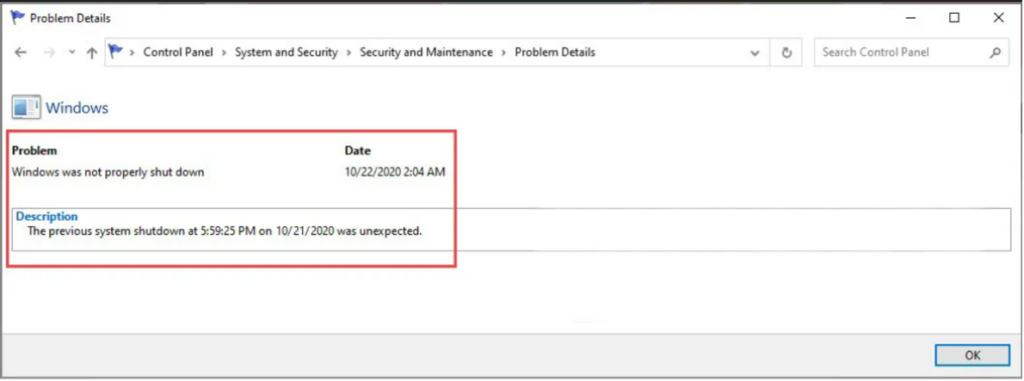
3. To view the technical details of an event, just click View technical details next to that event. Click OK to exit the problem Details window.
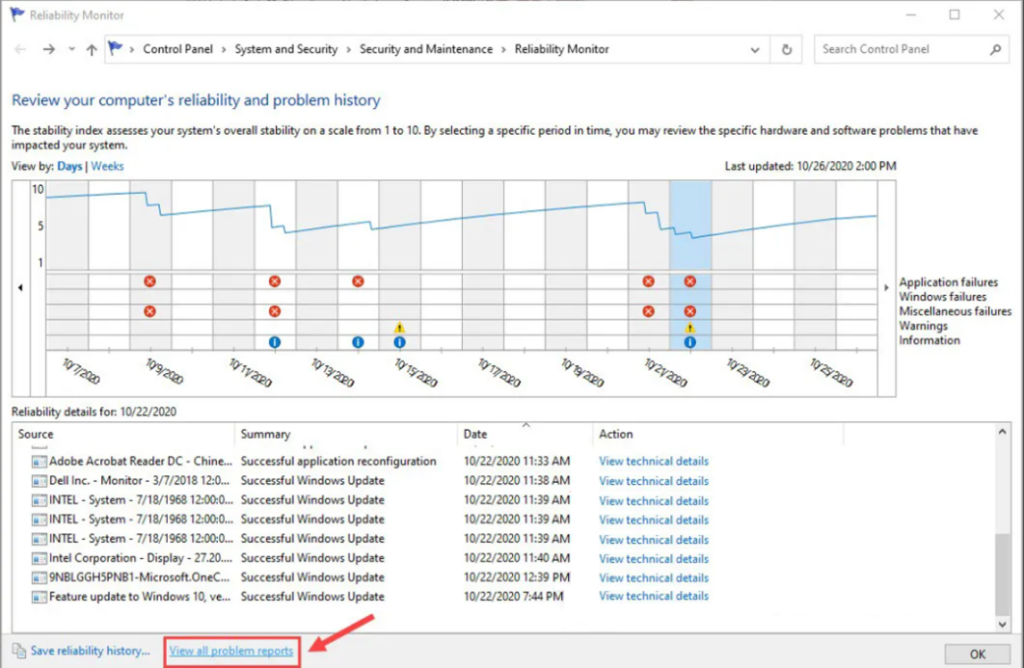
4. Click View all problem reports to view all crash logs. The Problem Reports window will pop up.
5. Double-click a problem event to view the details.
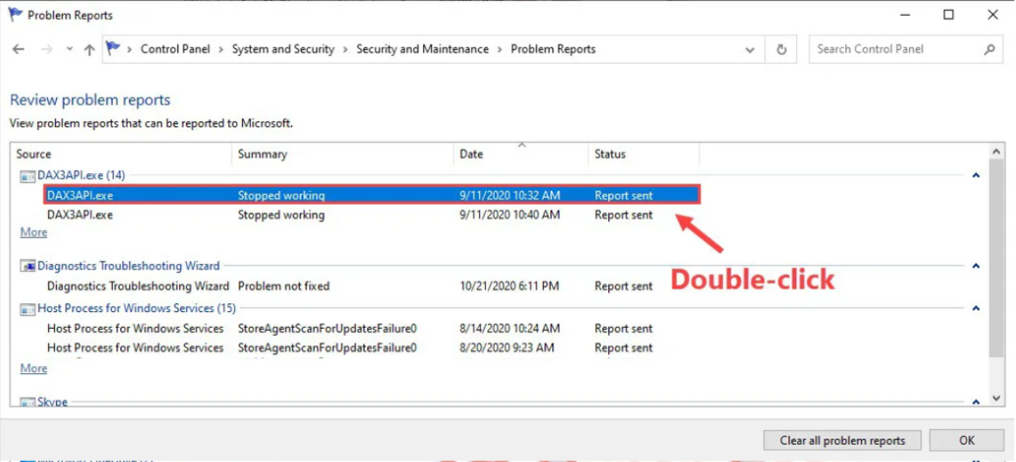
In the Problem Details window, you can view more detailed info about the problem description, signature, and extra info.
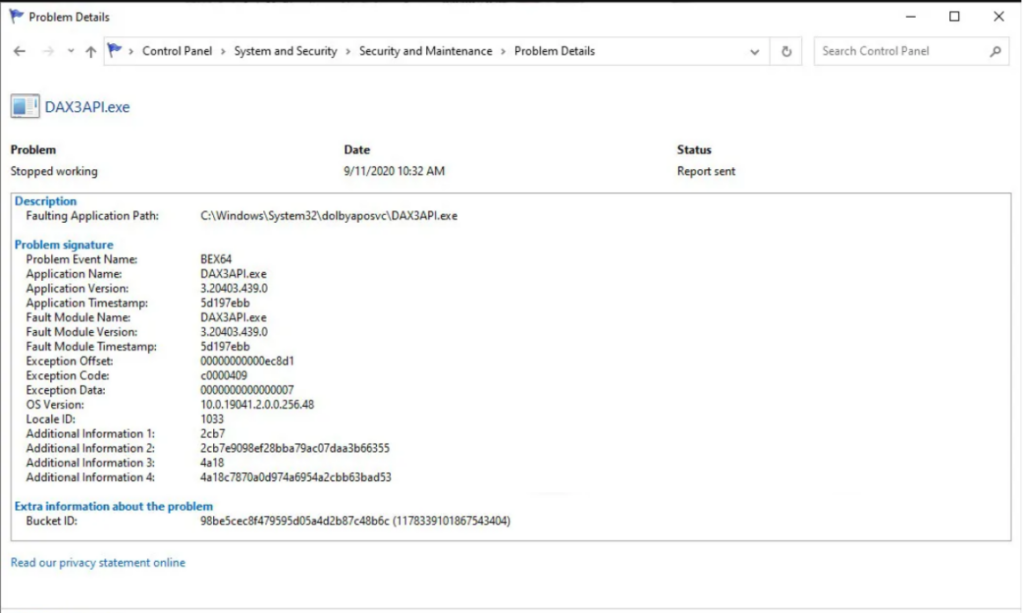
Now you can analyze what caused the crash and take steps to fix it.
Final thoughts
Event Viewer and Reliability Monitor can help you track down Windows 10 system crashes and understand what’s causing them. If you’re having issues with your Windows computer, they can help you quickly identify failing apps, hardware problems, or Windows errors.
If you have any questions or want more troubleshooting tips, feel free to leave a comment. Thanks for reading!
Leave a Reply