
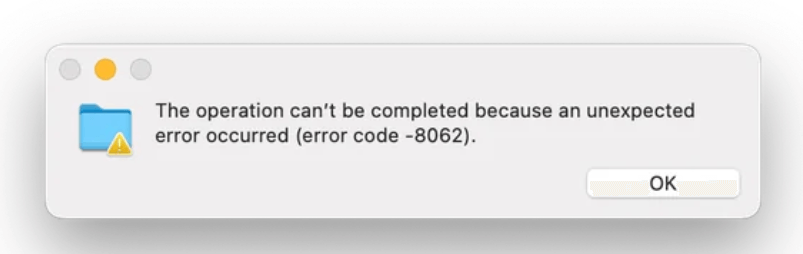
Several users have reported that macOS 15.4.x may trigger error code -8062 when copying files from iCloud Drive, even when the files are fully downloaded locally. The error usually appears as a pop-up saying:
“The operation can’t be completed. An unexpected error occurred (error code -8062).”
In many cases, the issue persists even with plenty of free disk space available and after temporarily disabling iCloud Drive. What’s especially interesting is that the error only affects folders containing subfolders. Copying standard files works normally, which suggests the problem may involve folder metadata or iCloud-related attributes.
If you’re running into similar issues, try the troubleshooting methods below. You don’t need to use all of them; simply work down the list until you find the one that solves your problem.
In this article
- Unlock your files
- Moving some files out of your Bin
- Erase your Time Machine backup disk
- Clean your Mac computer
Fix 1. Unlock your files
Error -8062 often occurs when the file you’re trying to move or rename is locked. macOS prevents changes to locked items for security reasons. Unlocking the file removes this restriction and usually resolves the error immediately.
1. Select the file or folder you want to rename or move.
2. Press the Command key and i on your keyboard at the same time.
3. Make sure Locked is not checked.
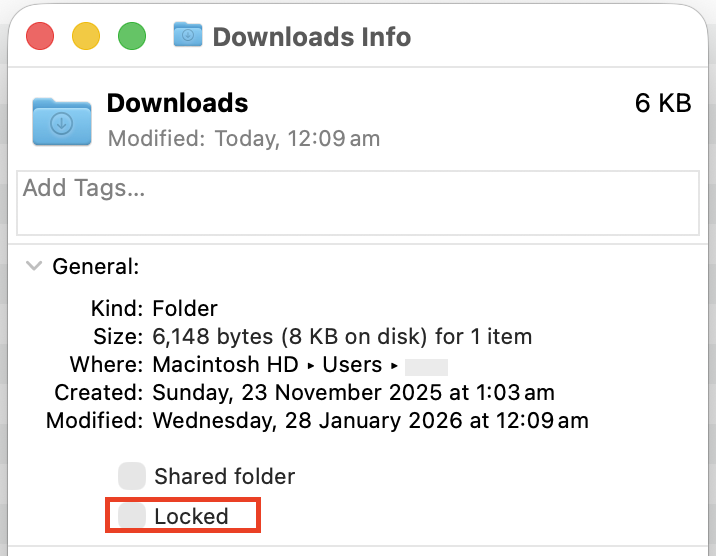
4. Close the window and try the operation again.
If the file was locked, this should resolve the problem.
Fix 2. Moving the files out of your Bin
The Bin can sometimes contain too many files for macOS to process at once, leading to error -8062 when you try to empty it. By removing items in smaller batches, you give the system the ability to delete them without crashing.
1. Open your Bin.
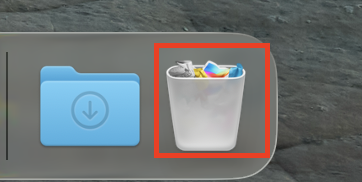
2. Select everything and drag the items to a temporary folder on your desktop.
3. Put a small number of files (20–50 at a time) back into the Bin.
4. Go to Finder, and select Empty Bin.
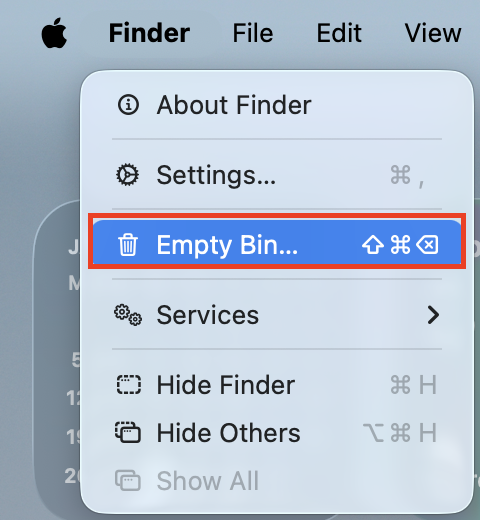
5. Repeat until all files have been successfully deleted.
This method is especially useful if your Bin contains old system files or incomplete downloads.
Fix 3. Erase your Time Machine backup disk
Time Machine may trigger error -8062 when its backup disk becomes corrupted or contains incompatible file structures. Erasing the disk allows Time Machine to recreate a clean backup environment.
Note: This will erase everything in your disk.
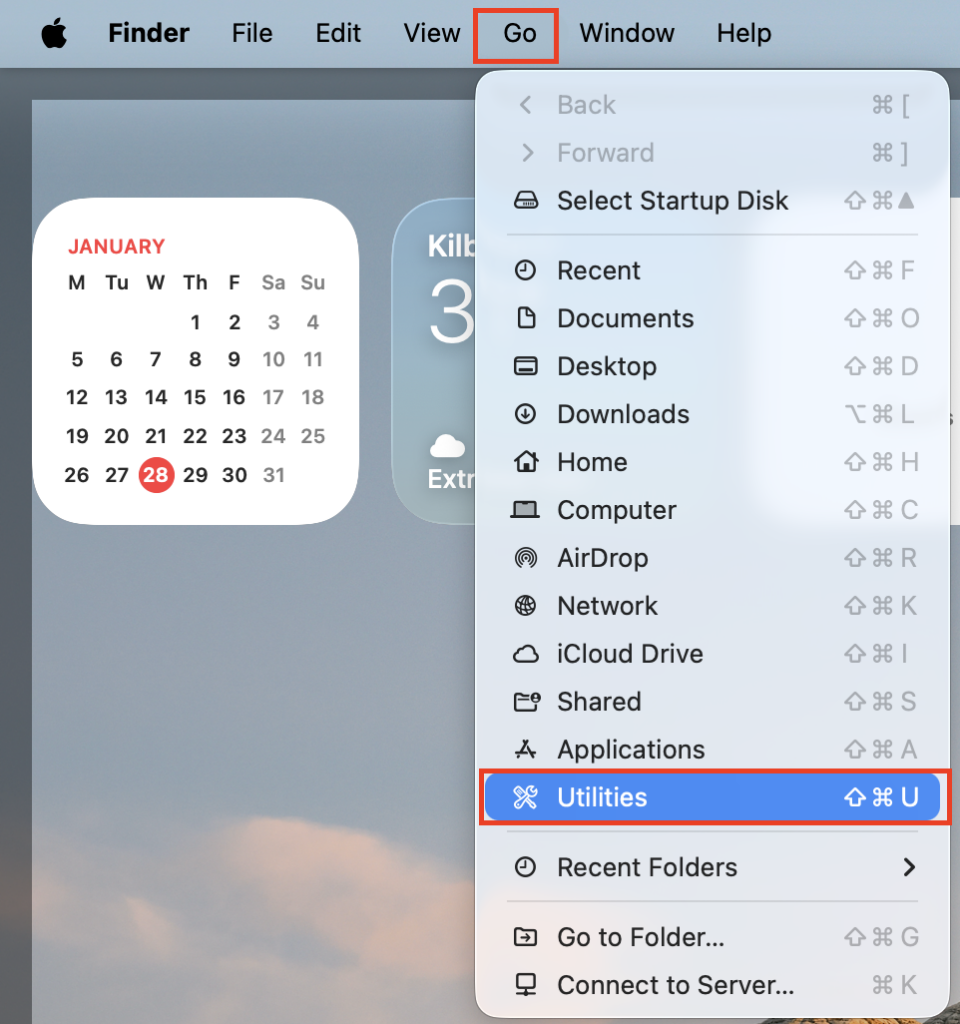
1. On your desktop, click Go, then select Utilities.
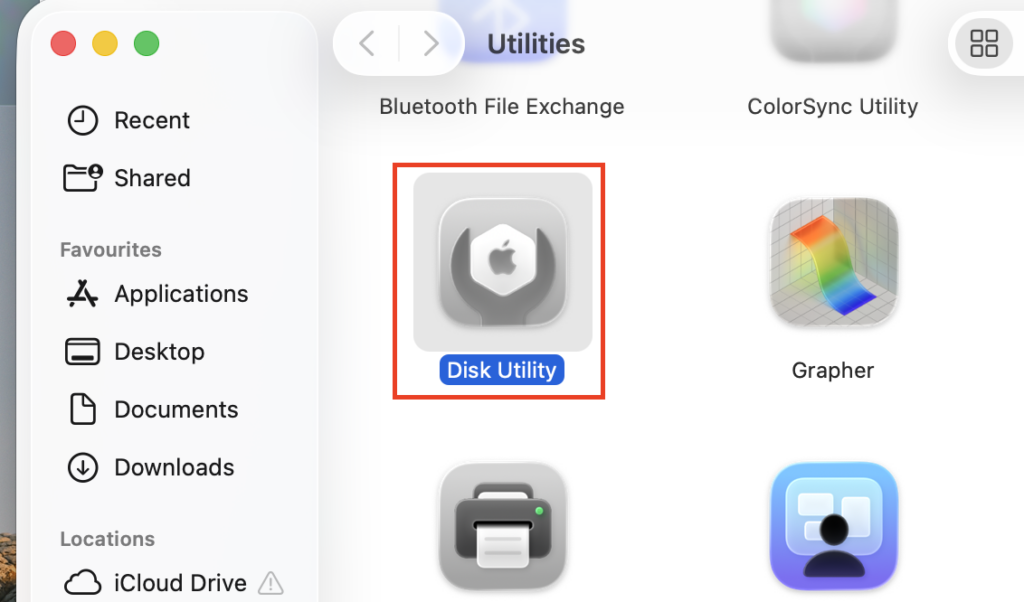
2. Double-click Disk Utility.
3. In the left pane of the Disk Utility window, right-click your backup disk, then select Erase to erase this disk.

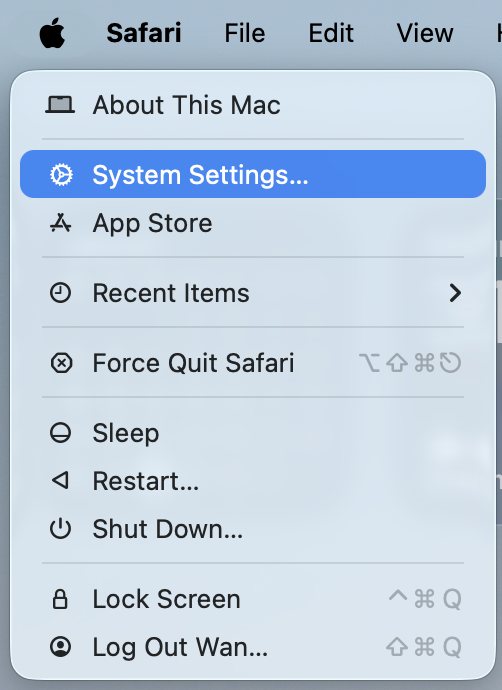
4. Click the Apple icon in the upper left corner of your screen, then select System Settings.
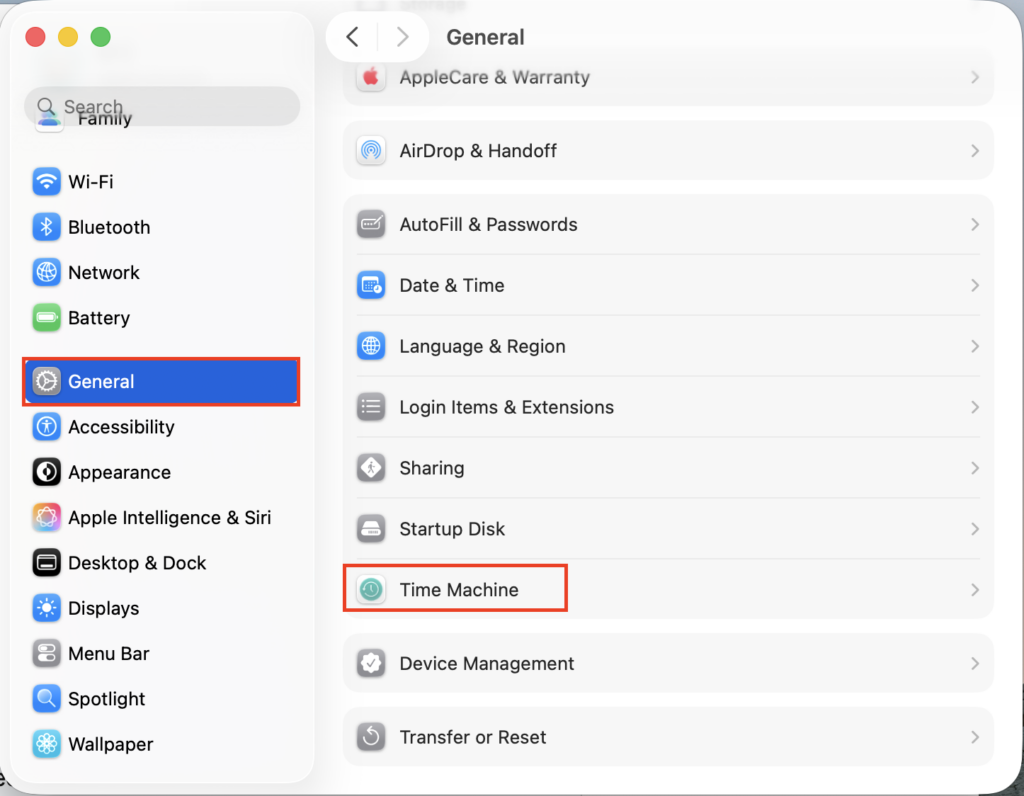
5. Go to General, then select Time Machine.
6. Select Add Backup Disk, then set your erased disk as the Time Machine backup disk.
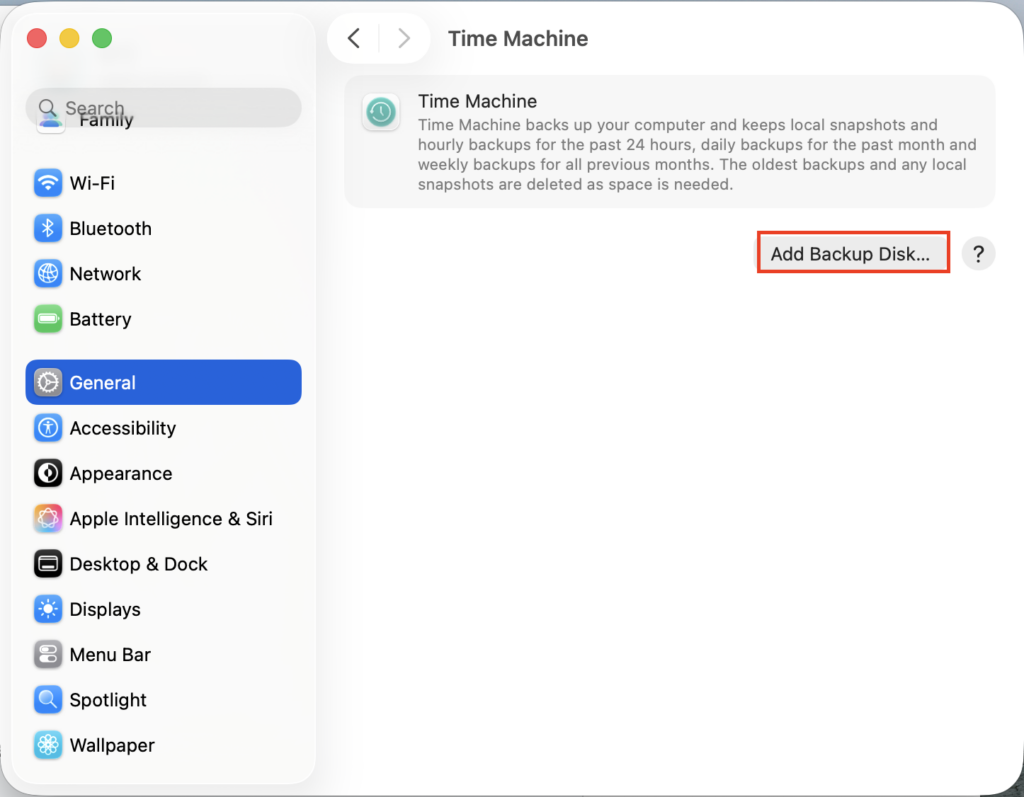
Check if this issue persists. If it does, great! But if not, try the fix below.
Fix 4. Clean your Mac computer
If your system is overloaded with temporary files, cache data, and leftover fragments from old apps, macOS can malfunction and generate errors, including error -8062. Cleaning your Mac often resolves hidden conflicts that cause file operations to fail.
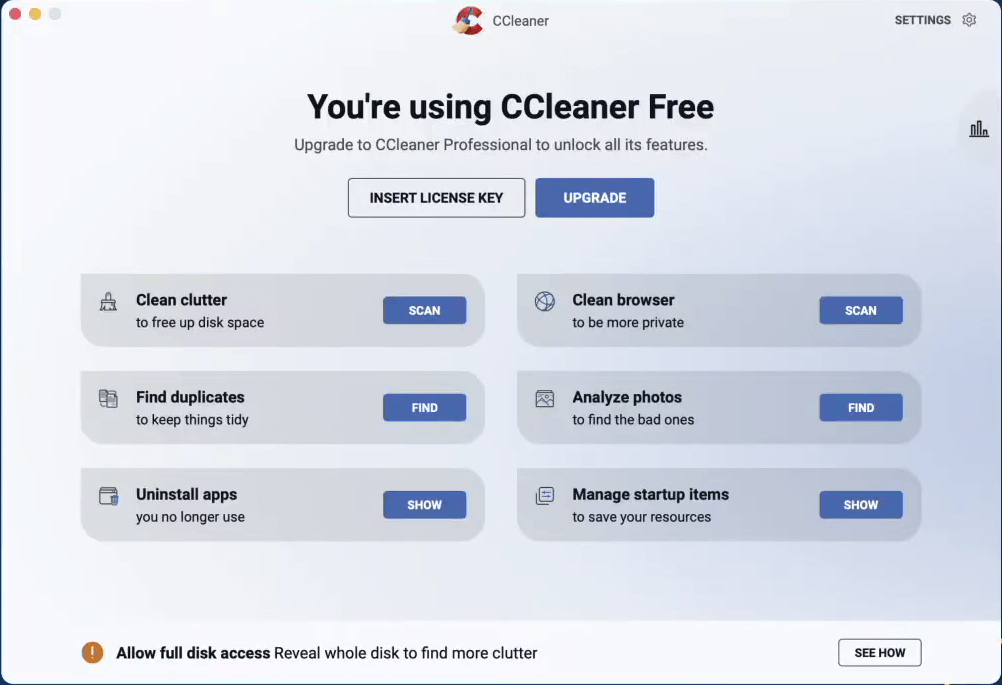
You can manually clean your Mac, but this is time-consuming. Using a cleaning app like CCleaner can automate the process.
1. Download and install CCleaner.
2. Run CCleaner.
3. Click the Scan button next to Clean clutter. CCleaner will then scan your MacBook.
Frequently Asked Questions (FAQ)
Error -8062 is a macOS system error that appears when the system cannot complete an operation such as renaming files, moving folders, emptying Bin, or running Time Machine. It’s usually caused by locked files, corrupted data, or overloaded system resources.
No. It does not mean your Mac is damaged. It simply indicates a problem with file permissions or data structures.
Your Bin may contain locked files, too many files at once, and corrupted system or Time Machine files. Removing items in smaller batches often fixes the issue.
Yes, if the error comes from corrupted Time Machine data. However, this deletes your entire backup disk, so make sure you no longer need the old backups.
Yes. Excessive cache files, corrupted temporary data, and system leftovers can interrupt file operations. Cleaning your Mac can often resolve the issue.
Leave a Reply