

If your Sky Go app isn’t working, freezing, crashing, or showing random error messages, you’re definitely not alone. Thousands of users experience issues where the Sky Go app simply stops responding, with or without an error code.
This can be extremely frustrating, especially when you’re ready to relax and watch your favorite shows. The good news? Most Sky Go problems can be fixed with a few simple troubleshooting steps.
Here are 3 fixes to try. You don’t need to try them all, just work your way down until you find the one that works for you.
In this article:
- Close the Cisco VideoGuard process
- Temporarily disable your firewall
- Completely reinstall your Sky Go app
Fix 1. Close the Cisco VideoGuard Monitor process
Here’s the deal. Sky Go relies on a little security helper called Cisco VideoGuard. It controls playback rights and keeps the content safe. But sometimes, the VideoGuard Monitor process gets stuck or corrupted. When that happens, Sky Go won’t start, or it crashes mid-play.
Fixing it is actually pretty simple: you just force it to reset.
If you are on Windows
1. Press the Ctrl, Shift, and Esc keys on your keyboard at the same time to open Task Manager.
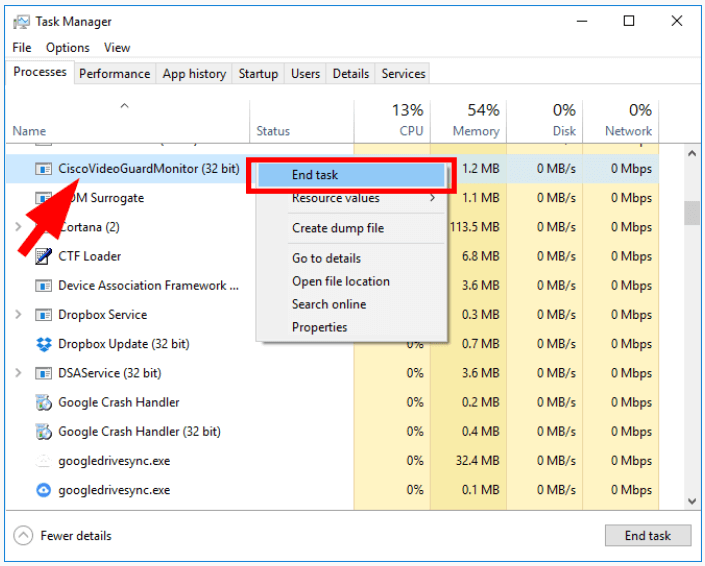
2. Right-click the CiscoVideoGuardMonitor process and click End task/End Process.
If you’re using a Mac computer
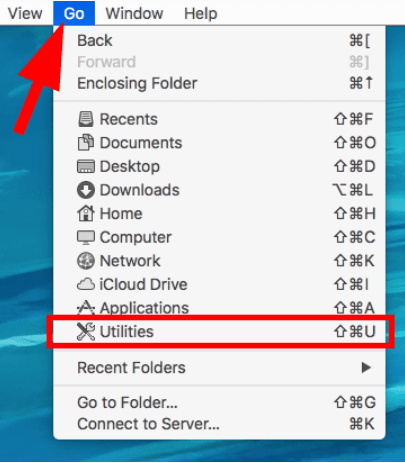
1. On your desktop, click Go, then click Utilities.
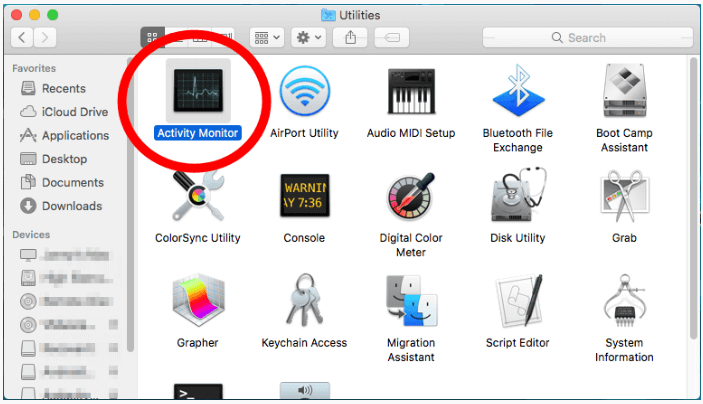
2. Double-click Activity Monitor.
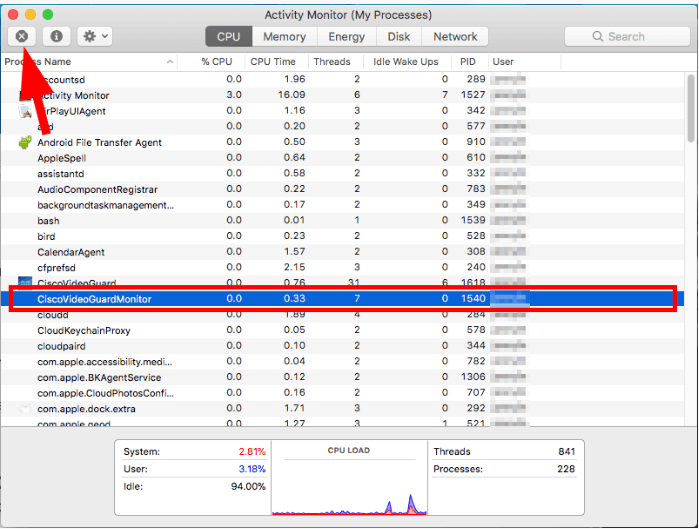
3. Click CiscoVideoGuardMonitor, then click the quit button.
Once done, relaunch Sky Go and check if the problem is fixed.
Fix 2. Temporarily disable your firewall
Sometimes your firewall or antivirus thinks Sky Go is suspicious and blocks it from connecting to the servers. When that happens, the app can fail to load, crash, or refuse to start.
Try temporarily disabling your firewall to see if that’s the culprit. Steps will vary depending on your antivirus or firewall software, so check the instructions for your specific program. Once it’s off, open Sky Go again.
- If Sky Go works now, that means your firewall was blocking it. Contact your security software provider for help or switch to a different security program.
- If Sky Go still doesn’t work, that rules out the firewall issue. Re-enable your firewall immediately and continue with the next fix.
IMPORTANT: Be extra careful about what sites you visit, what emails you open, and what files you download when your antivirus or firewall is disabled.
Fix 3. Completely reinstall your Sky Go app
Sometimes just uninstalling the app isn’t enough. Old cache, leftover VideoGuard folders, or corrupted files can stick around and keep causing errors. A clean reinstall removes everything so Sky Go can start fresh.
If you’re using Windows
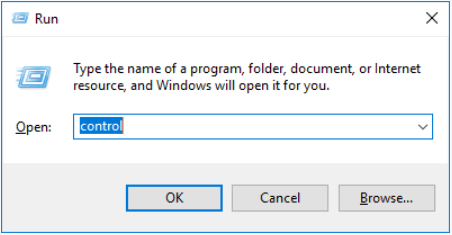
1. Press the Windows logo key and R on your keyboard at the same time. Then type “control” and press Enter to open Control Panel.
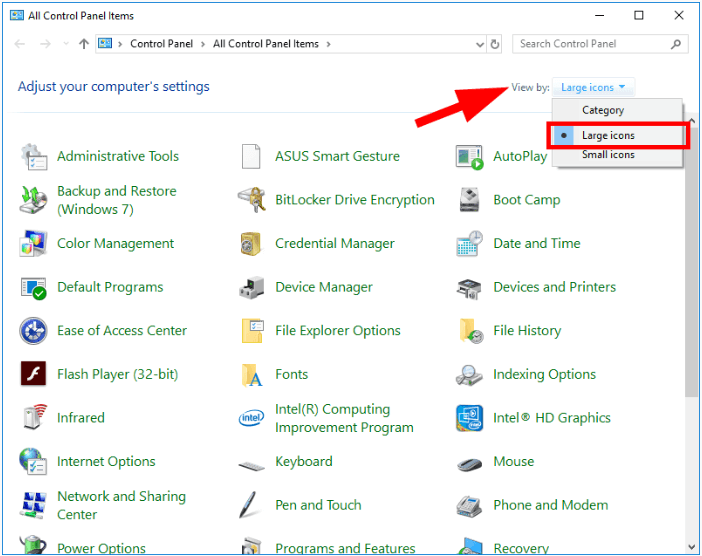
2. Under View by, click Large icons.
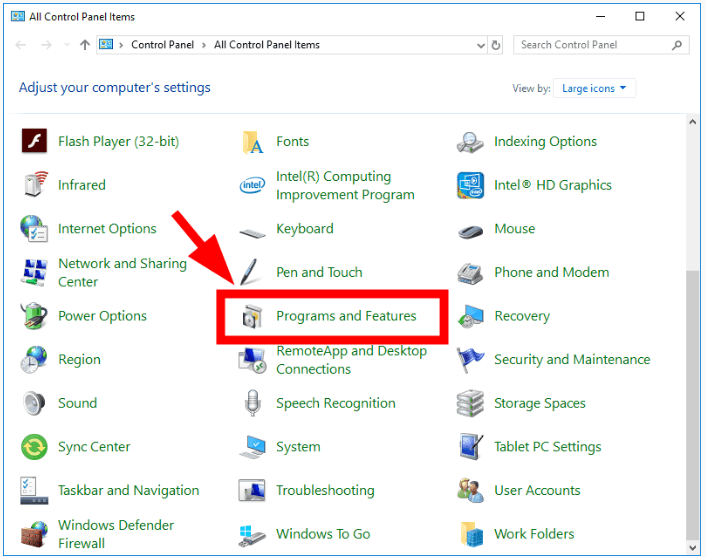
3. Click Programs and Features.
4. Right-click Cisco VideoGuard Player and click Uninstall. Then follow the on-screen instructions to uninstall this program.
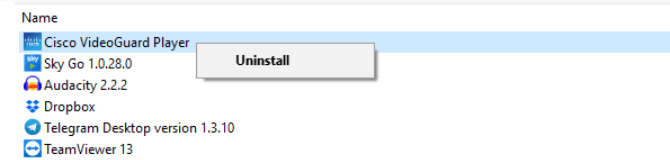
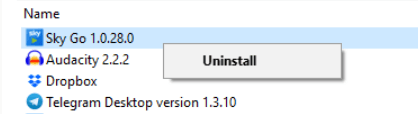
5. Right-click Sky Go and click Uninstall. Then follow the on-screen instructions to uninstall this program.
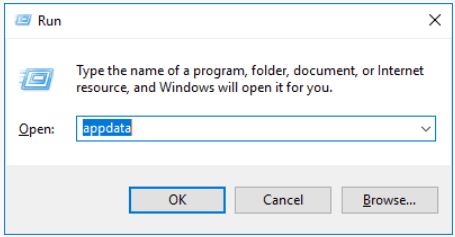
6. Press the Windows logo key and R on your keyboard at the same time. Then type “appdata” and press Enter to open the AppData folder.
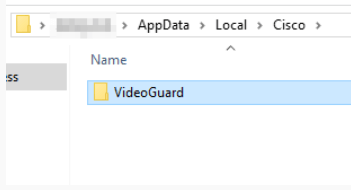
7. Go to Local > Cisco and delete the VideoGuard folder.
8. Go back to the AppData folder. Then go to LocalLow > Cisco and delete the VideoGuard folder.
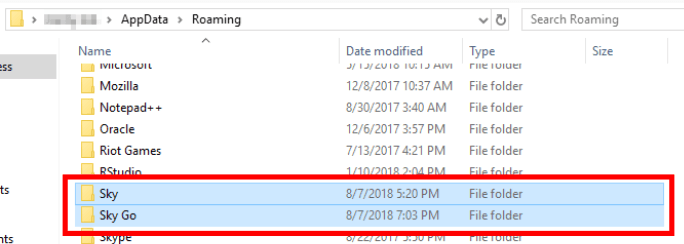
9. Go back to the AppData folder. Then go to Roaming and delete the Sky and Sky Go folders.
10. Download the Sky Go app from the official Sky website. Then open the downloaded file and follow the on-screen instructions to install the app.
If you’re on Mac
1. On your desktop, click Go and click Applications.
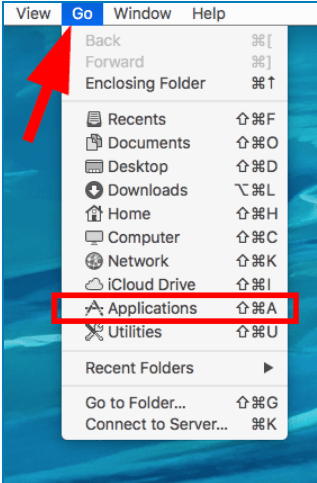
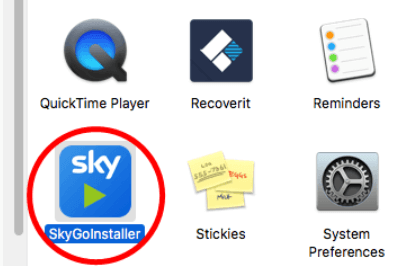
2. Remove the Sky Go app.
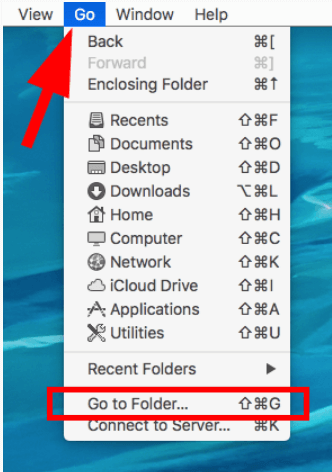
3. Go back to your desktop, then click Go and click Go to Folder.
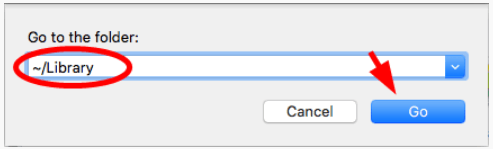
4. Type “~/library” and click Go.
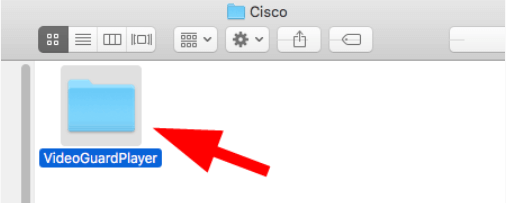
5. Go to Cisco, then remove the VideoGuardPlayer folder.
6. Download the Sky Go app from the official Sky website. Then open the downloaded file and follow the on-screen instructions to install the app.
And that’s it!
Most people fix their Sky Go issues by either closing the Cisco VideoGuard process or doing a clean reinstall.
If you find another fix, or if you have any questions or suggestions, leave a comment below.
Leave a Reply