

Facebook messages often contain important conversations from your personal and professional life. So when messages get deleted, whether by accident or due to a sync error, it can feel stressful. The good news is that deleted Facebook messages are sometimes recoverable, depending on how and where they were stored.
Below are several reliable methods to help you restore deleted Facebook messages. Try them one by one until you find the solution that works for you.
Fixes to try:
- Recover messages from Facebook Archived Threads
- Restore messages using Facebook settings (Download Your Information)
- Recover deleted messages from Android device memory
- Bonus Tip: Recover lost data from devices using a data recovery tool
Fix1. Recover Deleted Facebook Messages from Archived Threads
Facebook allows users to archive conversations, which hides them from your Messages inbox but does not delete them. If your messages were archived instead of deleted, you can easily restore them from the Archive folder.
If you accidentally deleted your messages with your friend, you can ask your friend and see if sh/e can send you a copy of your conversations.
How to archive your Facebook messages
If you don’t know how to archive your Facebook messages, check out these steps:
1. Open Facebook message list in your browser. Ensure to log in to your Facebook account.
2. Select the conversation you want to archive and click the Settings icon.
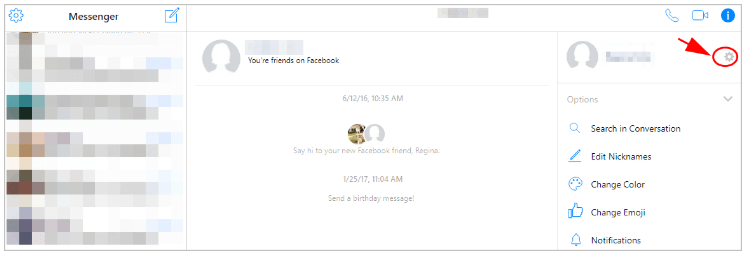
3. Click Archive.
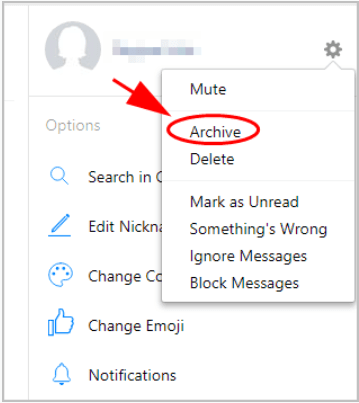
Then your Facebook messages with the selected contact will be removed from the list and archived in the Archive folder.
How to recover your Facebook messages from Archive
Once archived, you can recover the Facebook messages:
1. Open Facebook message list in your browser. Make sure you’ve logged in to your Facebook account.
2. Click the Settings icon on the upper left corner. Then click Archived Threads.
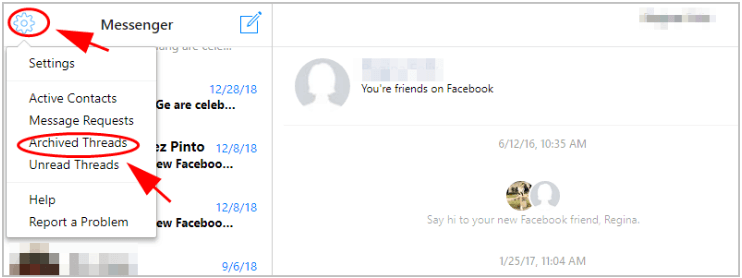
3. Browse the list and open the conversation you want to restore. If the messages were archived, they will reappear immediately.
Alternatively, if the conversation was deleted on your side but still exists on your friend’s account, you can ask them to send you a copy of the messages.
Fix 2. Recover deleted Facebook messages via Facebook settings
Facebook stores your account data, including messages, on Meta’s servers. Even if messages disappear from your inbox, you may still be able to recover them by downloading a copy of your account data through Facebook’s Download Your Information tool.
Here’s what you need to do:
1. Open https://www.facebook.com/ in your browser, and make sure to log in to your Facebook account.
2. Click the inverted triangle icon and click Settings.

3. Click Your Facebook Information on the left, then click Download Your Information.
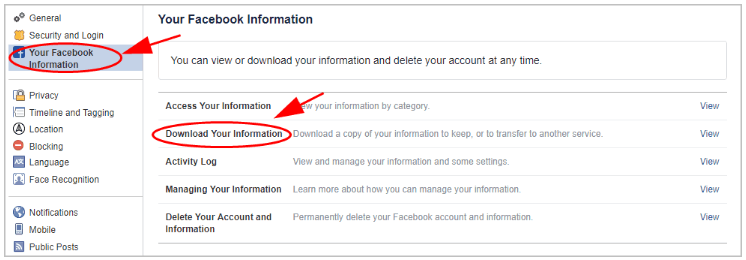
4. Choose the Date Range you want to download, and check the box next to the information you want to download, and be sure to select Messages. Then click Create File.
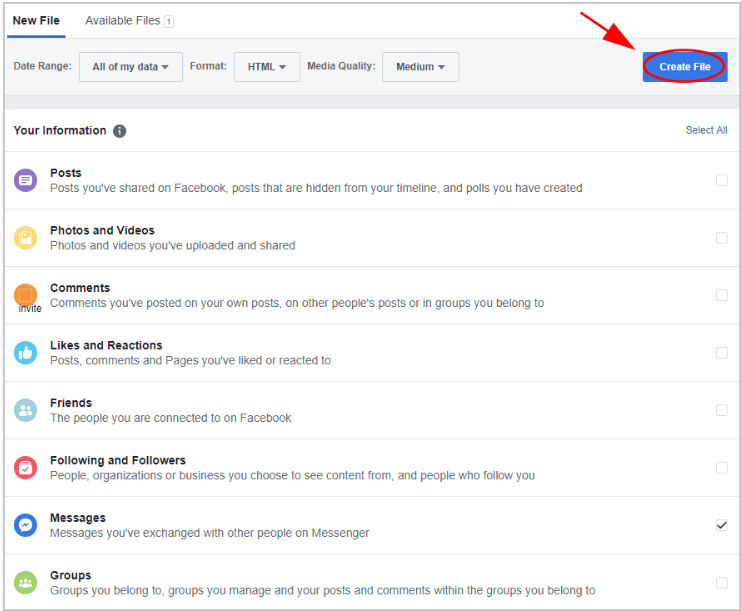
5. Wait for a while for the process to complete.
6. Open your Email inbox to download the file, or anywhere you have set to save your information. Or you may see a notification pop up at the bottom left, click it to open the archived files.

7. Click Download to download the files.
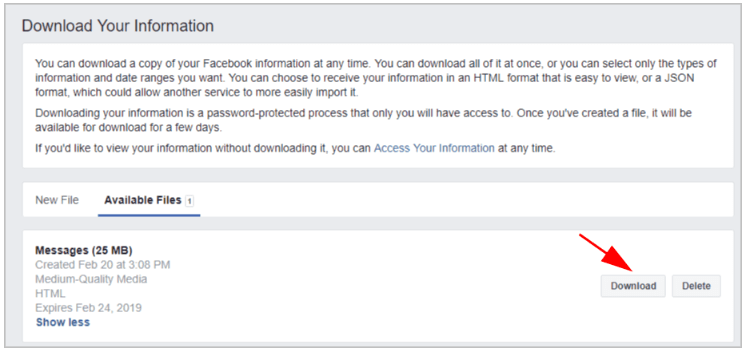
8. You’ll need to enter your Facebook account password to continue.
9. Then your browser will download the zip file.
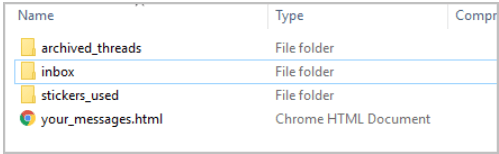
10. Wait for the file to download. Then unzip the file.
You’ll be able to see all your inbox and archived messages.
Fix 3. Recover deleted Facebook messages from Android phone memory
On Android devices, the Facebook Messenger app temporarily stores message data in the device’s cache folders. Sometimes deleted messages can still be found in these temporary storage directories.
1. Connect your Android device to your computer via USB or download a file manager in your Android device.
2. Go to SD card > Android > Data > com.facebook.orca > cache > fb_temp.
3. Look for cached message data inside the fb_temp folder.
4. Copy the files to your computer or another device to preserve them.
If the deleted messages were cached, you may be able to restore them from this folder.
Bonus Tip: Recover deleted data in your devices easily
If you accidentally delete SMS messages, photos, contacts, or files on your phone, you can use a professional data recovery tool like iMobile PhoneRescue.
PhoneRescue scans your device storage to recover files that are still physically present but no longer visible to the operating system. This includes deleted messages, photos, contacts, videos, WhatsApp data, and more
Here’s what you need to do:
1. Download and install PhoneRescue.
2. Open PhoneRescue on your computer, and connect your Android device to your computer. PhoneRescue will try to detect and connect.
3. Once connected, check the box next to the data you want to recover, then click Next.
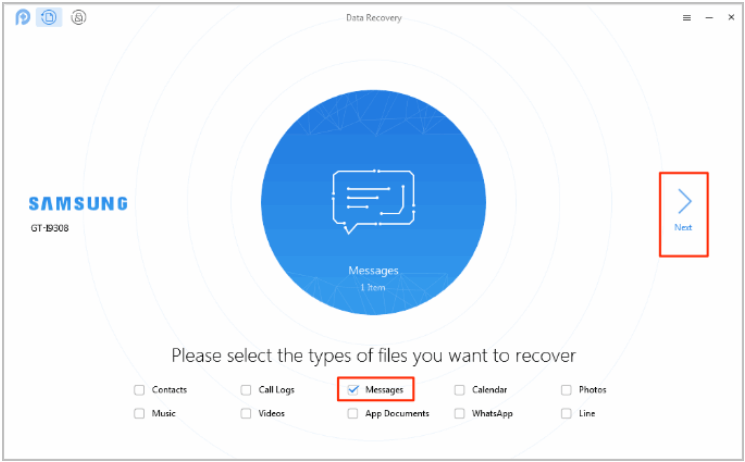
4. Select the messages that you want to restore.
5. Then click Download to Computer or Download to Device depending on your needs.
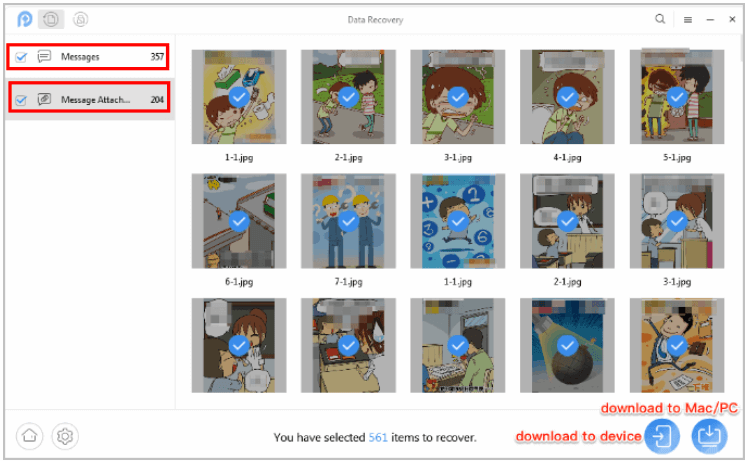
PhoneRescue will save the selected items back to your phone or computer.
Leave a Reply