
You’re in the middle of a game. Everything’s going great, and then your PS4 freezes, crashes, or dumps you straight back to the home screen.
If this happens to you, you’re not alone. The good news is that most PS4 crashing issues are fixable, and you usually don’t need any special tools to do it.
This guide walks you through the most effective solutions to stop PS4 crashes and get your console running smoothly again.
Try these fixes
You don’t need to try everything. Just work your way down until the problem is solved.
- Restart your device
- Free up more space for your PS4
- Update PS4 system software
- Troubleshoot the problematic game
- Rebuild PS4 database
- Restore your PS4 to default settings
Fix 1. Restart your PS4
Yes, it sounds basic, but it works more often than you’d think.
If your PS4 has been running for hours (or days), it can build up temporary glitches in memory. A restart clears those out and gives the system a fresh start.
So try turning the PS4 off, wait a few minutes and then power it back on. Try launching your game again after reboot.
Still crashing? Alright, let’s keep going.
Fix 2. Free up more space for your PS4
Your PS4 requires free space for installing game patches, creating temporary files, and running system processes.
If your storage is nearly full, it can cause slowdowns, freezing, and unexpected crashes. Here’s how to check:
1. Go to your PS4 Settings > System Storage Management.
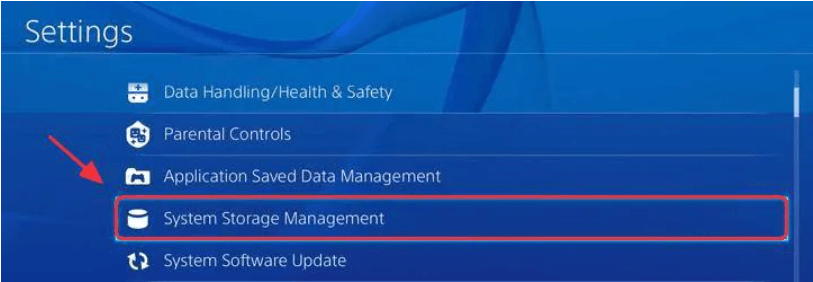
2. You’ll see the data stored in your system, and you can select the type of data you want to delete.
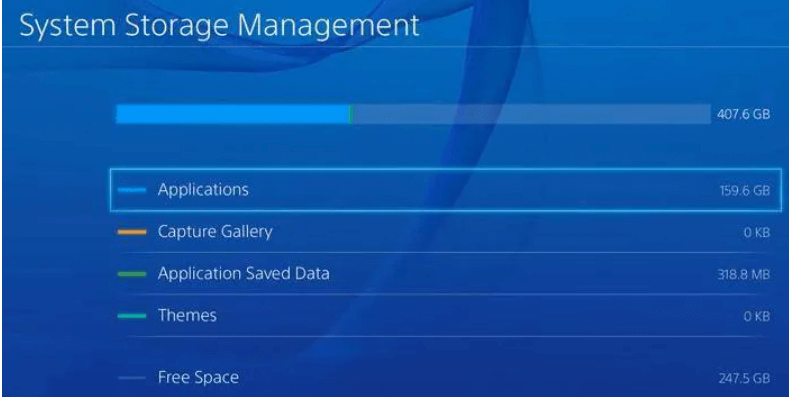
3. Press the Options button on your controller and select Delete.
If you still have plenty of space or crashes continue, go to Fix 3.
Fix 3. Update PS4 system software
Outdated or corrupted firmware can create compatibility issues and cause system instability, especially with newer games.
If your PS4 has not been connected to the internet for a while, you’ll need to check for system updates. Here is how to update:
1. On the home screen of your PS4 system, press the Up button on your controller to go to the function area.
2. Select Settings.

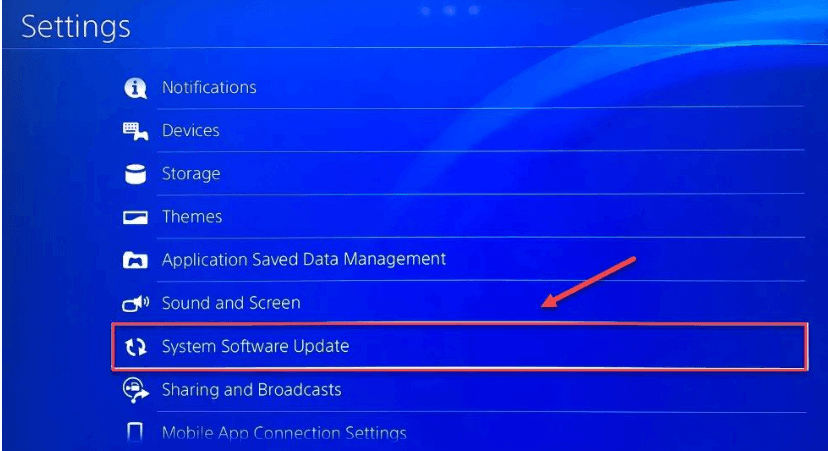
3. Select System Software Update, and then follow the on-screen instructions to update the system software for your PS4.
If the PS4 crashing problem persists after the latest version of the system software is installed, move on to the fix below.
Fix 4. Troubleshoot the problematic game
Sometimes the crashing comes from a specific game instead of the console.
If you encounter the PS4 crashing issues when running one specific game, chances are that one or more files of the game get corrupted somehow and crash your device every time you run the game.
If you haven’t updated the game lately, check if there are any updates available from PS4 Settings. But if the problem starts right after you install any updates, you’ll need to reinstall the game.
Option 1: Check for game updates from Settings
Game updates fix bugs, patch corrupted files, and improve stability. To check for game updates, follow these steps:
1. On the PS4 home screen, highlight the game/application that needs to update.
2. Press the Options button on your PS4 controller, then select Check for Update.
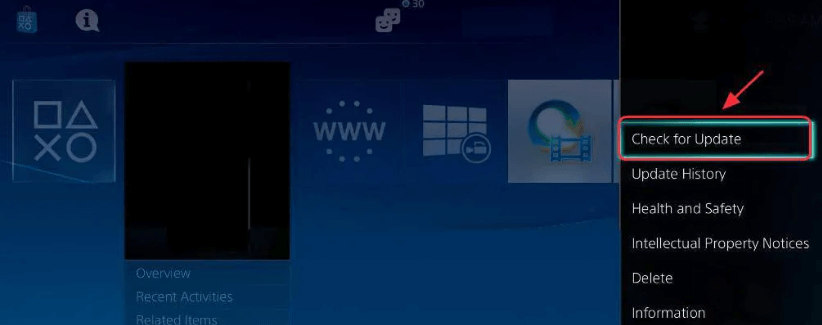
3. Follow the wizard to download and install any available updates.
4. Restart your PS4 and try to play the game to see if it works now.
If your PS4 still crashes, then try Fix5.
Option 2: Reinstall the game
Reinstalling replaces corrupted game files that may be causing freezes or crashes. To reinstall a game on PS4, follow the instructions below:
Note: You’ll need to save the game data first before you uninstall the game, so that you won’t lose your progress.
1. Go to PS4 Settings > Application Saved Data Management.
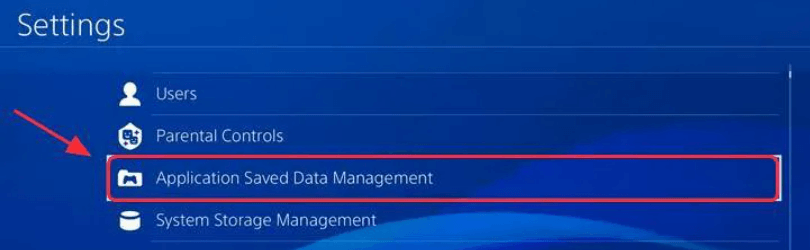
2. Select Saved Data in System Storage if you want to save it in your PS4 system, or you can select Saved Data on USB Storage Device if you have inserted the USB drive into your PS4.
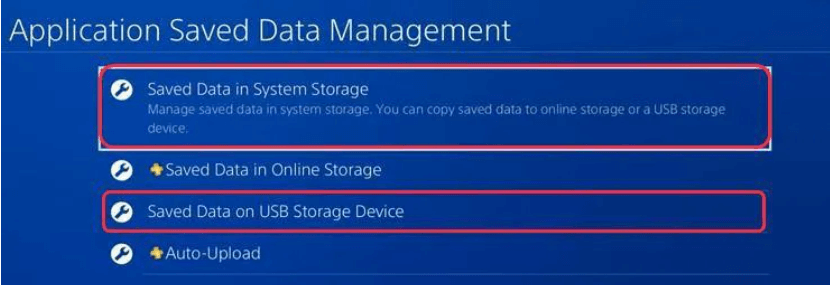
3. Follow the instructions on your screen to finish.
4. After that, go to PS4 Settings > System Storage Management > Applications.
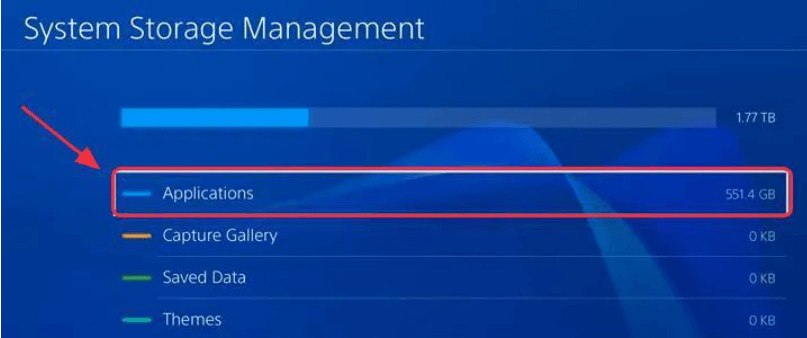
5. Find the game that causes the problem and highlight it.
6. Press the Options button and select Delete.
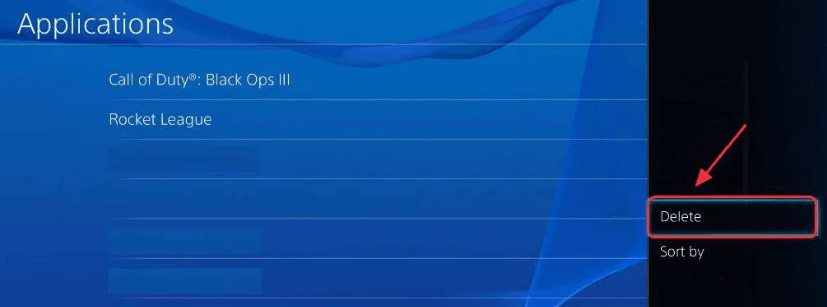
7. Restart your PS4 and reinstall the games.
If the issue persists, continue to Fix 5.
Fix 5. Rebuild PS4 database
This sounds scary, but it’s actually safe and very effective.
Rebuilding your PS4 database reorganizes your hard drive to make it easier and quicker for the system to access files. It helps you get rid of corrupted files and decrease the chances of having your game crash. To rebuild your PS4 database:
1. Connect your PS4 controller to the console with a USB cable.
2. Press and hold the power button on your PS4 console until you hear the second beep. Then release the button. Your PS4 will be in safe mode and the screen will look like this:
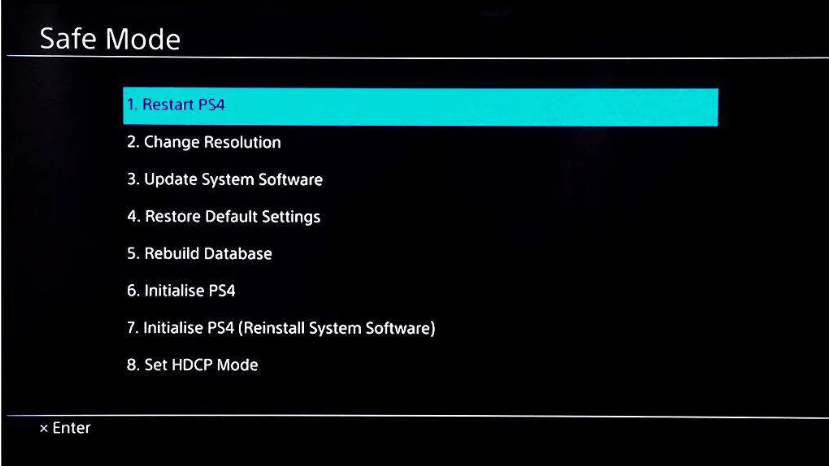
3. Select Rebuild Database with your controller.
4. Wait for the process to complete. This can take a while, so be patient.
If the issue continues to occur, then try the next fix below.
Fix 6. Restore your PS4 to default settings
PS4 crashing issues may occur due to misconfigured settings. If you’ve recently altered settings, try restoring your PS4 to the default factory settings to see if it fixes the problem. Here is how:
Note: This process will only refresh all of your settings to their original state; it won’t delete the saved data on your hard drive.
1. On the front panel of your PS4, press the power button to turn it off.
2. After your PS4 is turned off completely, press and hold the power button.
3. After you hear two beeps from your PS4, release the power button.
4. Connect your controller to your PS4 with a USB cable.
5. Press the PS button on your controller.
6. Select Restore to Default Settings.
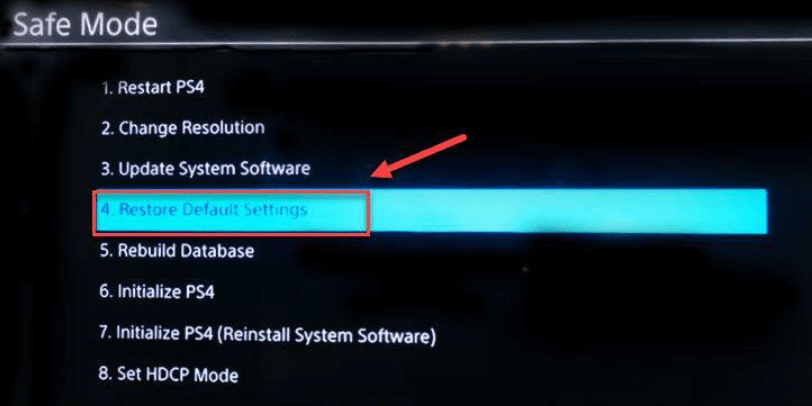
7. Select Yes and wait for the process to be complete.
8. Restart your game to test your issue.
Final thoughts
PS4 crashes are frustrating, but they’re rarely random. Work through these fixes patiently, and hopefully, you’ll be back in the game without needing repairs.
If your console still crashes after trying everything, the issue may be hardware-related. Most commonly, the internal hard drive or cooling system may be failing. In that case, contact Sony Support or replace the internal drive (many users upgrade to an SSD).
If you’ve tried something else that worked or you’re still stuck, drop a comment.
Leave a Reply