
If you’re trying to play Roblox on your school’s network and it won’t load, you’re definitely not alone. Schools block all kinds of stuff, games, entertainment sites, random apps, and anything that’s not educational.
The good news is, there are ways around it. Let’s talk through them.
1. Use a VPN
Most schools block non-educational content, but a VPN (which stands for Virtual Private Network) can help you get around that. VPNs hide your IP address and make your online activity anonymous, so you can access restricted websites and apps, like Roblox, without the network even knowing!
That’s why VPNs are so effective at getting around school blocks.There are a lot of VPNs out there, but the ones people trust most include NordVPN, ExpressVPN, Surfshark, and CyberGhost VPN.
If you want a fast service, we recommend NordVPN, but if you’re looking to save money, Surfshark is usually cheaper (often under $2.50/month).
You can follow the steps below to see how to use a VPN to unblock Roblox on your device. First, select the platform you play Roblox on:
Play Roblox on your Chromebook (Chrome OS)
Play Roblox on a Chromebook? There are two methods for you to try, depending on whether the Chromebook you’re using has support for Play Store or not.
If the Chromebook you’re using has support for Play Store, follow the steps below to get Roblox unblocked at school:
- On your Chromebook, go to Settings > Apps. Locate the Google Play Store section and click Turn on next to it to enable Play Store on the Chromebook.
- Launch Play Store to download and install the NordVPN app on your device.
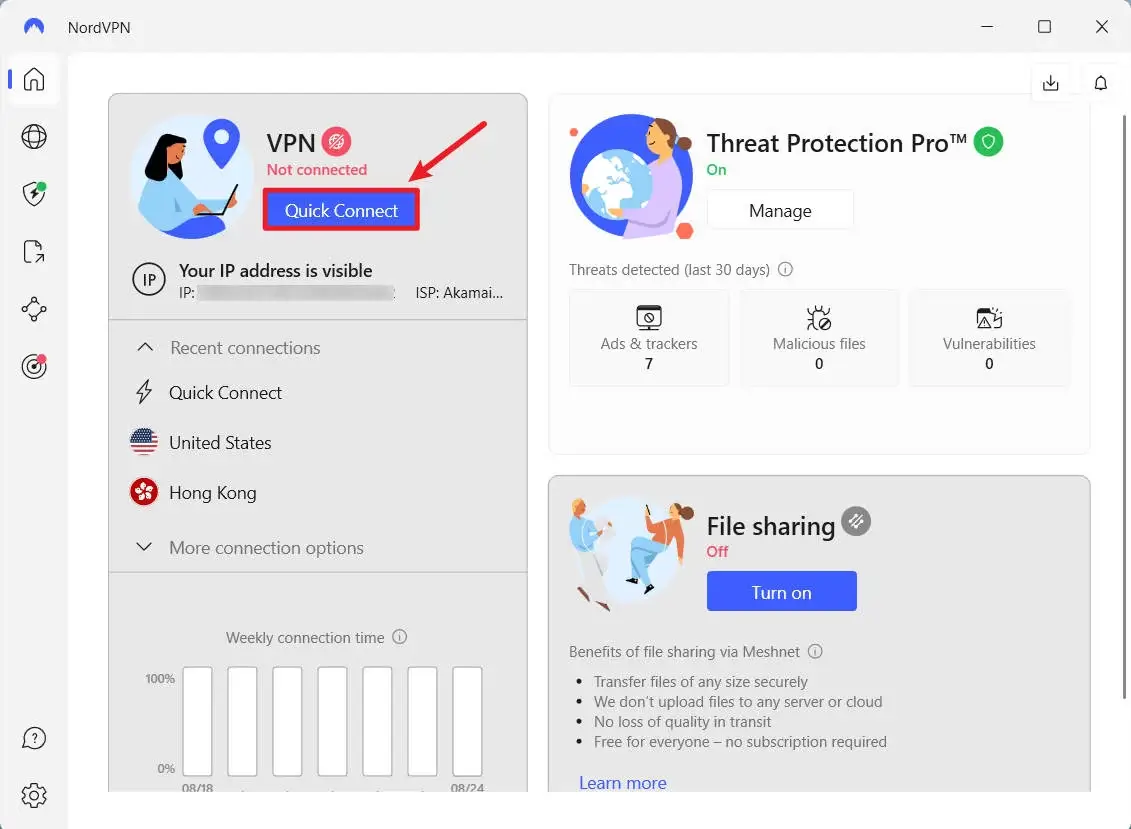
- Launch NordVPN on your Chromebook, and sign in with your NordVPN account.
- Click QUICK CONNECT to create a secure and encrypted connection.
- Download and install Roblox on your Chromebook to start playing.
If the Chromebook doesn’t have Play Store support, you’ll need an app called ARC Welder to install Android APKs directly. Here is how to do it:
- Install the ARC Welder extension on Chrome.
- Download the APK file of the Roblox app.
- Download the APK file of the NordVPN app.
- Launch ARC Welder, select the directory where the NordVPN APK file is downloaded, then click Open.
- Click Add your APK to select the NordVPN APK file and click Open and Test to run the NordVPN app on your Chromebook.
- Use your NordVPN account to sign in and click QUICK CONNECT to create a secure and encrypted connection.
- Repeat steps 4 -5 to run Roblox on the Chromebook.
It might take a minute to start up, but once it does, you’re good to go. Roblox will be running through a secure VPN connection.
Play Roblox on your iOS / iPadOS / Android / Windows / Mac
If you play Roblox on your iPhone, Android phone, Windows computer or Mac, it’s much easier to unblock Roblox at school.
NordVPN offers user-friendly VPN software for all major operating systems, including Android, Windows, macOS, iOS / iPadOS, Linux and more!
You just need to download and install the corresponding NordVPN client on your device, sign in with your NordVPN account, and then create a secure, encrypted, and stable connection before playing Roblox.
2. Use Mobile Hotspot
Now, sometimes schools get extra strict and block VPNs, too. If that happens, there’s a backup plan. Your phone.
Just turn on your mobile hotspot, connect your laptop or tablet to it, and play Roblox using your mobile data instead of school Wi-Fi.
Just keep an eye on your data usage.
Final Thoughts
Schools block Roblox to keep students “focused,” but we know that everyone just wants to play a little during breaks.
Whether you use a VPN or your phone’s hotspot. There are ways to get Roblox working at school.
Hopefully, one of these methods gets you back into the game. And if you’ve found another trick that works, feel free to share it.
Good luck, and have fun playing.
Leave a Reply