
Skype usually starts automatically when Windows boots up. If you don’t actually need it running every single time you turn on your PC, turning off auto-startup can make your system feel faster and less cluttered.
The good news? It’s easy to fix. Follow the instructions below to see how to stop Skype from starting automatically.
Option 1: Disable Skype from the Startup tab
This method works for the classic desktop version of Skype.
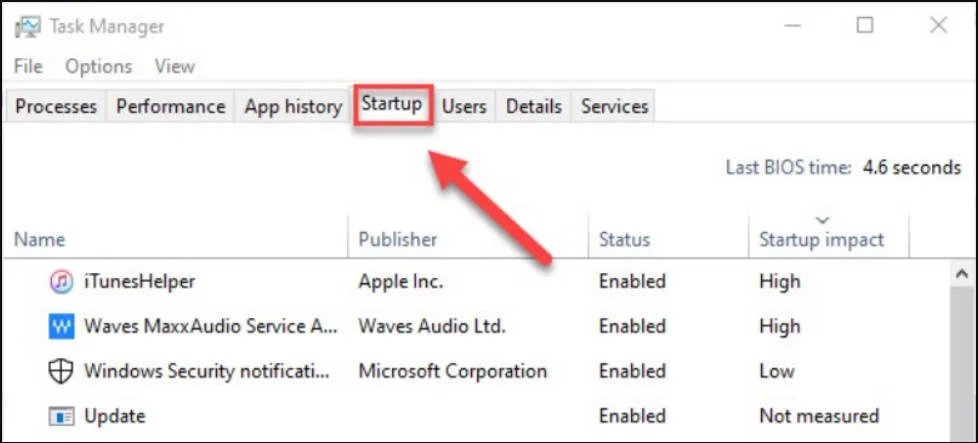
1. On your keyboard, press the Ctrl, Shift, and Esc keys at the same time to open Task Manager.
2. Click the Startup tab.
3. Right-click Skype and select Disable.
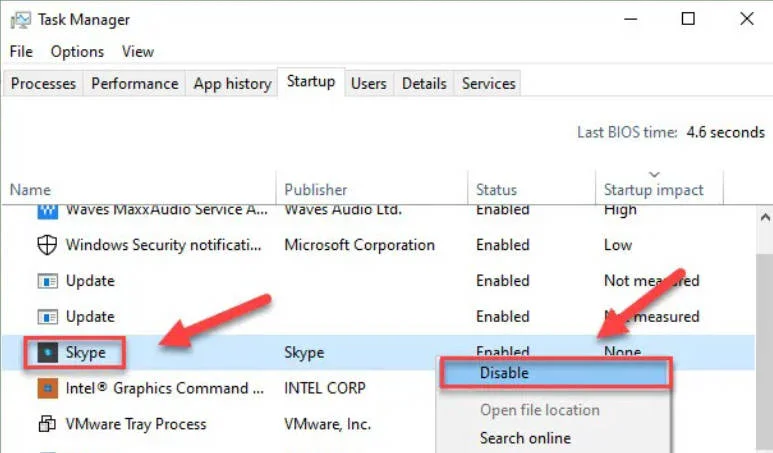
That’s it. Restart your computer and check. Skype should stay closed this time.
Option 2: Turn off Skype background app functionality
If you’re using the Microsoft Store version of Skype (Skype UWP), you might not see it in the Startup tab at all. That’s because this version runs in the background unless you fully sign out.
If you don’t want to log out of Skype every time you shut down your PC, here’s a better workaround:
1. On your keyboard, press the Windows logo key and type background apps, then select Background apps.
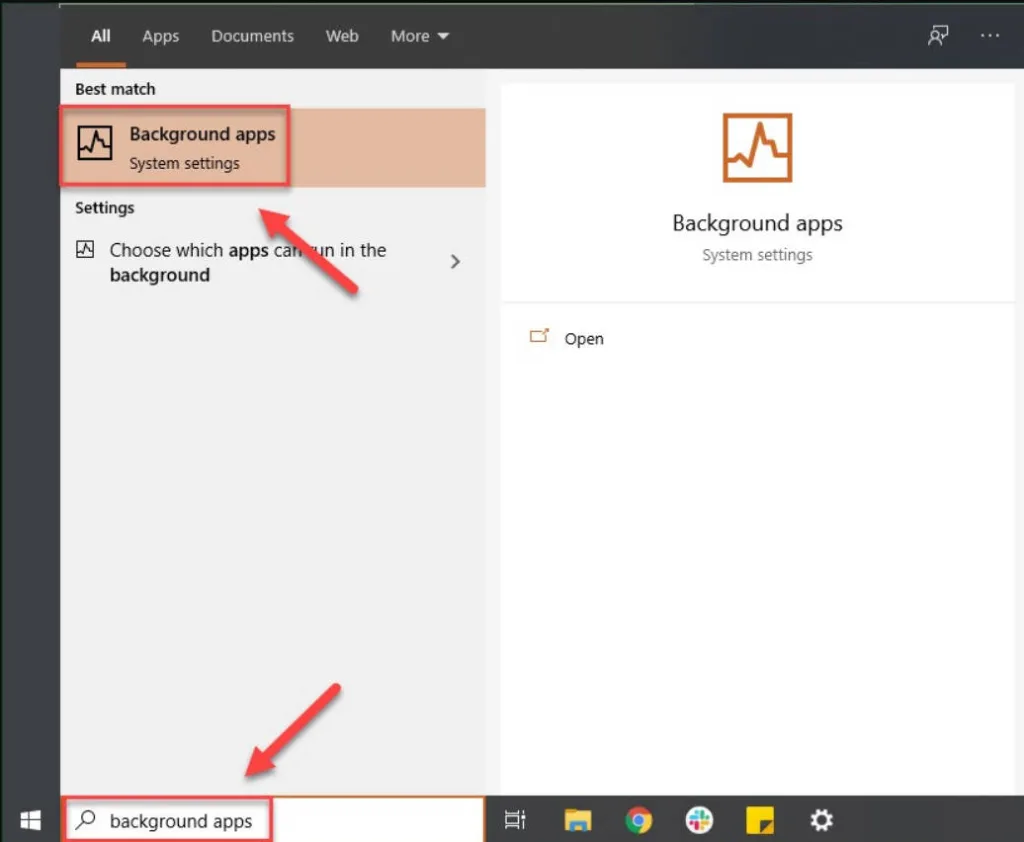
2. Toggle the Skype switch off.
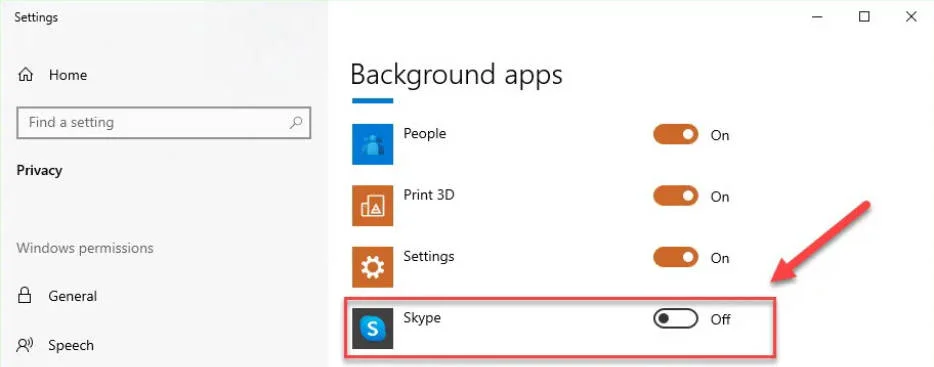
3. Restart your computer to confirm the change.
This prevents Skype from launching silently in the background when Windows starts.
Hopefully, by trying one of the methods above, you can enjoy a quieter startup.
If you have questions, run into issues, or want tips for managing other startup apps, feel free to leave a comment below.
Leave a Reply