
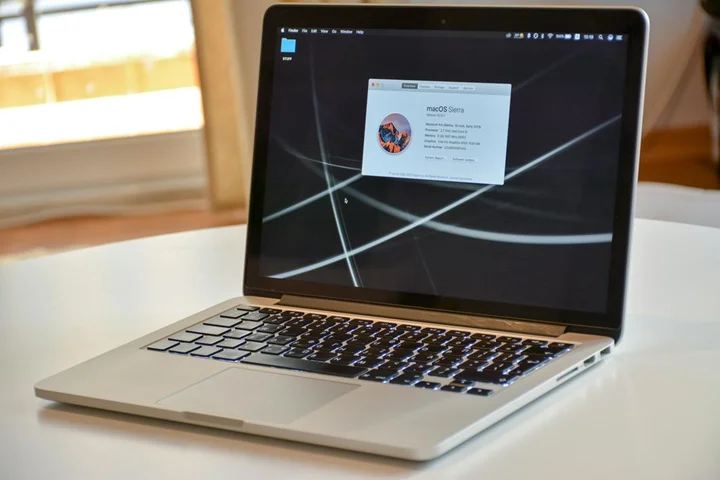
Your MacBook Pro is running slow to a crawl, and it takes ages for your macOS to take action? This is frustrating, especially when you count on the execution speed of your macOS system to finish the tasks.
But don’t be upset. There is something more you can do to speed up your MacBook before switching to a new one.
Try the tips below to speed up your MacBook Pro:
- Upgrade your MacOS
- Rebuild Spotlight index
- Limit Startup programs
- Manage Activity Monitor
- Repair disk permissions
- Free up more storage space
- Clear the caches
- Turn off Visual effects
- Automatically speed up your MacBook Pro
1. Update your MacOS
If you’re running an old Mac operating system in your MacBook Pro, it will no doubt slow down your system and make it harder to run smoothly and fast.
As Apple keeps releasing updates for macOS and iOS, updating your macOS will not only enable you to enjoy the new features but also fix some issues and speed up your system as well.
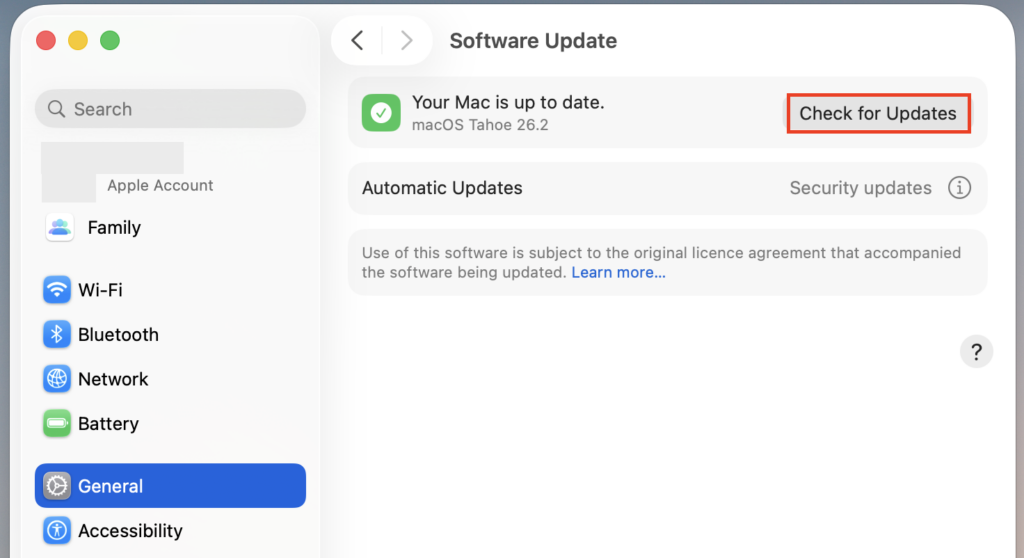
You can update your Mac software by going to App Store > Updates, check and install the updates.
2. Rebuild Spotlight index
Many Mac users have reported that their MacBook doesn’t index Spotlight, or it indexes slowly, especially after upgrading macOS. You can rebuild the Spotlight index to make your MacBook run faster. To do so:
1. Go to System Settings > Spotlight.
2. Click the Privacy tab, then drag the folder or disk that you want to index again to the list of locations, or click the Add (+) button and select the folder or disk to add.
3. After adding, select the folder or disk, and click the Remove (-) button to remove it from the list.
4. Exit System Settings. Then the indexing will start again. It may take some time to finish.
After rebooting, your MacBook should run faster.
3. Limit Startup programs
Too many programs running automatically in the startup can slow down your MacBook, which some of you may have already noticed. So you should limit the Startup programs as possible as you can. To do so:
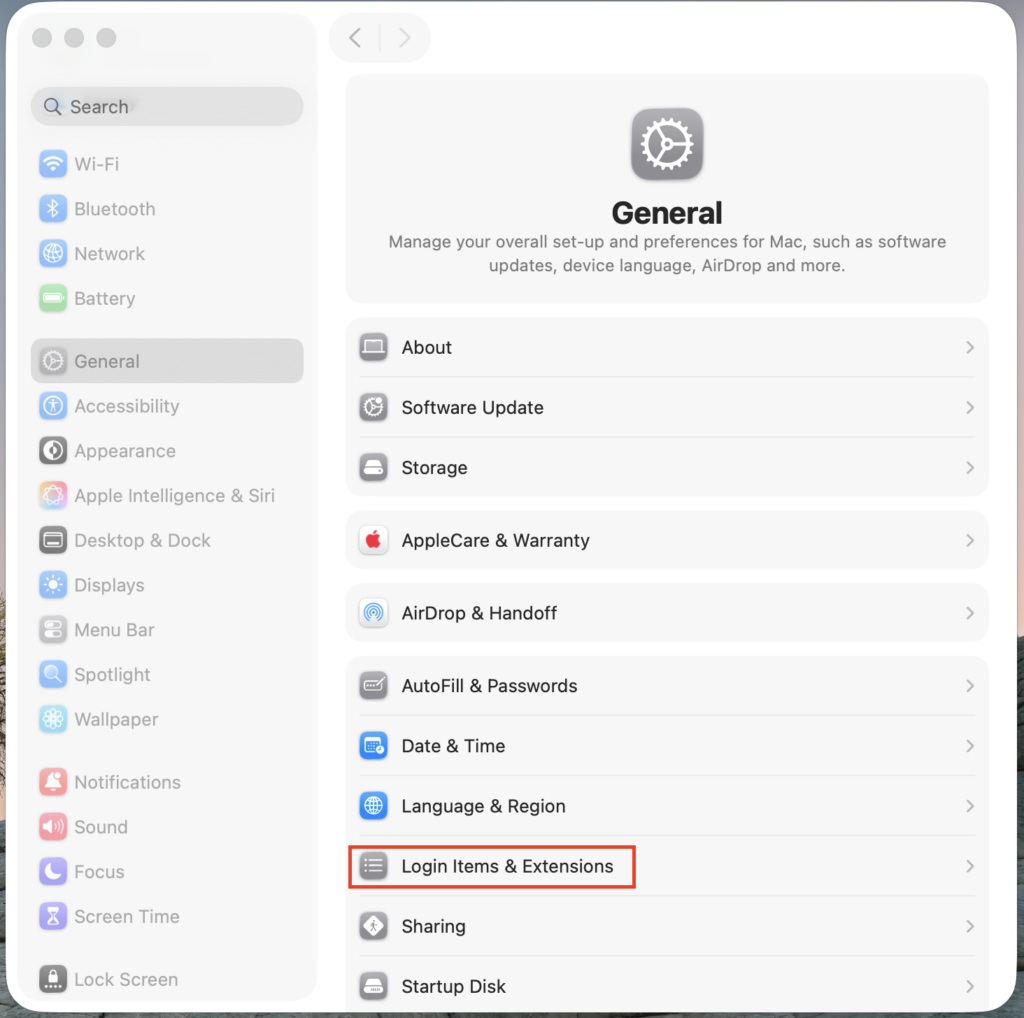
1. In your MacBook, go to System Settings.
2. Select General > Login Items & Extensions.
3. Under Open at Login, select the programs that you want to remove in the list, and click the – button.
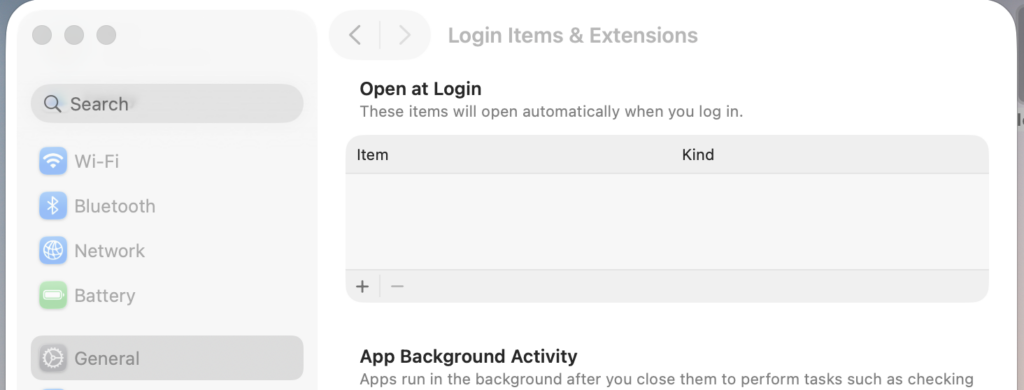
4. Restart your Mac to apply the changes.
This should help your Mac run faster when booting up.
4. Manage Activity Monitor
Some progress may take up lots of your system resources, including CPU, memory, and disk usage. So you should take a look at the Activity Monitor, which shows the processes that are running on your Mac, so you can manage them and see how they affect your Mac’s activity and performance.
1. On your MacBook Pro, go to Finder > Applications > Utilities.
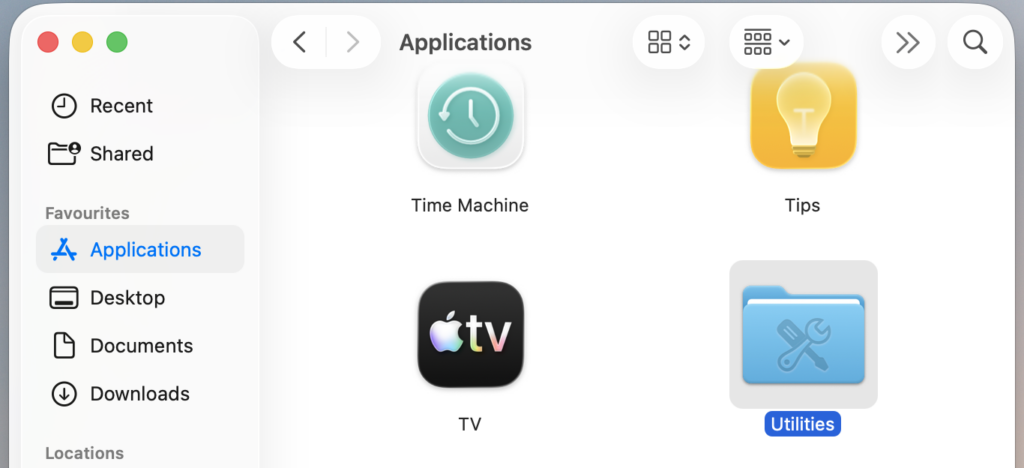
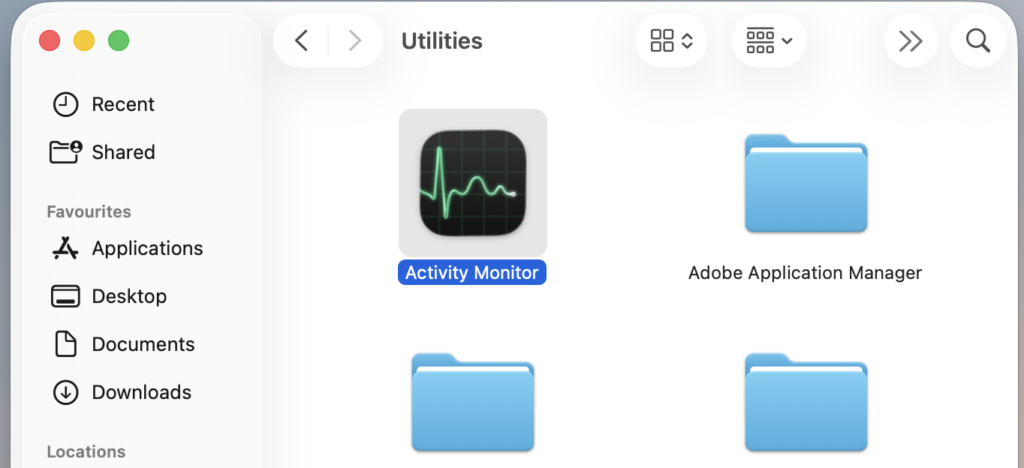
2. Double-click Activity Monitor to open it.
3. Check each tab at the top: CPU, Memory, Energy, Disk, and Network, and see which processes cost much of your system resources, especially for CPU, Memory, and Disk.
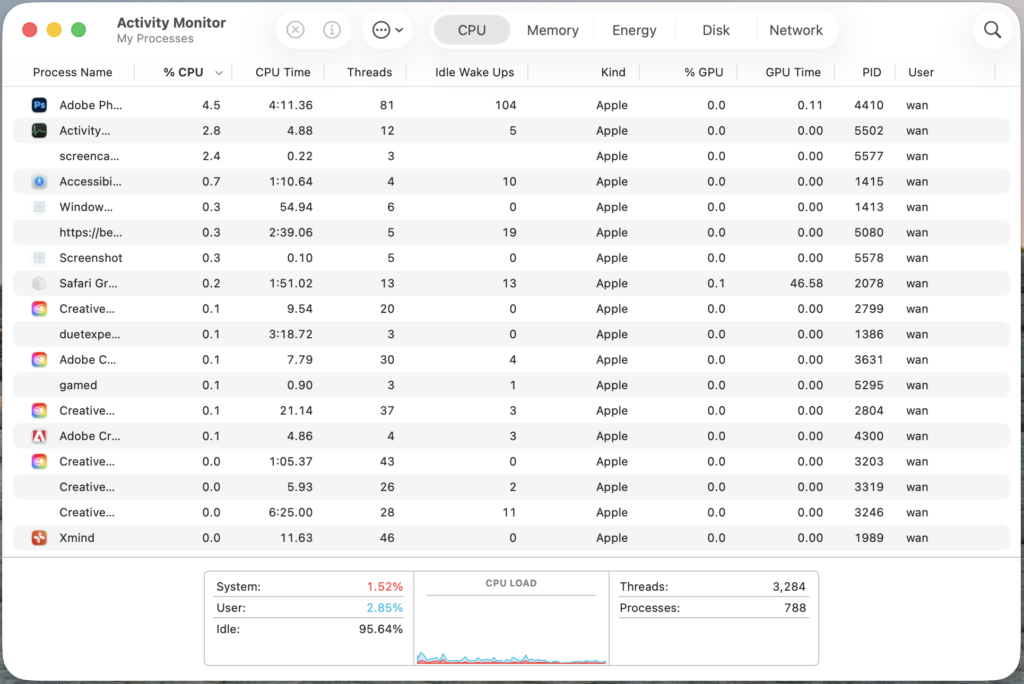
4. Close the processes that eat up much of your system resources.
This should help you speed up your MacBook Pro. If this doesn’t help, don’t worry, we have other solutions for you.
5. Repair disk permissions
Disk permissions are file settings that influence the ability to read, write, or execute the files. If the file’s permissions are not configured properly, the software can’t work properly. So you should check and repair disk permissions. To do so:
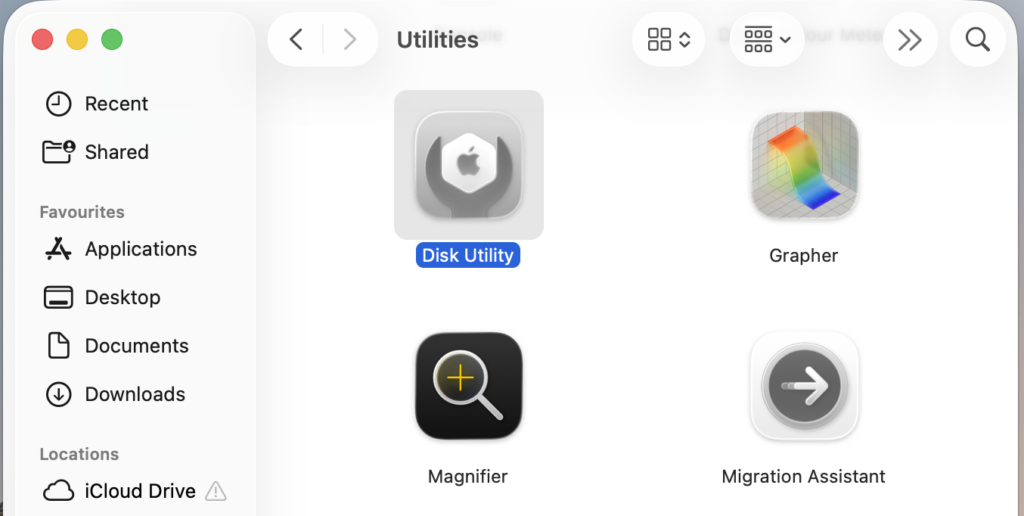
1. On your MacBook Pro, go to Finder > Applications > Utilities.
2. Double-click Disk Utility to open it.
3. Select a disk, and click the First Aid tab.

4. Tap Run.
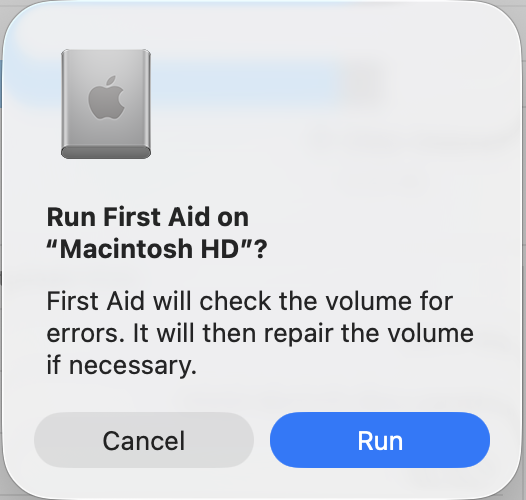
Note: Disk Utility checks a file’s permissions only if the file has a corresponding receipt in /var/db/receipts.
6. Free up more storage space
Cleaning up the hard drive has always been considered a fast and easy way to free up more space and speed up your MacBook Pro. To do so:
1. Go to System Settings.
2. Go to General > Storage, then take a look at your hard disk usage.
3. Click Optimize.
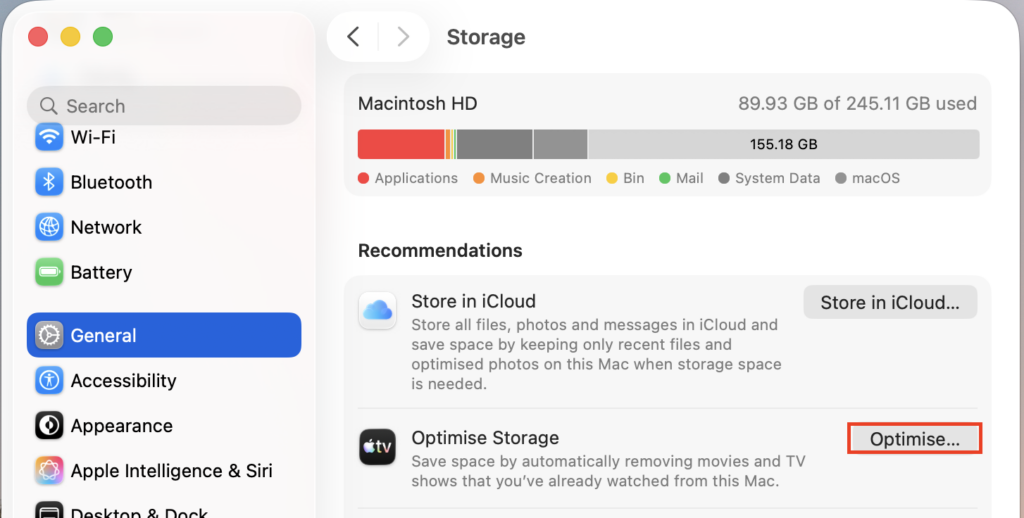
4. See the recommendations for optimizing your storage. Apply the optimizations recommended.
Restart your MacBook Pro, and it should run faster.
7. Clear the caches
Clearing the caches in your device is one of the common methods to speed up your MacBook Pro, and usually, you need to clear both the system caches and the browser caches.
Clear the system caches
You can clear system caches to speed up your MacBook Pro.
1. Click Go > Go to Folder from the menu at the top.
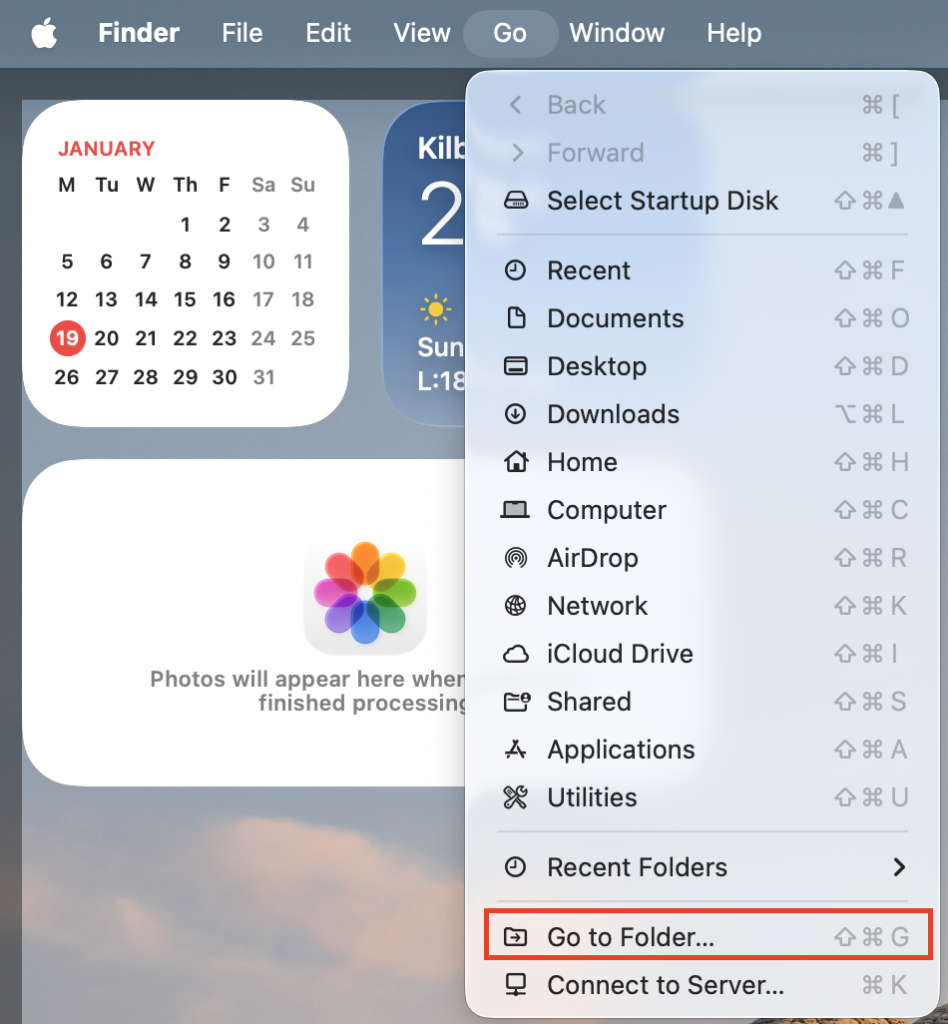
2. Enter the Library folder path: ~/Library, then press return.
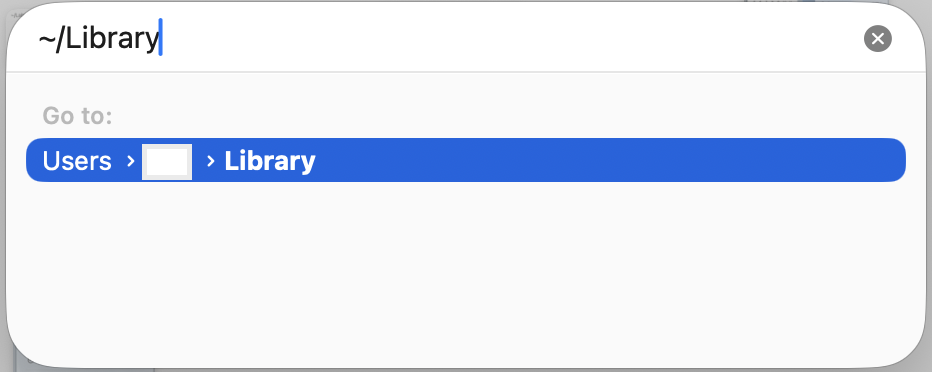
3. Scroll down and double-click the Caches folder.
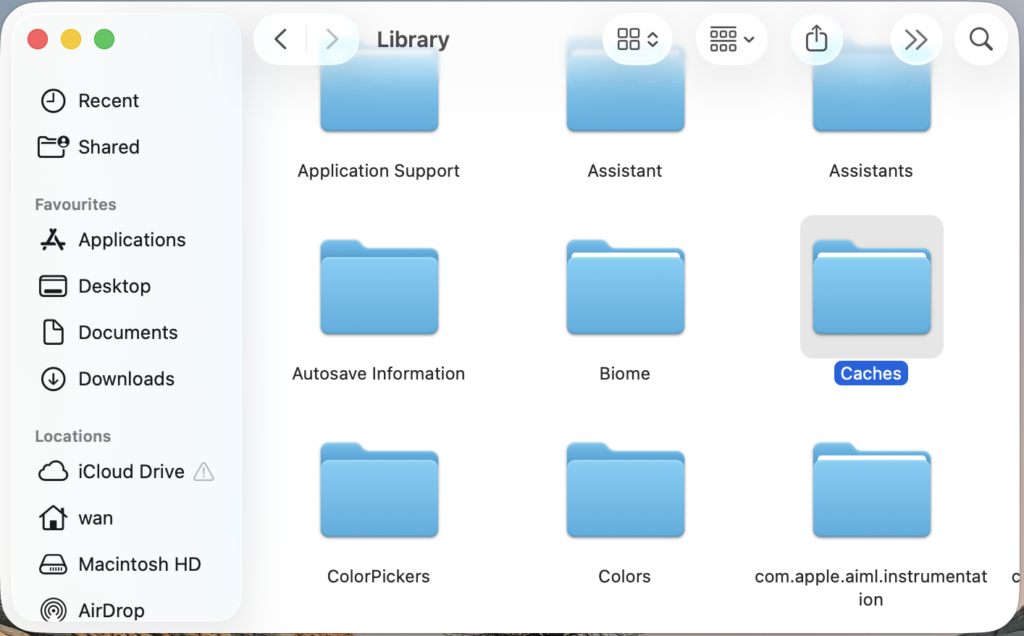
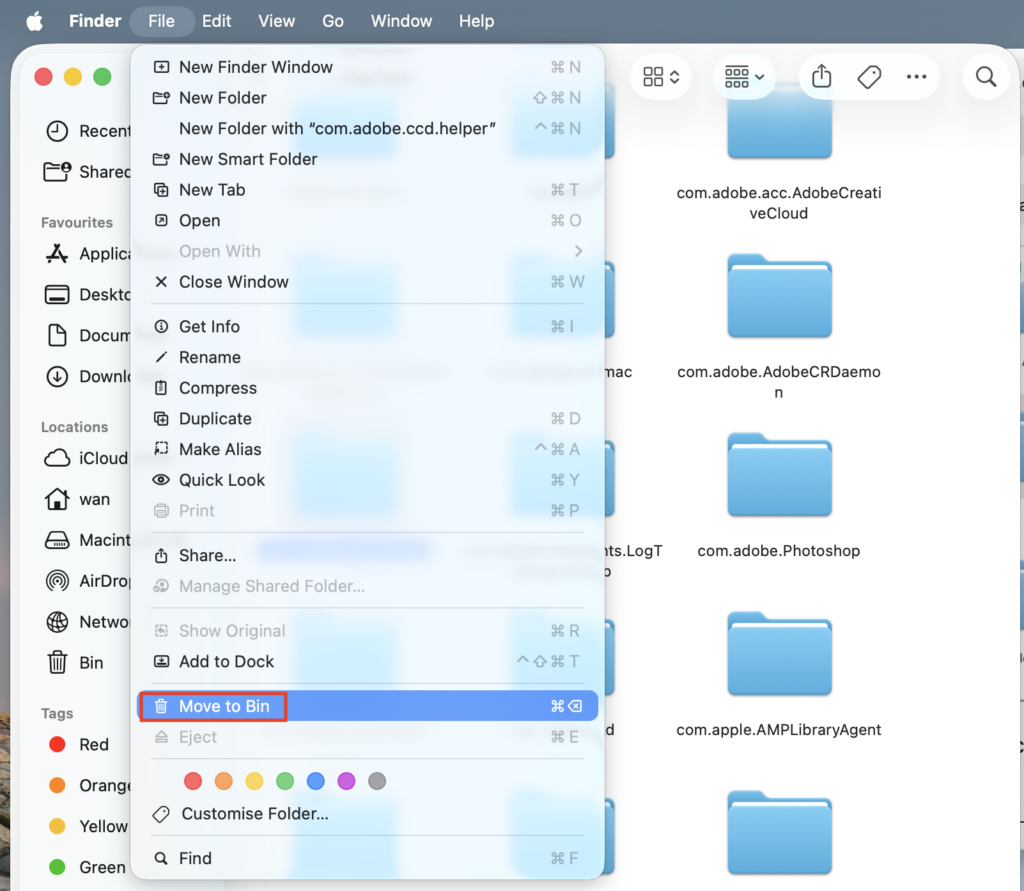
4. Select the folders or items that you want to clear, and click the File menu on the top and select Move to Trash.
5. Click Finder on the top menu, and select Empty Trash.
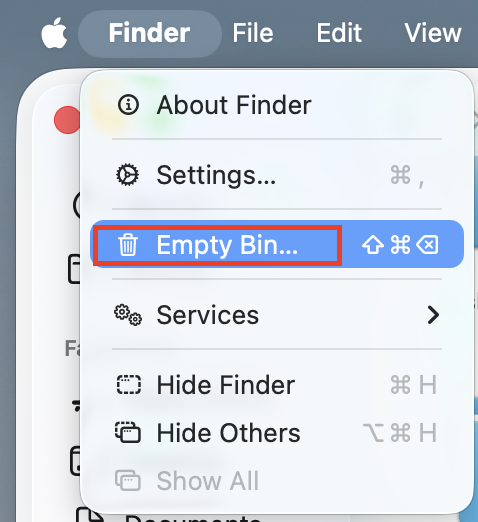
6. Confirm the delete.

Then you can completely clear the cache files from your MacBook Pro.
Clear the browser cache
You should also clear the browser cache to speed up your MacBook Pro. As there are several browsers available, we will take Safari as an example.
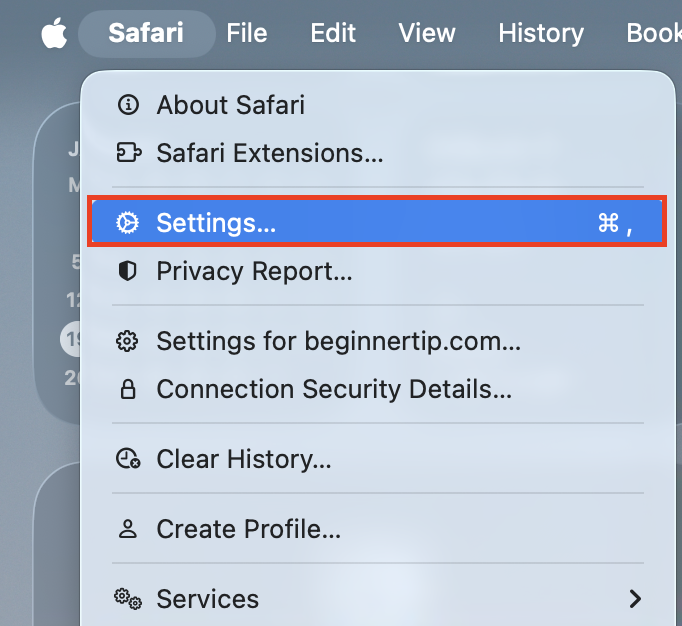
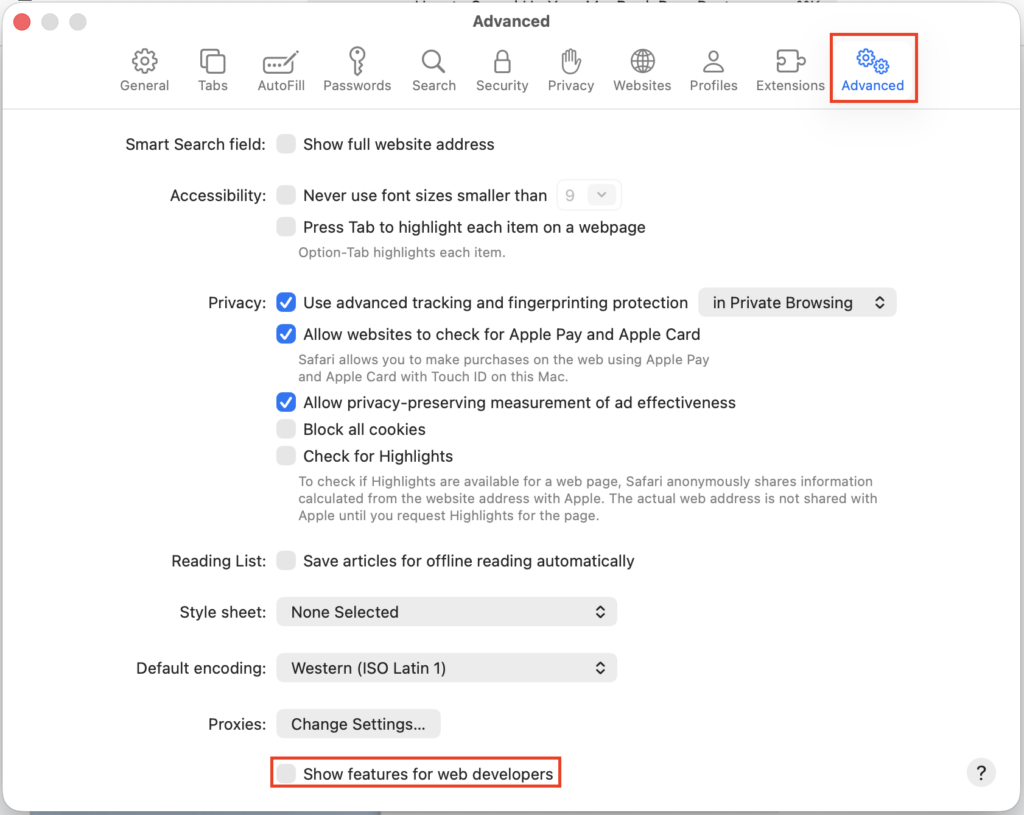
1. Open Safari on your Mac, then click Safari from the top menu, and select Settings.
2. Click the advanced tab, and check the box next to Show Develop menu in the menu bar.
3. Click the Develop tab from the menu bar, and select Empty Caches.
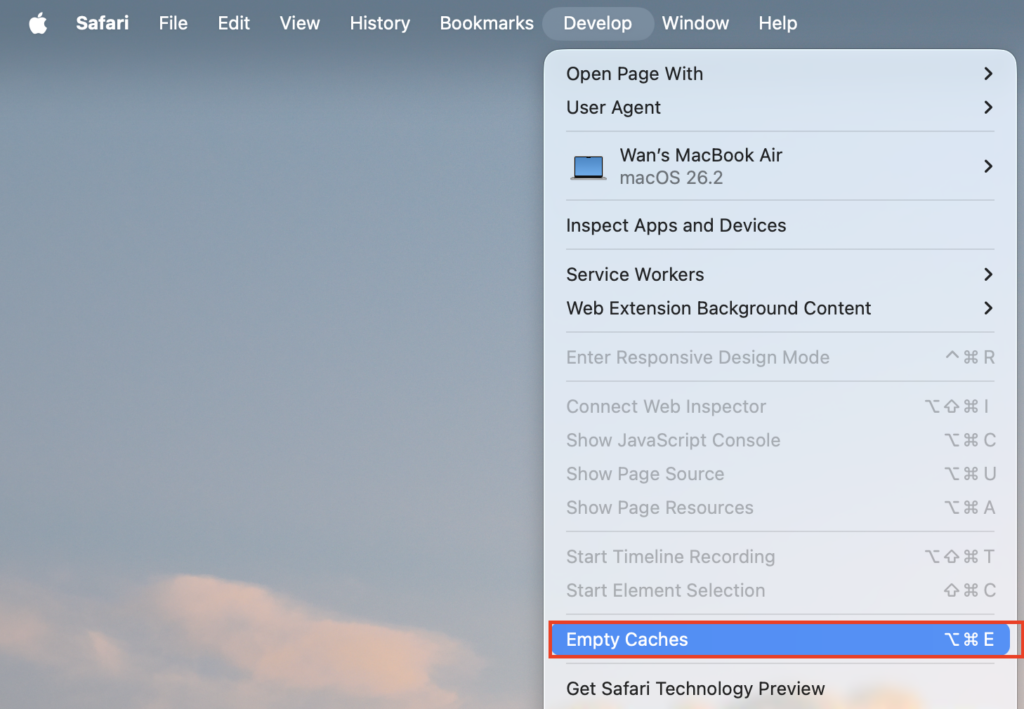
By doing so, your MacBook Pro should be running faster.
8. Turn off Visual effect
Visual effects make your screen look prettier, but we’d better focus on the system speed when your MacBook Pro is running so slow. So it’s suggested to turn off Visual Effects on your Mac to run faster.
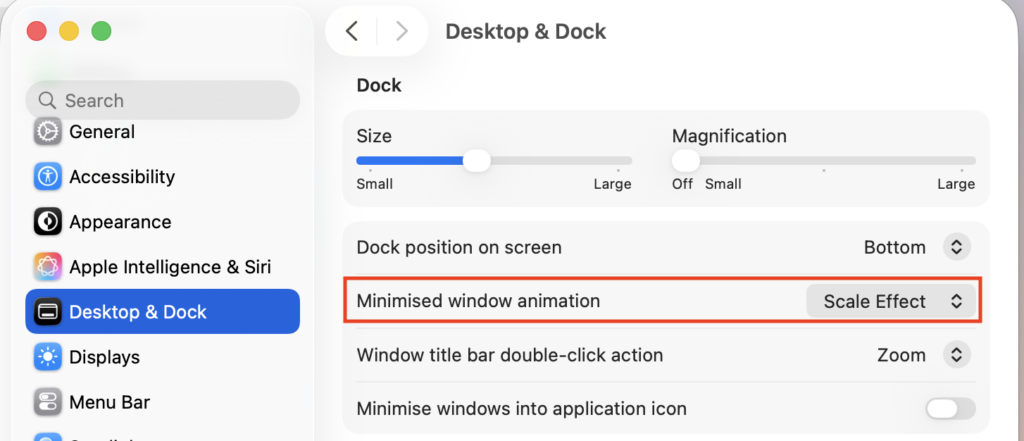
1. Go to System Settings > Desktop & Dock.
2. Make sure to Minimize windows using Scale effect.
3. Uncheck these two items: Animate opening applications, Automatically hide and show the Dock.
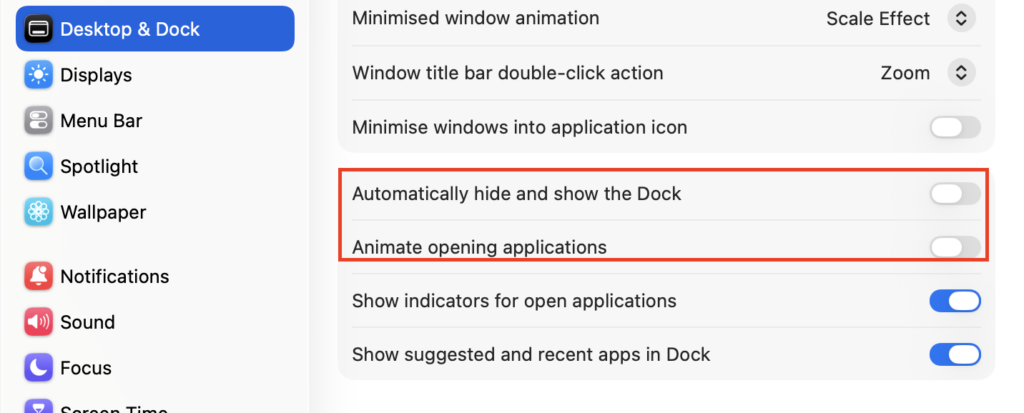
Reboot your MacBook Pro. This should help speed up your Mac, too.
9. Automatically speed up your MacBook Pro
You can manually clean your Mac, but this is time-consuming. Using a cleaning app like CCleaner can automate the process. CCleaner helps your Mac clean, fast, and secure.
1. Download and install CCleaner.
2. Run CCleaner.
3. Click the Scan button next to Clean clutter. CCleaner will then scan your MacBook.

4. After optimizing your system, reboot your MacBook Pro to take effect.
Hope this can help speed up your MacBook Pro. That’s it. Hope this post serves its purpose and helps make your MacBook Pro faster.
Leave a Reply