
If OneDrive suddenly stops uploading or syncing files on your Windows PC, you’re not alone. OneDrive sync issues on Windows are super common, and the good news is they’re usually easy to fix once you know where to look.
This article will walk you through how to fix this issue, step by step.
Fixes to try:
- Fix 1. Restart the OneDrive app on your PC
- Fix 2. Sign Out and Sign Back Into Your Microsoft Account
- Fix 3. Shorten the File Path
- Fix 4. Check for Duplicate Files or Folders
- Fix 5. Delete Temporary “~$” Files
- Fix 6. Change the OneDrive Sync Location
- Fix 7. Delete All Files in the Default OneDrive Folder
- Fix 8. Reset OneDrive Manually
Before You Start Troubleshooting OneDrive Sync Issues
Before jumping into the fixes, make sure the issue is not caused by simple limitations:
- If your PC or OneDrive storage is full, uploads will fail. So make sure you have enough local and cloud storage.
- Check the file size and ensure the file to sync does not exceed the size limit of 10GB.
Fix 1. Restart the OneDrive app on your PC
I know—it sounds too simple. But restarting OneDrive clears temporary glitches and reconnects it to Microsoft’s servers.
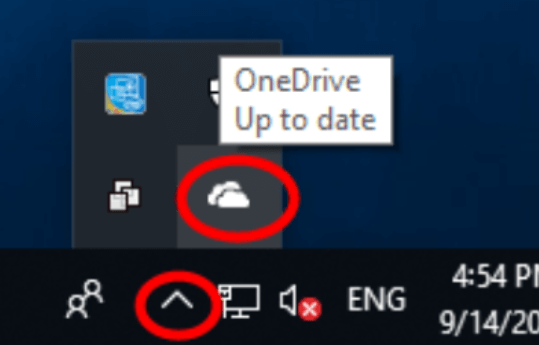
1. Click Show hidden icons on the bottom right of your screen, then the OneDrive icon.
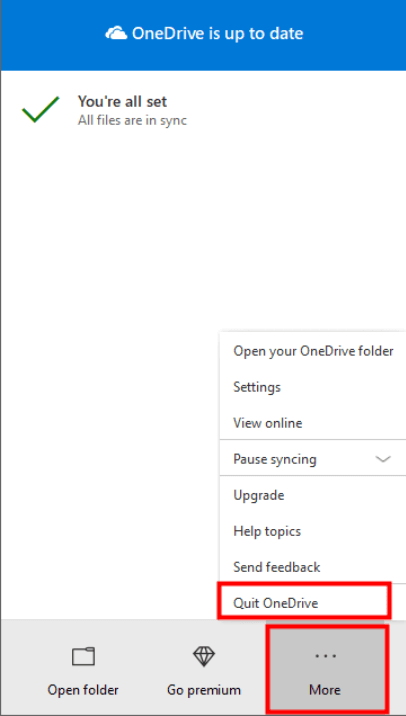
2. When the OneDrive menu pops up, click More, then Quit OneDrive to exit.
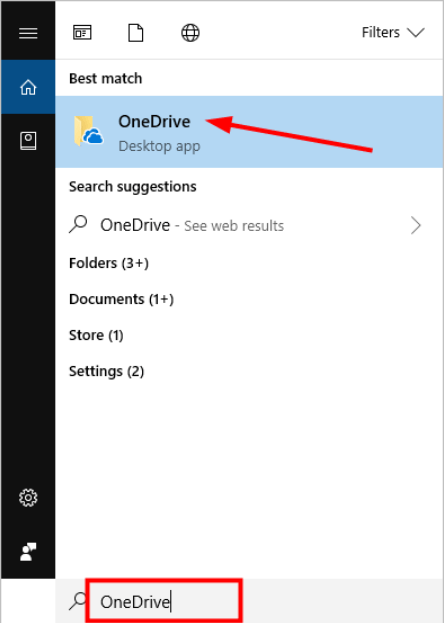
3. Type OneDrive in the search box and select OneDrive to launch the app.
4. Try syncing your files again.
Still stuck? No problem. Let’s keep going.
Fix 2. Sign Out and Sign Back Into Your Microsoft Account
If your Microsoft account session is corrupted or disconnected in the background, OneDrive won’t communicate properly with the cloud. Signing out and back in refreshes your authentication token.
1. Click the Start button, then the gear icon to go to Settings.
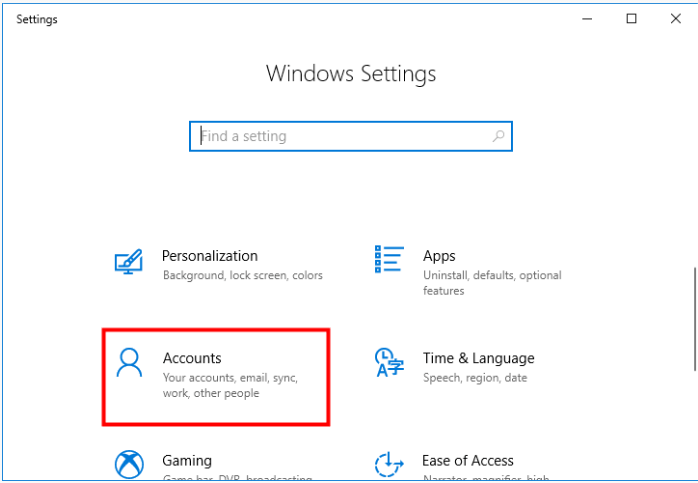
2. Click Accounts.
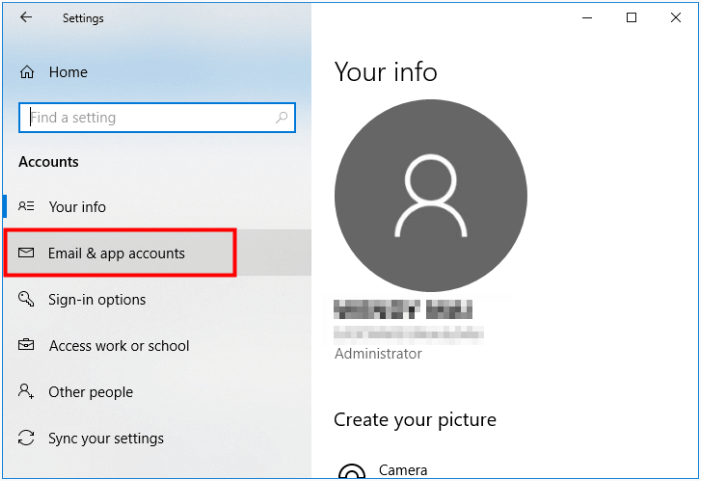
3. In the left pane, select Email & app accounts.
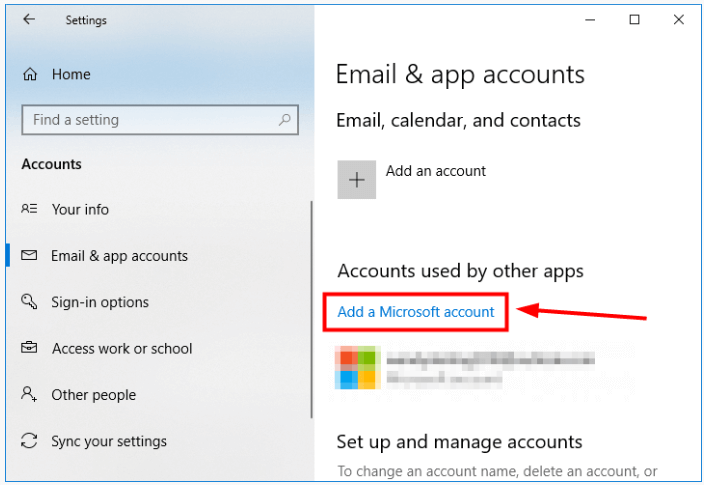
4. In the right pane, click Add a Microsoft account, then follow the onscreen instructions to sign in.
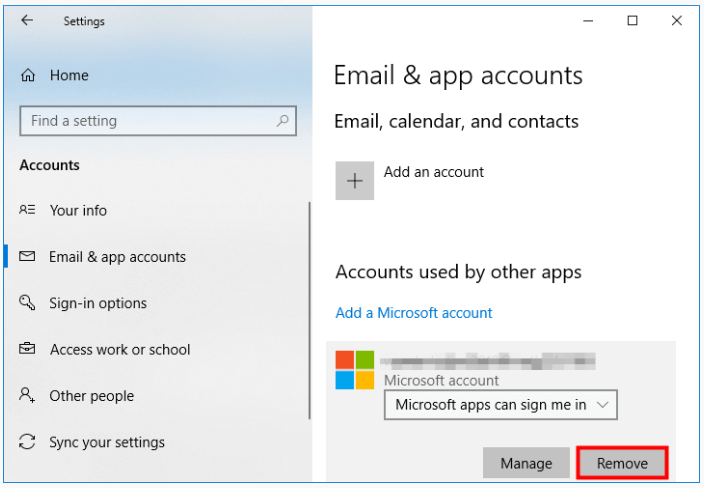
Note: If you’ve already signed in, then try removing your account to re-sign in.
5. Restart OneDrive and check the sync status.
Fix 3. Shorten the File Path
Windows has a 255-character file path limit. If your file lives inside too many folders, OneDrive refuses to sync it.
An example of a problem path:
C:\Users\Your_User_Name\OneDrive\Documents\OfficeWork\2025\
September\Deadline\ThisWeek\Wednesday\This_is_an_example_of_long_file_path.txt
You can try renaming the file with fewer characters, and also avoid having too many subfolders, inside of subfolders, to make the file path shorter.
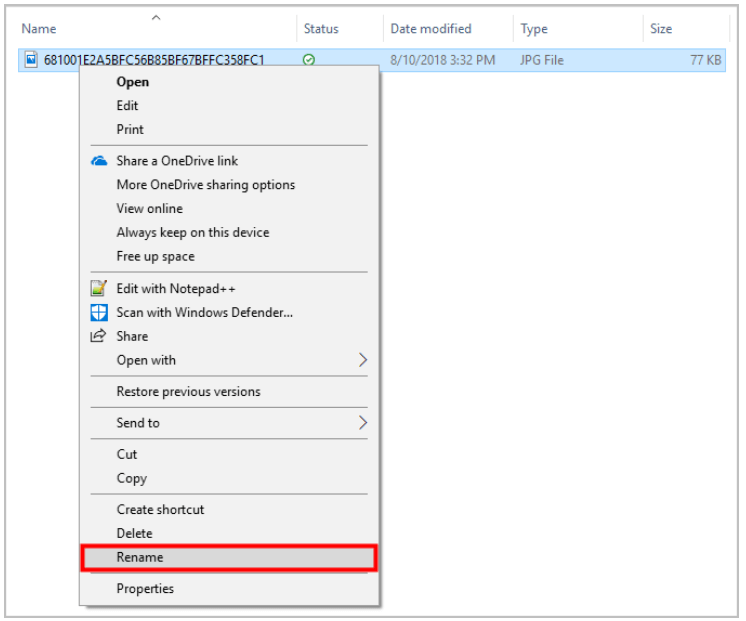
Then, try to sync the file in question with OneDrive again.
Fix 4. Check for Duplicate Files or Folders
OneDrive cannot upload a file or folder when another item with the same name already exists in the directory. Here is how to fix this:
1. Open the affected OneDrive folder.
2. Look for files or folders with identical names.
3. Rename the new file or the existing file to remove the conflict.
4. Try syncing again.
Fix 5. Delete Temporary “~$” Files
Files beginning with ~$ are temporary cache files created by Office applications. Sometimes they get stuck or corrupted and block syncing.

Search for files starting with ~$ (e.g., ~$report.docx) and delete these temporary files. They’re safe to remove.
Fix 6. Change the OneDrive Sync Location
If OneDrive’s current folder has permission issues or corrupted files, moving it forces OneDrive to rebuild everything cleanly.
1. Click the OneDrive icon in the notification area to open its menu.
2. Click More, then Settings.
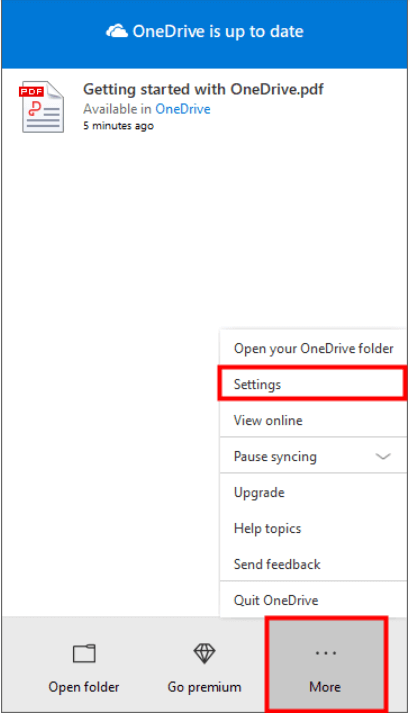
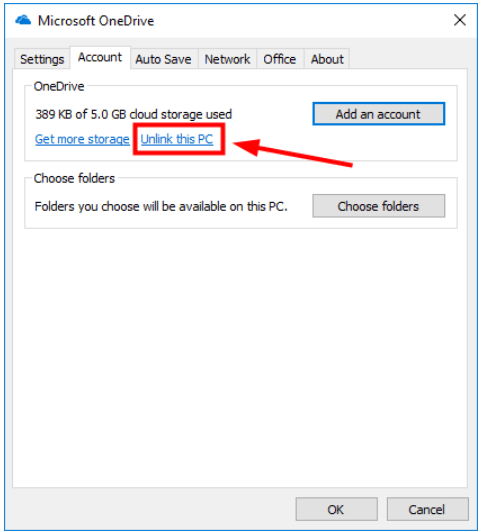
3. Click Unlink this PC.
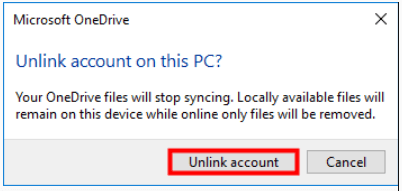
4. Click Unlink account as confirmation.
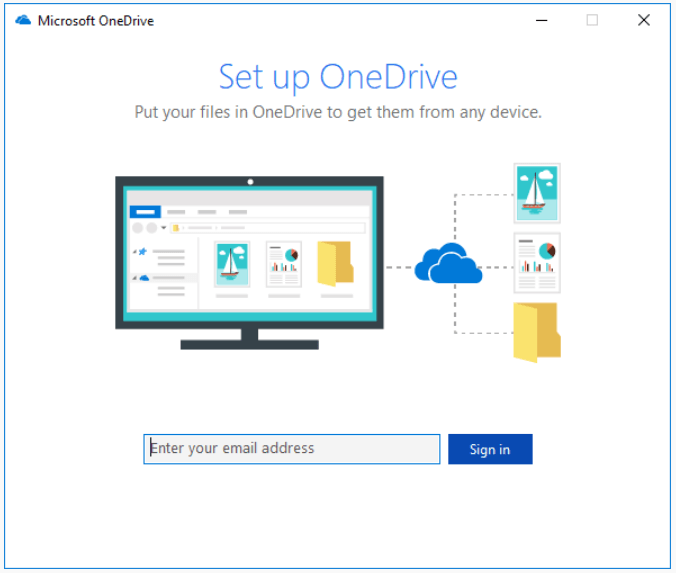
5. Enter your email address to sign in to OneDrive. OR you can leave the box empty and simply click the Sign in button to sign in with your Microsoft account.
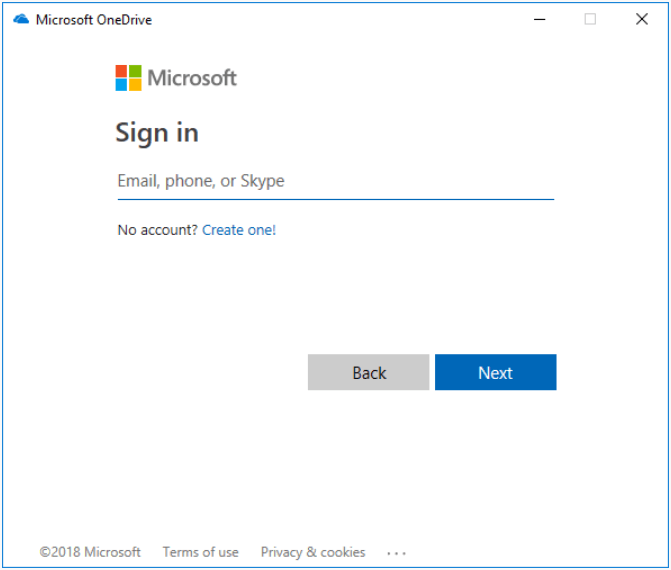
6. If you choose to sign in with your Microsoft account, enter your account and password accordingly.
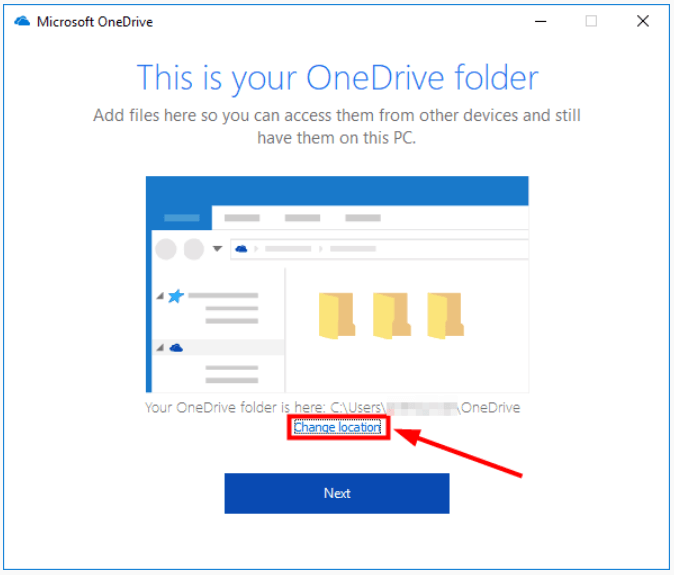
7. Click Change location to change the file location from the default C:\Users\username\OneDrive to, say, C:\Users\username\Documents\OneDrive
8. Navigate to the following entries: C:\Users\username\Documents, then click Select Folder.
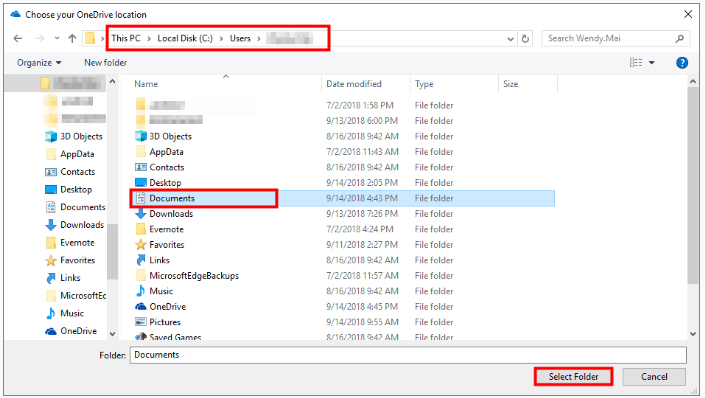
9. You can see the file location is changed now, then click Next.
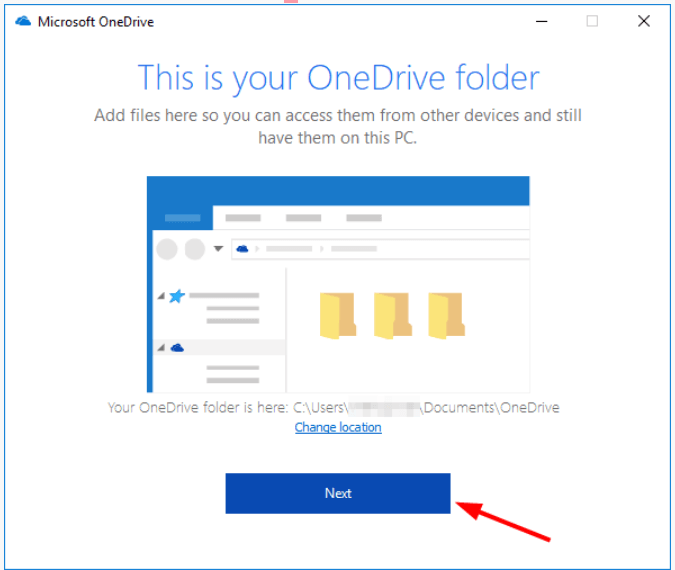
Once OneDrive finishes setting up, try syncing again.
Fix 7. Delete All Files in the Default OneDrive Folder (After Backup)
If local files inside the OneDrive folder are corrupted, OneDrive may stop syncing. Clearing the folder forces OneDrive to rebuild a clean structure.
1. Back up all files in your OneDrive folder to a USB drive or external storage.
2. Delete everything inside the default OneDrive folder.
3. Copy the backup files back into the folder.
4. Allow OneDrive to re-sync the fresh file set.
This could take a bit of time, but it works surprisingly often.
Fix 8. Reset OneDrive Manually
If nothing else worked, this is the nuclear option.
This will remove all local OneDrive files, so back up important items first.
1. On your keyboard, hold down the Windows key and press R to open the Run box.
2. Copy-paste the following command and press Enter to reset OneDrive.
%localappdata%\Microsoft\OneDrive\onedrive.exe /reset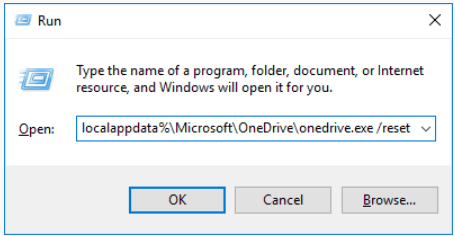
3. Copy-paste the following into the Run box and press Enter to manually start OneDrive.
%localappdata%\Microsoft\OneDrive\onedrive.exe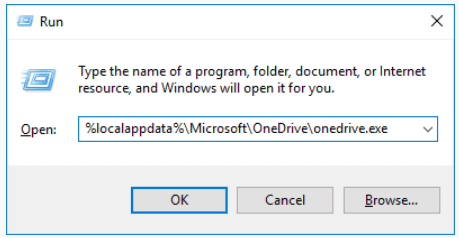
4. Drop a test file into the OneDrive folder and watch for syncing.
Final Thoughts
Hopefully, by following the methods above, you can resolve most “OneDrive not syncing” problems quickly.
If you’ve got questions or found a fix that worked when nothing else did, drop a comment.
Thanks for reading!
Leave a Reply